
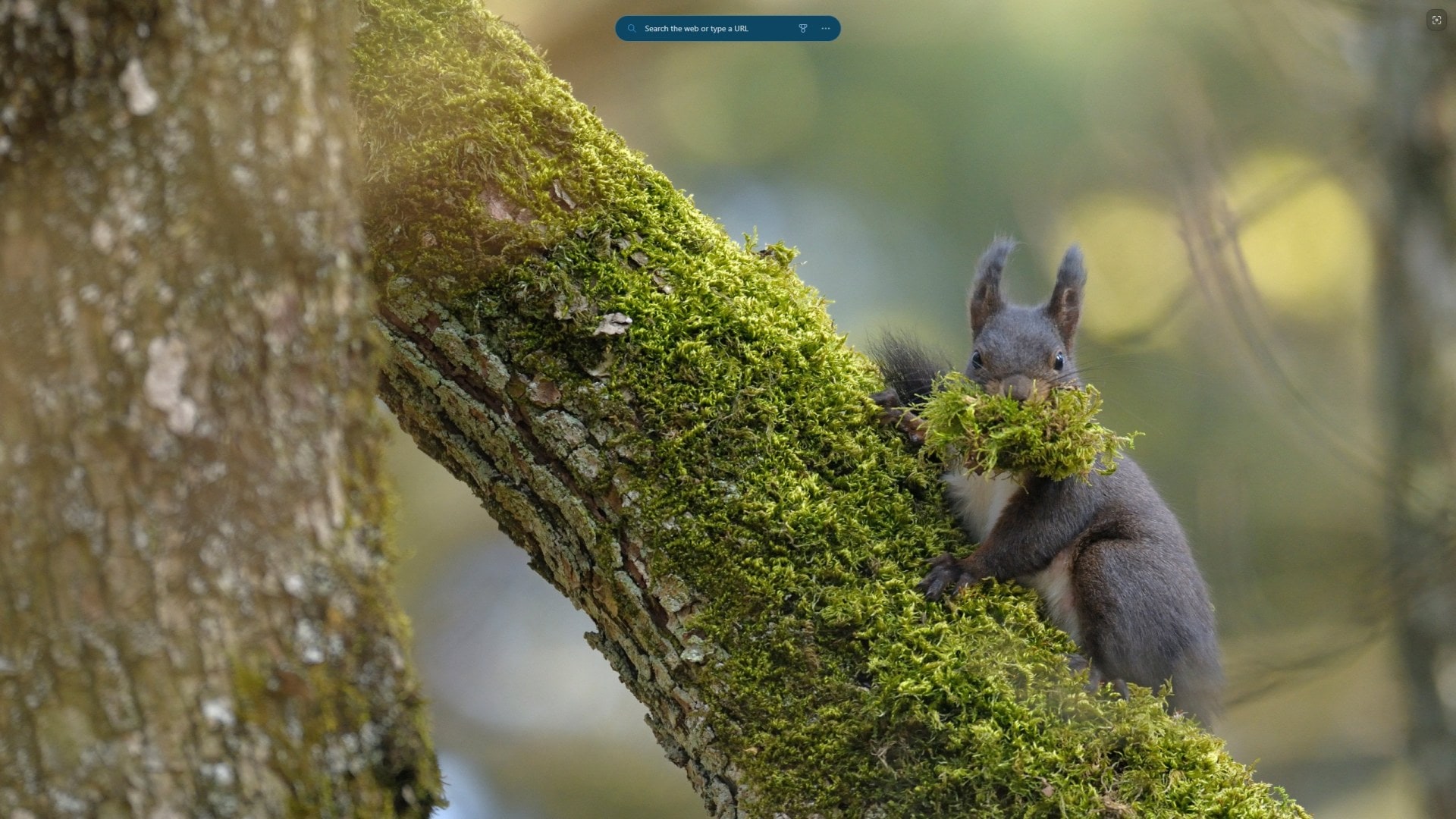
Brightening up the daily desktop experience in Windows 11 is effortless with the Bing Wallpaper app, which delivers stunning images straight from Bing’s vast global collection right to the user’s screen, refreshing automatically each day.
Why Bing Wallpaper Makes a Difference
 The visual appeal of a desktop can deeply influence mood, energy, and productivity. With Windows 11’s sleek interface, many users desire fresh and lively backgrounds beyond the default options. Bing Wallpaper app answers this need by delivering curated, high-resolution images from around the world—mountains, oceans, iconic landmarks, wildlife, and cultural scenes—directly onto the desktop. Each day brings a new surprise, turning everyday work into a visually stimulating adventure.
Installing Bing Wallpaper on Windows 11

To begin, simply open the Microsoft Store and search for “Bing Wallpaper.” The official app is lightweight, safe, and built expressly for Windows 10 and 11. After clicking “Install,” the application quickly adds itself to the system tray for easy access. During installation, users can optionally decline setting Bing as their homepage or changing their default search provider, focusing only on the wallpaper functionality.
Step-by-Step Installation Guide
-
Open Microsoft Store and search “Bing Wallpaper app.”
-
Click on the app, then select “Install.”
-
Uncheck any prompts to set Bing search as homepage as desired.
-
Launch the app after installation; the system tray shows the Bing Wallpaper icon.
Features and Customization
Once installed, Bing Wallpaper runs quietly in the background, fetching the latest breathtaking image from Bing each day and setting it as your desktop wallpaper. Users can:
-
Get daily refreshed wallpapers automatically.
-
Browse featured images and manually choose favorites.
-
Learn more about each image via popups with location, photographer, and backstory.
-
Cycle between current and previous wallpapers using system tray controls.
-
Enable notifications and customize update frequency in settings.
Configuring Bing Wallpaper for Maximum Enjoyment
 Customization is central to the Bing Wallpaper experience. Access the app settings to control automatic refreshing, notifications, and preferences. Use the “Learn about this picture” icon on the desktop, in the upper right, to open Bing’s page about the image—perfect for curious users or those seeking trivia and travel inspiration.
Troubleshooting Common Issues
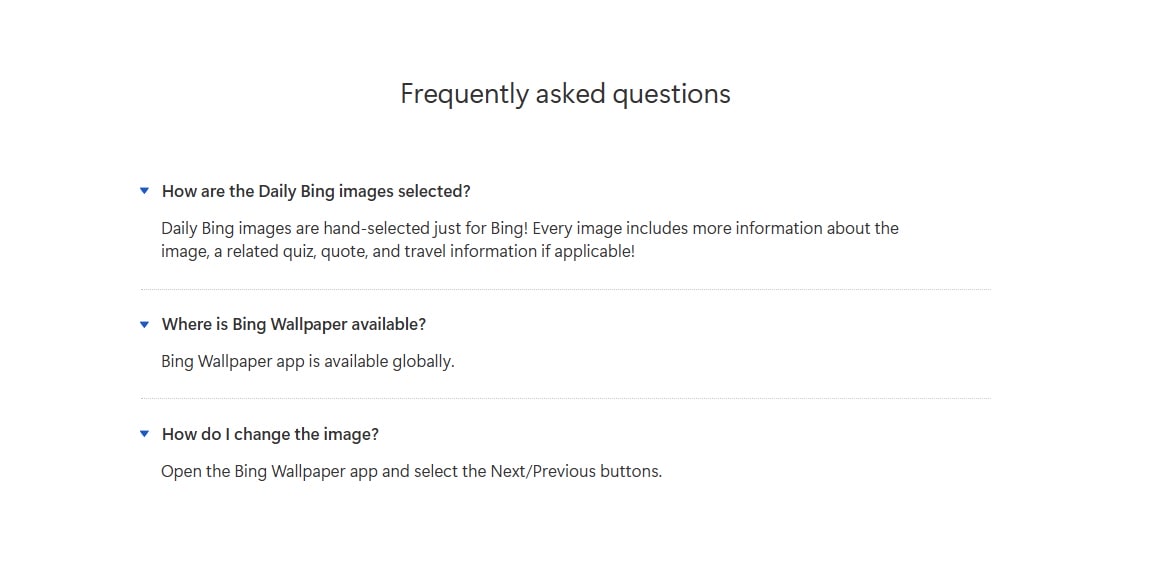 Occasionally, Bing Wallpaper might not update daily images due to network issues, outdated app versions, or Windows configuration. Solutions include:
-
Checking Windows Update status and ensuring Windows 11 is up-to-date (especially version 22H2 and later for full Windows Spotlight integration).
-
Reinstalling the Bing Wallpaper app by uninstalling, restarting, and reinstalling, which often resolves persistent issues.
-
Verifying time and date settings—incorrect configuration can stop regular image updates.
Integrating Bing Wallpaper with Windows Spotlight
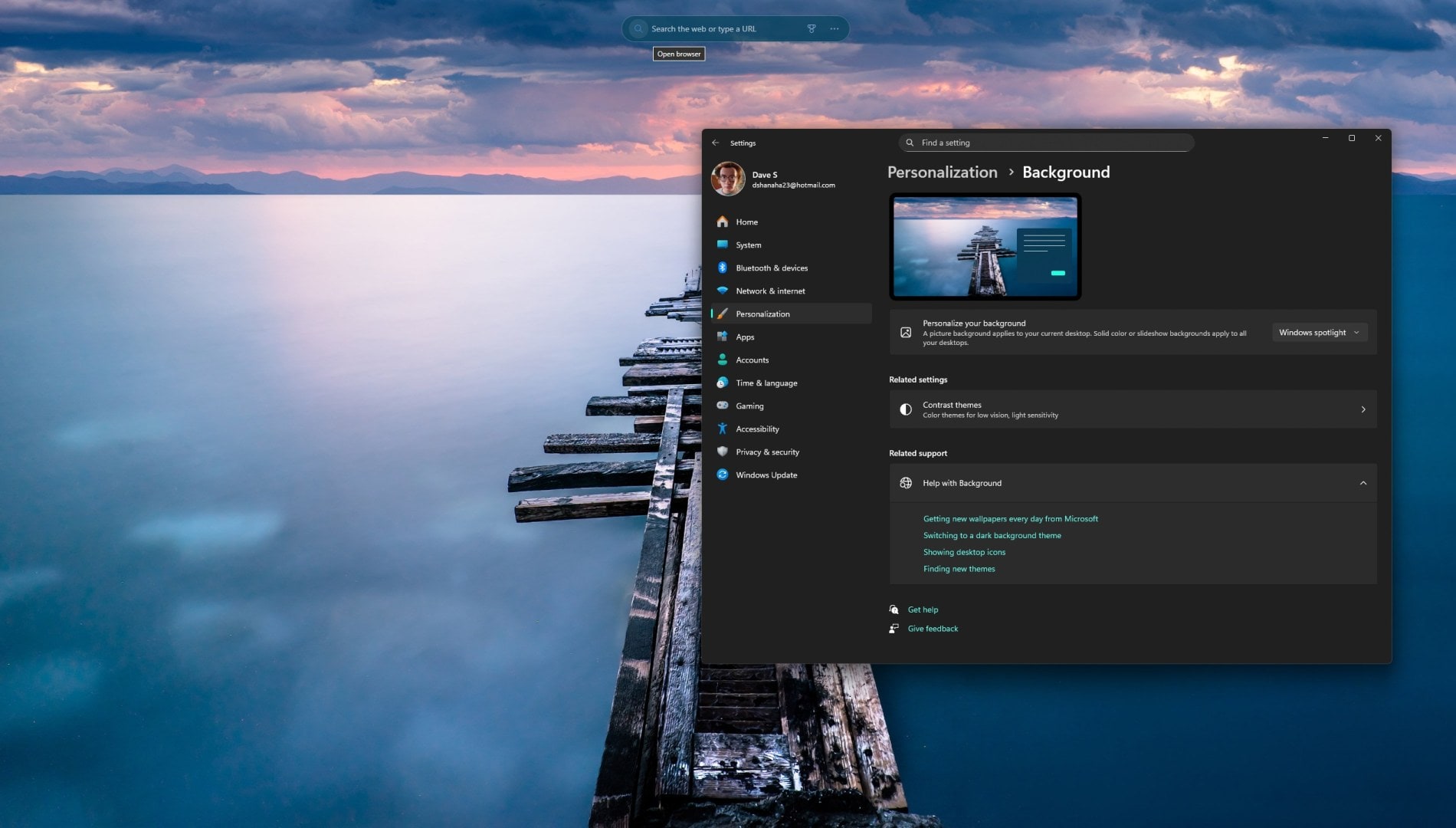 Windows 11 22H2 and later support direct integration of Bing images through Windows Spotlight. To enable:
-
Right-click desktop and select “Personalize.”
-
Navigate to “Background” and choose “Windows Spotlight.”
-
The desktop instantly switches to Bing’s daily image sync, with metadata and interactivity.
This method ensures Bing’s latest wonders appear without needing the standalone app if desired.
Privacy and Data
The Bing Wallpaper app functions primarily to deliver images, but it may prompt the installation of related Microsoft services. Be sure to review permission requests and terms during setup, and consult the official Microsoft documentation.
Why Choose the Bing Wallpaper app?
Bing’s wallpaper collection is renowned for its quality, diversity, and educational value:
-
Global reach: Landscapes, animals, and landmarks from every continent.
-
Daily refresh: Never see the same image twice, keeping the desktop fresh and engaging.
-
Educational: Each photo comes with information, allowing users to expand their knowledge naturally.
-
Customization options: From manual selection to automatic updates, the experience suits every user’s preference.
Tips for an Even Brighter Desktop
Maximize the Bing Wallpaper experience with additional tips:
-
Pair wallpapers with matching Windows accent colors for a unified look.
-
Use multi-monitor setups to display different Bing backgrounds per screen.
-
Share favorite Bing wallpapers with friends or on social media—spread inspiration
The Bing Wallpaper app is a simple yet powerful way to revitalize the daily desktop on Windows 11. With seamless installation, beautiful daily updates, and a trove of features, it offers one of the best personalization experiences available for free on Microsoft’s platform.
By installing the Bing Wallpaper app and exploring its features, anyone can transform their ordinary desktop into a gallery of the world’s wonders—each day, a new visual story unfolds, brightening both the screen and the mind.
Try the Bing Wallpaper app for yourself (clicking this link downloads the app to your device automatically; only available to use on PC).
Download Bing Wallpaper (on your own time on PC).
Download Bing Wallpaper on Google Play Store (Can’t promise the same features described above because I have not tested the Android app).
Discover more from Microsoft News Now
Subscribe to get the latest posts sent to your email.
