
Microsoft 365 Copilot is designed to be the everyday AI partner that lives where you already work, not a separate tool you have to remember to open. Embedded directly into apps like Word, Excel, PowerPoint, Outlook, and Teams, it helps you move faster on the tasks that usually eat your time—drafting, summarizing, analyzing, and following up. Instead of starting from a blank page or digging through emails and documents, you describe what you need in natural language and let Copilot generate a first draft, pull context from your Microsoft 365 data, and then refine it with you in the loop.
Under the hood, Copilot uses large language models together with your Microsoft 365 content—emails, files, calendar events, meetings, and chats—via Microsoft Graph to produce context-aware suggestions that are tailored to your role and the information you can access. Because it is integrated into the Microsoft 365 platform, it respects the same permissions, compliance controls, and security boundaries your organization already has in place, including role-based access and data-loss prevention policies. This makes Copilot a natural next step for organizations that want to adopt AI while staying aligned with their existing governance model, rather than bolting on yet another disconnected AI app.
Microsoft 365 Copilot Overview
Microsoft 365 Copilot is an AI assistant built directly into apps like Word, Excel, PowerPoint, Outlook, and Teams to help you create content, summarize information, and automate repetitive work. It uses large language models together with your Microsoft 365 data (emails, files, meetings, and chats) through Microsoft Graph to provide context-aware answers and suggestions.
Unlike the standalone Microsoft Copilot on the web, Copilot for Microsoft 365 lives inside your work apps and works securely with your organization’s data according to existing permissions and policies. This means it can only see what you can see, and it respects your company’s security and compliance settings.
Step 1: Check Access and Open Copilot
Before using Copilot, you need the right Microsoft 365 license and for your admin to have enabled Copilot in your tenant. Many enterprise and business plans now offer Copilot as an add-on, and once assigned, Copilot buttons and chat experiences start appearing across your apps.
To open Copilot in different places:
-
Word, Excel, PowerPoint, OneNote, Outlook: Look for the Copilot icon in the ribbon or on the right-side pane to open Copilot chat for that document or email.

-
Teams: Use Copilot during or after meetings from the meeting window, or open the Copilot app in Teams to ask questions about chats and channels.
-
Microsoft 365 app / web: Go to the Copilot experience in the Microsoft 365 app or browser to use a central chat that can reference your files, emails, and calendar.
If you are totally new, Microsoft offers a “Get started with Microsoft 365 Copilot” training path that walks through account setup and basics across apps in a structured way.
Step 2: Learn the Basics of Prompting

Everything with Copilot starts with a prompt—the instruction you give it. Good prompts are clear, specific, and include context like audience, tone, and desired format.
You can start with simple prompts such as:
-
“Summarize this document in three bullet points for a leadership audience.”
-
“Draft an email to the project team recapping the key decisions from this document.”
-
“Create a 10-slide presentation based on this Word file with an executive-friendly tone.”
Training resources from Microsoft and partners emphasize using structure in prompts (goal, context, constraints, and style) and refining responses with follow-up questions rather than starting from scratch each time. Copilot is conversational, so you can keep iterating: “Shorten this,” “Make it more formal,” or “Add three risks and mitigations.”
Step 3: Use Copilot in Word for Drafting and Summarizing
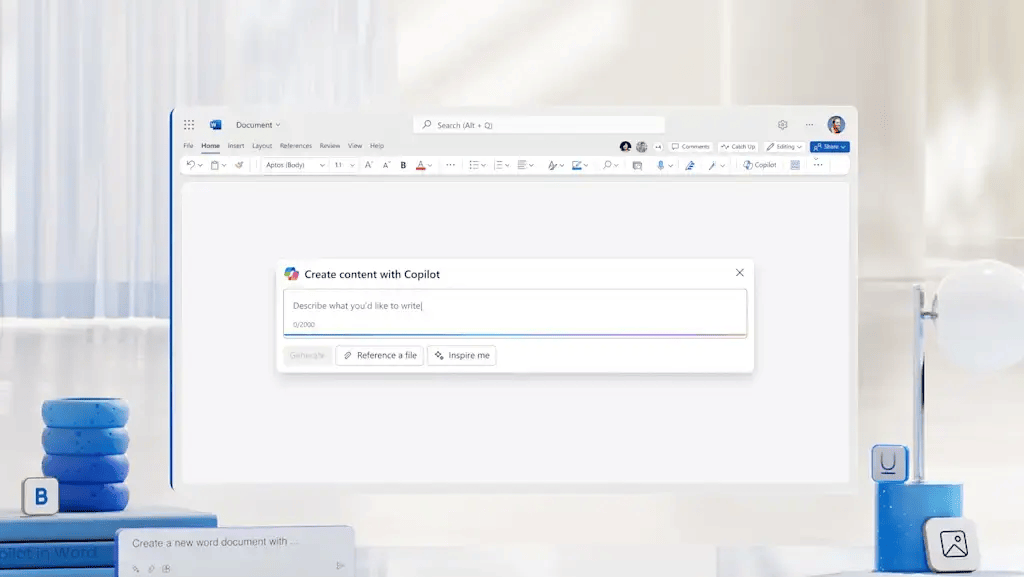
Word is one of the easiest places to experience Copilot for the first time. Copilot can draft new content from scratch, expand bullet points into full paragraphs, and summarize long documents into concise overviews.
Common starter workflows in Word include:
-
Drafting from a prompt
-
Click the Copilot icon and use a prompt like: “Draft a one-page project proposal for migrating our CRM to the cloud, aimed at the CIO.”
-
You can then ask Copilot to adjust tone, length, or structure, or to add sections like risks, timelines, or budget estimates.
-
-
Summarizing existing content
-
Open a long report, select Copilot, and ask: “Summarize this document in a one-paragraph executive summary and 5 bullet points.”
-
This is especially useful before meetings or when you inherit someone else’s document.
-
-
Refining and rewriting
-
Highlight text and use Copilot to “Improve clarity,” “Make it more concise,” or “Change to a more persuasive tone.”
-
Microsoft’s official training modules show examples of how Copilot in Word helps transform rough drafts into polished content much faster than manual editing.
Step 4: Use Copilot in Excel for Insights, Not Just Formulas

Excel with Copilot is designed to help you ask questions about your data instead of wrestling with complex formulas. Copilot can analyze patterns, suggest charts, and even write formulas for you.
Practical ways to start in Excel:
-
Ask natural language questions
-
With a data table open, prompt: “Analyze this data and highlight key trends over the past 12 months.”
-
You can follow up with: “Create a summary in plain language for non-technical stakeholders.”
-
-
Generate formulas automatically
-
Ask Copilot: “Write a formula to calculate year-over-year growth for this column and fill it down.”
-
You can then ask it to explain what the formula does in simple terms, which is helpful for learning.
-
-
Build visual summaries
-
Prompt: “Create a chart that compares revenue by region and add a brief written insight.”
-
Copilot can insert the chart and draft commentary you can tweak.
-
Official Microsoft learning paths position Excel with Copilot as a way to broaden data literacy by reducing the barrier of advanced formula knowledge.
Step 5: Use Copilot in PowerPoint for Fast Presentations
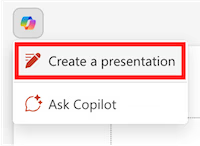
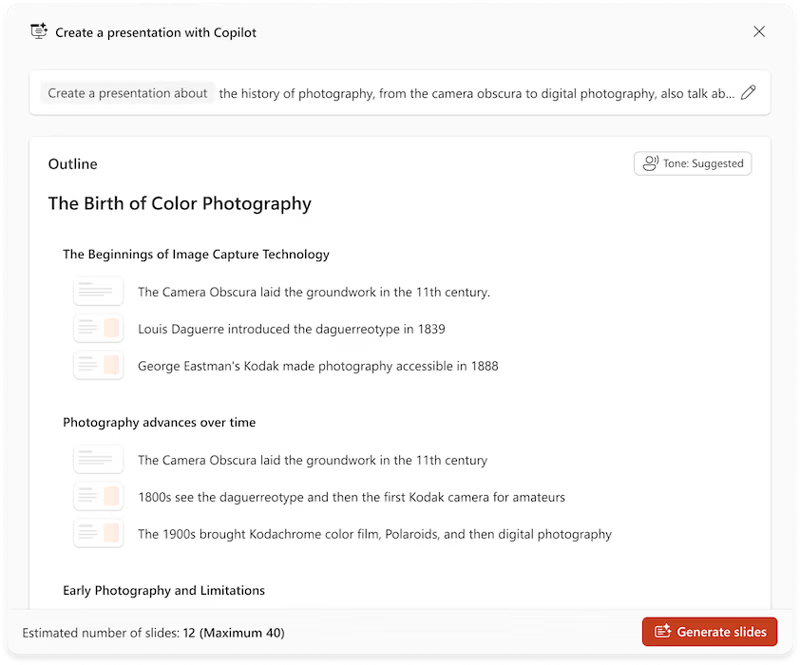
PowerPoint is where Copilot shines for anyone who dreads starting from a blank slide. Copilot can generate deck structures, suggested layouts, and speaker notes from a short description or a source document.
Helpful starting scenarios:
-
Create a deck from a document
-
In PowerPoint, choose Copilot and point it to a Word file or prompt like: “Create a 12-slide status update presentation based on this project report.”
-
Copilot will generate slides with titles, bullets, and sometimes imagery, which you can refine or reorganize.
-
-
Rework an existing deck
-
Ask Copilot: “Shorten this presentation to 6 slides for a 10-minute update and add speaker notes.”
-
You can also ask it to adjust tone or simplify language for non-expert audiences.
-
Microsoft’s “Top 10 things to try first” guide highlights creating presentations from a prompt as one of the fastest productivity wins with Copilot.
Step 6: Use Copilot in Outlook to Tame Your Inbox

Outlook with Microsoft 365 Copilot is built to help you manage email overload with summaries, draft replies, and coaching on tone. This is often where users feel immediate time savings.
Everyday Copilot actions in Outlook include:
-
Summarize long threads
-
Use a prompt like: “Summarize this email thread and list open questions and action items.”
-
Copilot gives a concise overview so you can decide how to respond without reading every message.
-
-
Draft replies quickly
-
Click Copilot and ask: “Draft a polite reply accepting this meeting but asking for an agenda.”
-
You can then adjust tone, add details, or shorten the message before sending.
-
-
Improve tone and clarity
-
Copilot can suggest edits to make an email sound more professional, empathetic, or direct depending on your instruction.
-
Microsoft’s productivity tips emphasize that many Copilot actions in Outlook are one-click, meaning you do not always need to craft elaborate prompts.
Step 7: Use Copilot in Teams for Meetings and Collaboration
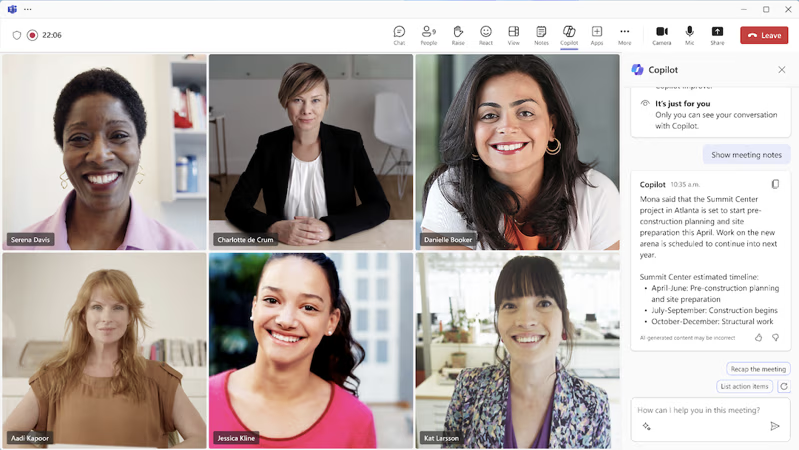
In Teams, Microsoft 365 Copilot helps you keep up with meetings, chats, and projects without rewatching recordings or scrolling endlessly. It can recap discussions, extract tasks, and answer questions about what happened.
Key use cases in Teams:
-
Meeting recap and action items
-
During or after a meeting, ask: “What were the main decisions and who owns which actions from this meeting?”
-
Copilot generates a summary with key points and action items you can refine and share.
-
-
Catch up when you join late
-
Copilot can summarize what you missed so you can get context quickly and contribute meaningfully.
-
-
Answer questions about chats and channels
-
Use prompts like: “What did the team decide about the Q3 campaign in this channel over the last week?”
-
Copilot searches messages and surfaces a concise answer based on your access.
-
Microsoft training modules highlight Teams as a central place where Copilot connects meetings, files, and conversations for a more complete view of work.
Step 8: Explore Copilot Pages, Notebooks, and Prompt Ideas
As Microsoft 365 Copilot evolves, new features like Copilot Pages and Copilot Notebooks provide more advanced ways to organize and run multi-step workflows.
-
Copilot Pages let you save AI-generated content (summaries, plans, drafts) into reusable pages you can revisit, edit, and share with colleagues.

Copilot Pages
-
Copilot Notebooks offer a more structured, iterative space where you can build complex prompts, test different variations, and drive deeper research-style tasks.
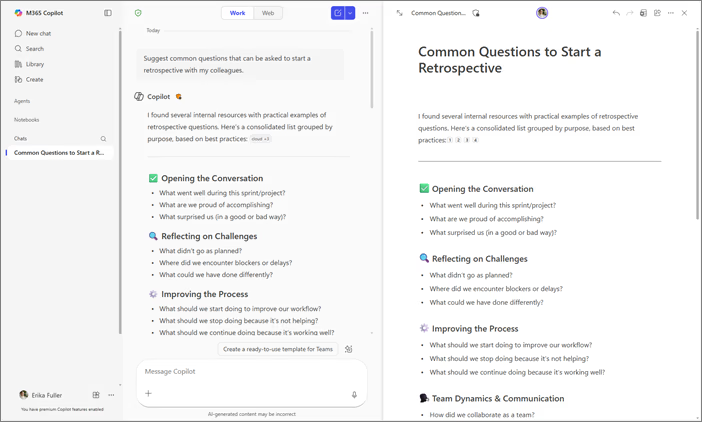
Copilot Notebooks
Microsoft also publishes a Copilot Lab and prompt galleries with ready-made ideas for email, meetings, reports, and more, which are referenced in official videos and learning resources. These libraries are useful when you are still developing confidence in writing prompts yourself.
Best Practices and Next Steps
To get the most from Microsoft 365 Copilot, official courses and enterprise training programs consistently recommend a few core practices.
-
Start small with everyday tasks, then gradually move to more critical workflows as your confidence grows.
-
Always review and edit Copilot’s output for accuracy, tone, and compliance with your organization’s policies.
-
Use follow-up prompts (“explain,” “simplify,” “expand,” “give alternatives”) to refine results instead of accepting the first draft.
-
Invest in team training so that everyone shares common prompt patterns and understands security and data boundaries.
Microsoft 365 Copilot is most powerful when treated as a collaborative partner that helps you move faster while you stay in control of the final outcome. By learning a handful of practical prompts and starting with familiar apps like Word, Excel, PowerPoint, Outlook, and Teams, you can quickly turn everyday tasks—like summarizing documents, preparing slides, answering email, or recapping meetings—into work you delegate to Copilot and then refine.
For individuals, the next step is to experiment with Microsoft 365 Copilot on real work this week: draft a status update, summarize a meeting, or analyze a small dataset, and iterate on the results until they match your standards. For teams and organizations, pairing these hands-on experiments with structured learning paths, internal guidelines on responsible use, and shared prompt libraries can turn Copilot from a novelty into a core productivity layer across the business. Over time, this combination of secure AI, strong governance, and practical skills enables you to unlock more value from the Microsoft 365 tools you are already paying for.
Discover more from Microsoft News Now
Subscribe to get the latest posts sent to your email.
