

Microsoft 365 Copilot users can now explicitly switch their chats to OpenAI’s newest GPT‑5.2 model using a simple model dropdown in the upper‑right corner of Copilot Chat, then pick either Quick Response or Think Deeper depending on whether speed or deeper reasoning matters more for the task. This guide walks through how to access GPT‑5.2 in Microsoft 365 Copilot Chat, when to use each mode, and what to do if you do not see GPT‑5.2 yet in your tenant.
What GPT‑5.2 in Copilot Chat actually is
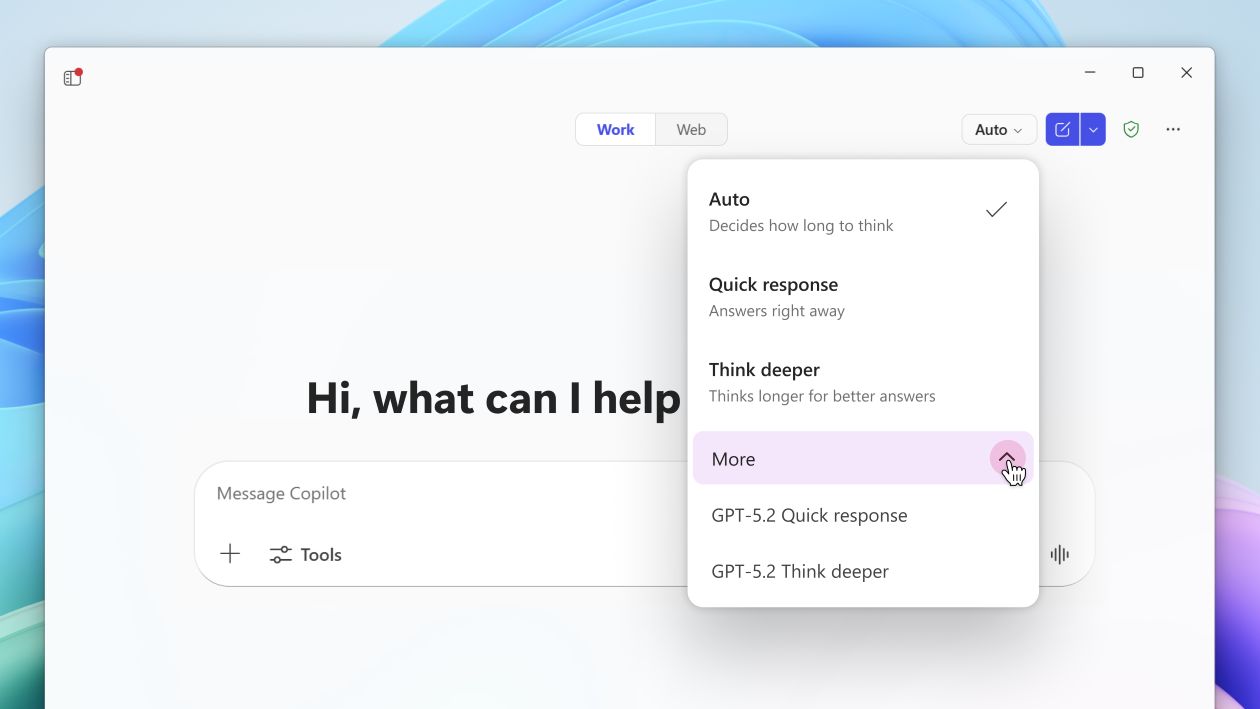
GPT‑5.2 is the newest OpenAI model that Microsoft is wiring directly into Microsoft 365 Copilot, so you can deliberately choose it for your chats instead of leaving everything to automatic routing. In Copilot Chat, GPT‑5.2 shows up in the model selector and is available in two core variants: an efficient, everyday “Instant” style and a deeper “Thinking” style aimed at more complex reasoning tasks.
In practice, that means GPT‑5.2 in Microsoft 365 Copilot is optimized for professional work scenarios like building presentations, creating spreadsheets, writing code, and handling multi‑step projects, especially when paired with the deeper reasoning option. Because Copilot connects GPT‑5.2 to your work graph (emails, meetings, documents) via Work IQ, it can also surface insights and planning support across your Microsoft 365 data where your licensing and admin settings allow.
Step‑by‑step: Switch to GPT‑5.2 in Copilot Chat
The first control you are looking for is the model selector in the top‑right area of Copilot Chat, which is where Microsoft has been adding GPT‑5 and now GPT‑5.2 options. Labels and exact wording can change during rollout, but the workflow is straightforward once you know where to click.
-
Open Microsoft 365 Copilot Chat
-
Open Copilot Chat from the Microsoft 365 Copilot web experience, desktop app, or in‑app side pane (for example in Word, Excel, or Teams, depending on how your tenant is configured).
-
If you are already inside Copilot Chat, you are in the right place—model selection happens directly within the chat canvas, not in a separate admin portal.
-
-
Locate the model selector in the upper‑right
-
Look at the upper‑right corner of the Copilot Chat window for a control that may show the current model (for example GPT‑5) or a label like “Model.”
-
This is the same area where Microsoft previously surfaced “Try GPT‑5” and later the GPT‑5 mode selector, and now it is where GPT‑5.2 appears as rollout progresses.
-
-
Open the dropdown and select “GPT‑5.2”
-
Click the model dropdown to open the list of available models for that chat.
-
Choose GPT‑5.2 from the list; in many environments it will be marked as available in both Copilot Chat and Copilot Studio as part of Microsoft’s broader GPT‑5.2 rollout.
-
-
Pick your response style: Quick Response vs Think Deeper
-
Under your prompt area, or near the top of the chat, you will see conversation modes such as Auto, Quick response, and Think Deeper.
-
Auto lets Copilot decide how long to “think,” Quick response answers as fast as possible, and Think Deeper takes more time—often up to around 10 seconds—to return a more considered, higher‑quality answer.
-
-
Start prompting (and let your mode persist)
-
Once GPT‑5.2 and your mode are selected, type your prompt and send it as usual; Copilot will use GPT‑5.2 plus the chosen reasoning style for that conversation.
-
Microsoft notes that mode choices like Quick response and Think Deeper typically persist across chats and sessions for that user, so you can “set and forget” until you want to switch again.
-
Why Microsoft gives you two GPT‑5.2 modes
Microsoft’s mode selector exists because not every task needs deep reasoning—sometimes you just want a quick answer and to move on. By pairing GPT‑5.2 with Quick response and Think Deeper, Copilot lets you trade off speed versus depth without digging into any technical settings.
Under the hood, Quick response aligns well with the GPT‑5.2 “Instant” behavior, which prioritizes throughput and low latency for common tasks like drafting, translation, and short Q&A. Think Deeper, on the other hand, taps into GPT‑5.2’s “Thinking” capabilities, leaning on more advanced reasoning and long‑context handling to tackle multi‑step, strategic, or ambiguous problems.
When to use GPT‑5.2 Quick Response

GPT‑5.2 Quick Response is built for speed, clarity, and keeping your workflow moving. It gives you straightforward replies with minimal extra deliberation, which is ideal when you do not need Copilot to deeply analyze documents or evaluate multiple options.
Use GPT‑5.2 + Quick Response when you are doing things like:
-
Fast drafting and rewrites: Cleaning up emails, adjusting tone, or generating short summaries where the main goal is to get to a decent draft quickly.
-
Translation and short‑form content: Translating messages, crafting short announcements, or turning a few bullet points into a paragraph where latency matters.
-
Rapid Q&A: Asking for definitions, simple “how do I…” steps, or quick checks on features and settings in Microsoft 365 apps.
Example prompts that play nicely with Quick Response:
-
“Rewrite this email to be concise and executive‑friendly, keeping the main points.”
-
“Translate this Teams message into French and keep the tone professional.”
-
“Summarize this Word document into 5 bullets for my manager.”
In short, Quick Response is the mode you choose when staying in flow is more important than squeezing out every last nuance from GPT‑5.2.
When to use GPT‑5.2 Think Deeper
GPT‑5.2 Think Deeper deliberately takes longer to respond so it can structure its reasoning, reduce gaps, and tackle more complex work. This mode is designed for situations where you want Copilot to weigh tradeoffs, synthesize information, or help with longer‑horizon planning.
Use GPT‑5.2 + Think Deeper when you need:
-
Tradeoff analysis and decision support: Comparing options, listing pros and cons, or assessing risks and mitigations for different paths.
-
Planning and strategy: Building 30‑60‑90 day plans, project roadmaps, or stakeholder narratives that require structure and coherent storytelling.
-
Complex synthesis: Pulling together insights from longer documents, multiple emails, or meeting summaries where context and consistency matter.
Example prompts for Think Deeper:
-
“Create a decision memo comparing Option A and Option B, including risks, assumptions, and a clear recommendation.”
-
“Draft a 90‑day project plan for rolling out Copilot in my department, with milestones, owners, and dependencies.”
-
“Break down this problem into steps, propose three approaches, and explain which is safest and why.”
Think Deeper is the mode you pick when quality, structure, and completeness are more important than getting a near‑instant response.
Quick cheat sheet: Which mode should you pick?
Here is a simple way to decide between GPT‑5.2 Quick Response and Think Deeper for Copilot Chat.
| Scenario type | Recommended mode | Why it fits GPT‑5.2 usage |
|---|---|---|
| Drafting or rewriting short content | GPT‑5.2 + Quick Response | You get fast, good‑enough drafts without waiting for extended reasoning. |
| Translation and quick Q&A | GPT‑5.2 + Quick Response | Latency matters more than complex analysis. |
| Document or email summarization | GPT‑5.2 + Quick Response | Short summaries benefit from speed and clarity. |
| Strategy, planning, roadmaps | GPT‑5.2 + Think Deeper | Longer reasoning time yields better structure and fewer gaps. |
| Tradeoff and risk analysis | GPT‑5.2 + Think Deeper | The model can explore options, pros/cons, and implications. |
| Complex, multi‑step problem solving | GPT‑5.2 + Think Deeper | GPT‑5.2’s reasoning strengths shine on multi‑step work. |
This mix of modes lets you treat Copilot Chat as either a rapid‑fire assistant or a slower, more careful thought partner depending on the job at hand.
If you do not see GPT‑5.2 in your dropdown
If GPT‑5.2 is not yet visible in your Copilot Chat model selector, there are a few likely reasons tied to rollout and licensing. Microsoft is staging GPT‑5.2 deployment, so some tenants will see it earlier than others.
Common causes and what you can do:
-
Rollout still in progress: Microsoft has stated that GPT‑5.2 is rolling out and will reach all eligible users over time, so your tenant may simply be in a later wave.
-
Licensing and priority access: Certain Copilot Chat features and models can differ by license, with Microsoft 365 Copilot licensed users often getting priority access when capacity is limited.
-
Evolving UI labels: Earlier phases used a “Try GPT‑5” control before moving to a full model selector, so your UI might still show older wording until the new model picker fully lands.
Practical steps:
-
Check Copilot Chat again later in the day or week, especially after Microsoft 365 apps update in your environment.
-
Confirm with your IT admin that your organization has the appropriate Copilot licensing and that Copilot Chat is enabled in your tenant.
Why GPT‑5.2 in Copilot Chat is a big deal

Bringing GPT‑5.2 into the Microsoft 365 Copilot Chat model selector gives users more control over how much intelligence they want to apply to their work, without needing to understand machine learning details. With the combination of Quick Response and Think Deeper, GPT‑5.2 can act as both a high‑throughput assistant for everyday tasks and a deep reasoning partner for complex projects.
At the same time, tying GPT‑5.2 to Microsoft 365 data through Work IQ means the model can reason across your real‑world context—meetings, emails, files—within the boundaries of your organization’s security and compliance controls. Don’t forget top check out the latest agent launch, Sales Agent, if you’re interested in a competitive edge in closing the deal. In practical terms, that makes “Open Copilot Chat → click the upper‑right model dropdown → select GPT‑5.2 → choose Quick Response or Think Deeper” a small UI change with a big impact on how much value you can pull from Copilot at work.
Related Posts
- How to Switch Out of Windows 11 in S Mode (A Quick and Easy Step‑by‑Step Guide)
- Next Week on Xbox (Dec 15–19): Five Nights at Freddy’s: Secret of the Mimic, Fort Solis, and More Fun New Games
- Microsoft Launches Sales Agent in Microsoft 365 Copilot: How To Get Smarter AI That Speaks Sales
- Optimizing Exchange Online PowerShell in 2026: Faster, Smarter, and Ready for Microsoft Graph
- Xbox Free Play Days: The Hunter: Call of the Wild, Spirittea, and The Dungeon of Naheulbeuk Headline a Cozy-Chaotic Weekend
Discover more from Microsoft News Now
Subscribe to get the latest posts sent to your email.
