

Using a USB startup key with BitLocker on Windows 11 adds an extra layer of security by requiring both your PC’s TPM and a physical USB drive before Windows can boot. This guide walks you through creating a BitLocker USB startup key from scratch on Windows 11 Pro or Enterprise, plus a few easier third‑party alternatives.
What a USB startup key is

A BitLocker USB startup key is a small key file stored on a USB flash drive that BitLocker reads during boot to unlock your system drive. On modern PCs with a Trusted Platform Module (TPM), BitLocker normally unlocks the drive automatically, but adding a USB startup key effectively turns it into two‑factor authentication at startup.
This is different from:
-
A USB security key (FIDO2/YubiKey), which is used for passwordless sign‑in to accounts and services like Microsoft accounts and Windows Hello.
-
A simple password, which can be guessed or stolen more easily than something you physically plug into your PC.
With a USB startup key configured, your PC will not boot into Windows unless that USB drive is inserted during startup.
Requirements and important notes
Before you start, make sure your setup meets these basic requirements.
-
Windows edition:
-
You must be running Windows 11 Pro, Enterprise, or Education to use full BitLocker; Windows 11 Home only offers Device Encryption and does not support this exact method.
-
-
Hardware and firmware:
-
Your PC should have a TPM 1.2 or later (most Windows 11‑ready devices do), since this guide uses “TPM and startup key” protection.
-
-
Drives:
-
A system drive (usually C:) that you can encrypt with BitLocker.
-
A spare USB flash drive to act as the startup key; it does not need to be large, but it should be reliable and dedicated to this task.
-
Also keep in mind:
-
Always back up your BitLocker recovery key somewhere safe (Microsoft account, another drive, printout) in case you lose the USB startup key.
-
If you lose both the USB startup key and the recovery key, you can permanently lose access to your data.
Step 1: Turn on BitLocker on your system drive

First, you need BitLocker enabled on the system drive where Windows is installed.
-
Open File Explorer and go to This PC.
-
Right‑click your system drive (usually C:), then select Turn on BitLocker.
-
Follow the BitLocker setup wizard:
-
Choose how to back up your recovery key (Microsoft account, file, or printout).
-
Choose how much of the drive to encrypt (for a newer PC, “Encrypt used disk space only” is typically faster).
-
Choose the encryption mode (for Windows 11 devices that won’t be moved to older systems, use the newer “XTS‑AES” default).
-
-
Click Start encrypting and let the process complete; this can take several minutes or longer depending on drive size.
Once BitLocker is fully enabled, your system drive will be encrypted and normally unlocked automatically by the TPM at boot.
Step 2: Configure Group Policy to require a USB startup key
 Next, you need to tell Windows that BitLocker is allowed to use a TPM plus a USB startup key at boot.
-
Press Win + R, type
gpedit.msc, and press Enter to open Local Group Policy Editor. -
In the left pane, navigate to:
-
Computer Configuration
-
Administrative Templates
-
Windows Components
-
BitLocker Drive Encryption
-
Operating System Drives
-
-
In the right pane, double‑click Require additional authentication at startup.

-
In the policy window:
-
Set it to Enabled.
-
Under the options area, look for Configure TPM startup key (or similar).
-
From the drop‑down, choose Require startup key with TPM so BitLocker expects both the TPM and a USB key at boot.

-
-
-
Click Apply, then OK, and close Local Group Policy Editor.
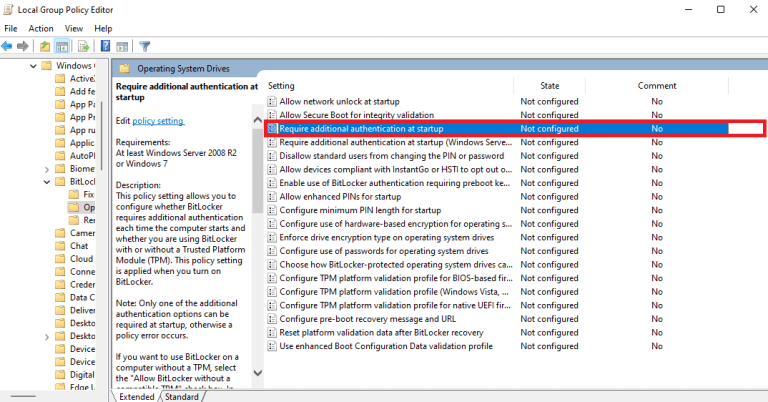

This policy change allows the BitLocker engine to attach a “TPM and startup key” protector to your operating system drive.
Step 3: Create the USB startup key with manage‑bde
With BitLocker enabled and policy set, you can now add the USB startup key protector using the manage-bde command‑line tool.
-
Insert the USB flash drive you want to use as your startup key and note its drive letter (for example, E:).
-
Click Start, type cmd, right‑click Command Prompt, and choose Run as administrator.
-
-
Example:
-
System drive:
C: -
USB drive:
E:In the elevated Command Prompt window, run this command, replacing the letters with your own:
-
textmanage-bde -protectors -add C: -TPMAndStartupKey E:
This tells BitLocker to add a TPM and startup key protector to drive C:, saving the startup key file on the USB drive at E:.
-
-
After you press Enter, you should see a confirmation that a new key protector was added for the operating system drive.
Behind the scenes, manage-bde -protectors -add manages the BitLocker protection methods and the -TPMAndStartupKey switch adds a combined TPM plus USB startup key protector. If you choose the wrong drive letters here, BitLocker could write the startup key to the wrong USB or target the wrong system drive, so double‑check before running the command.
Step 4: Test your USB startup key
Once the protector is added, it is time to test that your new startup key works.
-
Leave the USB startup key plugged in and restart your PC.
-
Your computer should boot normally into Windows with the USB drive connected, with BitLocker silently unlocking the system drive through TPM plus the USB key.
-
Shut down the PC again, remove the USB startup key, and power it back on.
-
This time, your PC should stop at a BitLocker screen and refuse to boot into Windows until the USB startup key is inserted or a valid recovery key is entered.
If this behavior occurs, your USB startup key is working correctly and your PC now effectively requires “something you have” (the USB) plus “something you are / something in the device” (TPM) to start.
Third‑party tools to lock your PC with a USB drive
If BitLocker and Group Policy feel too complex, there are several third‑party apps that let you use a USB drive to lock and unlock your PC after Windows has already booted. These do not replace BitLocker disk encryption, but they can add a convenient lock layer on top of Windows.
USB Raptor

-
USB Raptor is a free utility that can turn almost any USB flash drive into a key that locks your PC when removed and unlocks it when inserted, as long as the program is running.
-
When the PC is locked by USB Raptor, a custom lock screen appears and users can unlock using the USB key, a password, or network unlock, depending on configuration.
One drawback is that USB Raptor must be running and correctly configured on your system for the lock behavior to work, so it is more of a session lock tool than a boot‑time protector.
Predator
-
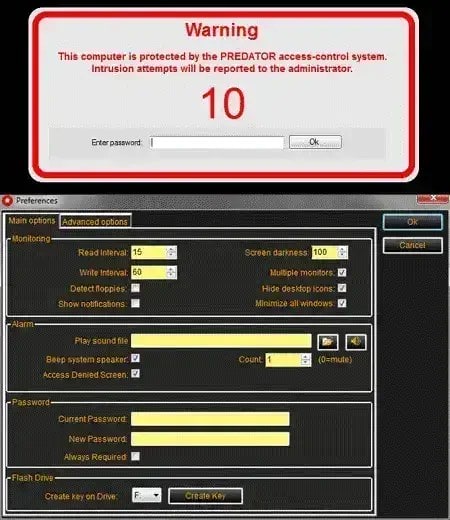
Predator is a low‑cost security tool that uses a USB flash drive as a key; when the USB is removed, the PC is locked and users see an “Access Denied”‑style message instead of the normal desktop.
-
It continuously monitors whether the USB key is present and blocks access if the key is missing, making it suitable for shared PCs or small offices that want a simple physical lock.
Predator focuses on locking access while Windows is running rather than controlling full‑disk encryption like BitLocker.
Rohos Logon Key

-
Rohos Logon Key converts a USB flash drive into a secure logon key that can replace or supplement your Windows password with two‑factor authentication (USB plus PIN).
-
It supports features like emergency logon, Safe Mode protection, and the ability to assign multiple USB keys per user account, and it is available for both Windows and macOS.
Although Rohos offers a freeware mode, continued use beyond the trial period requires buying a license, typically up to around $59 depending on edition.
Using a USB startup key with BitLocker on Windows 11 is a practical way to harden your device against unauthorized access, especially on laptops or desktops that store sensitive work or personal data.
When you combine TPM‑based protection with a physical USB key, you make it significantly harder for someone to boot your PC and access your files, even if they manage to steal the hardware or remove the drive. This setup does add a bit of complexity to your boot process, but for many users the trade‑off in convenience is worth the extra peace of mind, particularly in shared, mobile, or business environments.
At the same time, it is important to treat your USB startup key like any other critical security factor: keep a spare drive ready, store your BitLocker recovery key somewhere safe, and avoid leaving the USB key plugged in when you are away from your PC for long periods.
Using third‑party tools such as USB Raptor, Predator, or Rohos Logon Key can further enhance your protection by adding a session lock or logon‑level security on top of BitLocker, but they should complement, not replace, full‑disk encryption. Whether you stick to the built‑in BitLocker method or pair it with these utilities, the goal is the same: make sure your Windows 11 device only unlocks for you, with a security setup that matches your risk level and your daily workflow.
Discover more from Microsoft News Now
Subscribe to get the latest posts sent to your email.

1 thought on “How to Create a USB Startup Key with BitLocker on Windows 11 To Avoid Getting Locked Out”
Comments are closed.