

What is Xbox Cloud Gaming?

Xbox Cloud Gaming is Microsoft’s game-streaming platform that lets you play console-quality Xbox titles anywhere — without downloading or installing them. Think of it as Netflix for Xbox games. Instead of needing a high-end console or PC, games run on Microsoft’s powerful cloud servers and stream directly to your device.

All you need is an internet-connected screen, a controller, and an active Xbox Game Pass subscription that supports cloud gaming. Whether you’re playing on your TV, phone, tablet, or even the new wave of handheld devices like the ROG Ally, Xbox Cloud Gaming gives you instant access to hundreds of titles available through Game Pass.
Choose Your Xbox Game Pass Plan
Cloud gaming is included in several tiers of Xbox Game Pass:
-
Xbox Game Pass Essential — For about $10/month, you get unlimited cloud gaming and access to over 50 games.
-
Xbox Game Pass Premium — Includes everything in Essential plus over 200 games across console, PC, and supported devices.
-
Xbox Game Pass Ultimate — The best all-around experience with 400+ games, day-one releases, EA Play, Ubisoft+ Classics, Riot Games benefits, and online multiplayer.
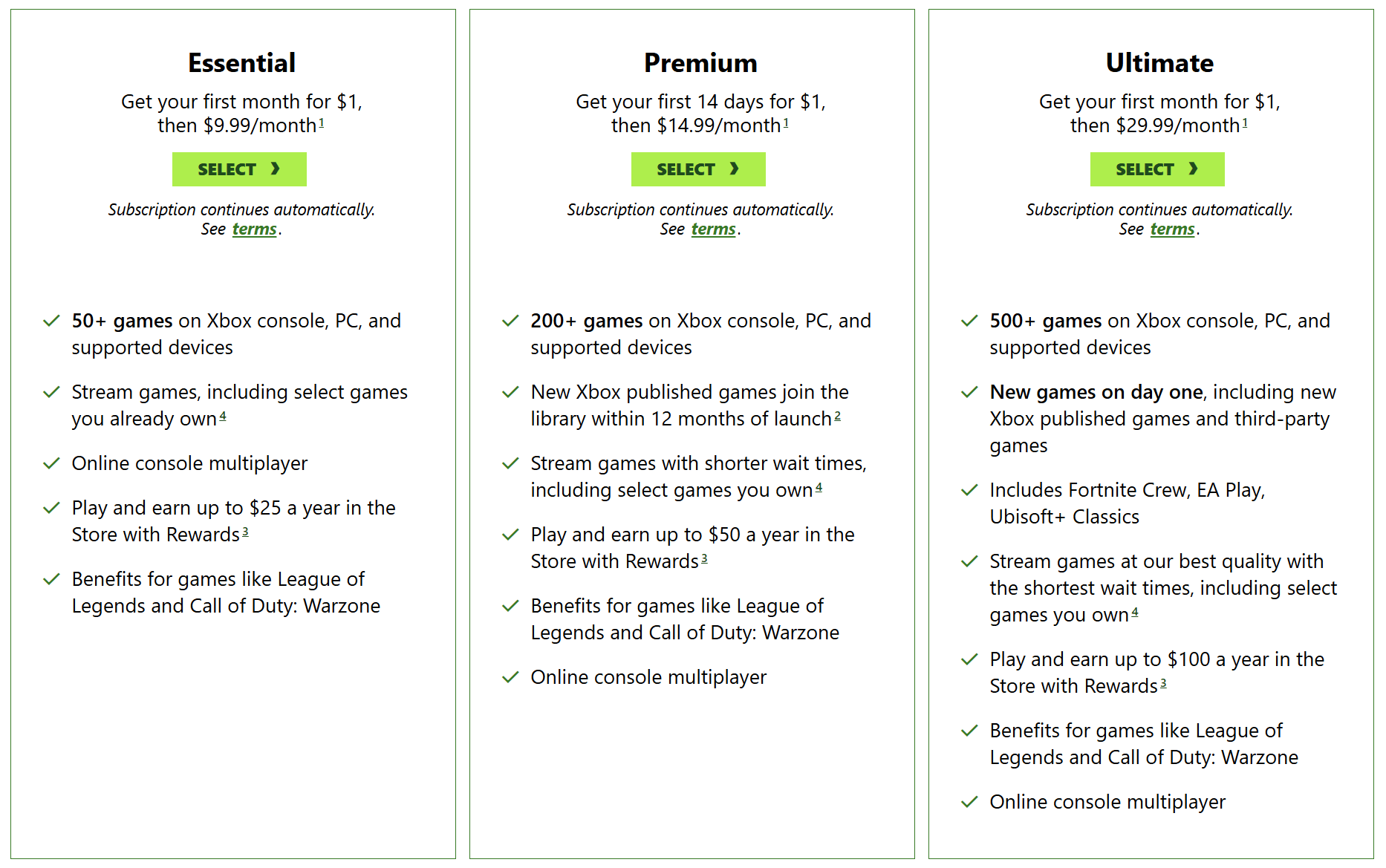
If you want the most flexibility and biggest library, go with Game Pass Ultimate. It delivers seamless access to cloud streaming on nearly every supported device, making it ideal for players who want to game anywhere.
You can subscribe directly from the Xbox Game Pass page, or via your Xbox console or PC’s Xbox app.
Check Your Supported Devices
Xbox Cloud Gaming now runs on an impressive variety of devices across platforms. Here’s a quick breakdown:
-
Xbox Consoles: Xbox One, One S, One X, Series S, and Series X — stream newer titles even on older consoles.
-
Windows PCs: Requires Windows 10 (version 20H2 or later) or Windows 11.
-
Mac Computers: Runs on macOS 14.1.2 or later through browser streaming.
-
Windows Handhelds: ROG Ally, Ally X, Logitech G Cloud, and Razer Edge.
-
Steam Deck: Runs via Microsoft Edge in desktop mode.
-
Smartphones/Tablets: Android 12.0+, iOS 14.4+ (through browser).
-
Smart TVs: LG, Samsung, and Amazon Fire models support the Xbox app directly.
-
Meta Quest Headsets: Stream in VR with Quest 2, Pro, 3, and 3S.
Cloud gaming is continuously expanding, with new device categories — including in-car streaming — coming soon.
Ensure a Stable Internet Connection
Streaming a game from the cloud requires a solid internet connection. Microsoft recommends:
-
Minimum speed: 20 Mbps download.
-
Best setup: A wired Ethernet connection or 5 GHz Wi-Fi network.
-
On 5G devices: Make sure your connection is stable before launching a session.
You can measure your connection using tools like Speedtest.net, Fast.com, or MeasurementLab. If you’re on a dual-band router, ensure your device uses the faster 5 GHz frequency instead of 2.4 GHz to minimize lag.
Tip: If you’re streaming to a Smart TV or PC, connect via Ethernet for the most consistent experience.
Connect a Supported Controller
Most Xbox Cloud Gaming titles require a controller, although some also support touch or mouse-and-keyboard input.
Supported controllers include:
-
Official Xbox controllers (Series X/S, One, Elite Series).
-
Partner-certified options from 8BitDo, GameSir, Backbone, Razer, and others.
-
Sony DualShock and DualSense controllers, which work on many devices.
You can connect via Bluetooth or a USB cable. If you want a controller with a personal touch, try customizing one through the Xbox Design Lab.
Some mobile-friendly controllers, like the Backbone One or Razer Kishi, transform your phone into a portable console, perfect for on-the-go play.
Launch Your First Cloud Gaming Session
Depending on your device, you’ll use either the Xbox app or a web browser.
Option A: Use the Xbox App
On compatible devices (Xbox consoles, Windows PCs, Windows handhelds, smart TVs, or Meta Quest):
-
Download the Xbox app from your device’s app store if you haven’t already.
-
Sign in with your Microsoft account tied to your Game Pass subscription.
-
Navigate to Game Pass in the app.
-
Find a game with the cloud icon and select Play to start streaming instantly.
If you’re using an Xbox One, you can even stream next-gen titles (like those built for Series X|S) via the cloud — a great way to experience modern games without upgrading your console hardware.
Option B: Use a Web Browser
For Android, iOS, macOS, and Steam Deck:
-
Open a supported browser (Edge, Chrome, Safari).
-
Go to Xbox.com/play.
-
Sign in to your Microsoft account.
-
Browse your library or Game Pass titles and select Play.
To make it easier to access later, click Add to Home Screen in your mobile browser’s menu. This creates a shortcut that behaves almost like a dedicated app.
On Steam Deck, switch to desktop mode, install Microsoft Edge from the Discover store, and follow Microsoft’s setup guide to enable the service.
Browse the Game Library
Xbox Cloud Gaming connects seamlessly with the Xbox Game Pass library, which now contains hundreds of titles, from indie gems to major blockbusters. Over two-thirds of these are enabled for cloud play.
If you’re a Game Pass Ultimate subscriber, you also gain access to:
-
EA Play titles (FIFA, Battlefield, Need for Speed).
-
Ubisoft+ Classics (Assassin’s Creed, Far Cry, Watch Dogs).
-
Exclusive perks and rewards in compatible games like League of Legends and Call of Duty: Warzone.
You can also stream games you already own digitally, even if they’re not part of Game Pass, allowing your saves and progress to sync across console, PC, and mobile.
Optimize Your Cloud Gaming Experience

To get the best out of Xbox Cloud Gaming, keep these performance tips in mind:
-
Close background apps on your device to free up network bandwidth.
-
Toggle performance modes if your device supports them (some handhelds have “Turbo” profiles for smoother gameplay).
-
Use a stand or clip for mobile devices — comfort matters during longer gaming sessions.
-
Keep controllers updated through the Xbox Accessories app.
Additionally, cloud gaming works best when your display resolution and network speed are balanced. Higher resolutions demand more bandwidth — so if you’re noticing lag, try lowering quality or resolution in your TV or handheld’s settings.
Dive In and Play

Once everything’s set up, you’re ready to start gaming in the cloud. Try out hits like Starfield, Forza Horizon 5, Halo Infinite, or Minecraft Legends — all available through Game Pass. Best of all, there’s no install time; just tap Play, and the game loads in seconds.
And with game saves syncing automatically, you can start a campaign on your TV, continue later on your phone, and finish on your laptop at the café — all without losing progress.
Cloud gaming represents the future of Xbox’s vision: a world where games follow you, not the other way around.
Supported Regions and Availability

Xbox Cloud Gaming is now available in 29 countries, with recent rollouts expanding access to India, Argentina, and Brazil. Microsoft continues to add new regions as part of its global cloud infrastructure efforts, so check the official list of supported countries if you’re unsure whether your region is included.
Parting Words
 Xbox Cloud Gaming is Microsoft’s answer to seamless, on-demand gaming — no downloads, no wait times, just pure gameplay wherever you are. With Game Pass integration, broad device support, and expanding worldwide availability, there’s never been a better time to jump into the cloud.
Whether you’re streaming on a handheld while traveling or testing a new game before downloading it, Xbox Cloud Gaming offers flexibility that modern players crave.
So, grab your controller, sign in at Xbox.com/play, and start exploring the cloud today.
Xbox Cloud Gaming FAQ

Why won’t my controller work with Xbox Cloud Gaming?
Most issues come down to connection or compatibility. Make sure you’re using a supported Bluetooth or USB controller such as an Xbox Wireless Controller, PlayStation DualSense, or another officially supported third‑party pad, and confirm it’s paired directly to the device you’re streaming on (not to a different console nearby).
If buttons still don’t respond, update the controller firmware via the Xbox Accessories app on Xbox or Windows, then reconnect it and try again.
How can I fix lag or input delay?
Lag is usually caused by network conditions, not your device or the game itself. Use a wired Ethernet connection when possible, or at least a strong 5 GHz Wi‑Fi signal, and aim for 20 Mbps or higher download speed with low ping.
You can also reduce stutter and input delay by closing background downloads/streams, rebooting your router, lowering streaming resolution (for example, from 1080p to 720p), and turning on any “Game Mode” options on your TV or PC.
Can I use touch controls instead of a controller?
Yes, many cloud‑enabled Game Pass titles support touch controls on mobile devices, especially popular Xbox first‑party and indie titles.
If a game supports touch, the overlay appears automatically when you launch it on a phone or tablet; if you do not see on‑screen controls, that title likely requires a controller.
Is Xbox Cloud Gaming available in my country?
Xbox Cloud Gaming is currently available in 29 regions, including the United States, United Kingdom, Canada, Brazil, Argentina, India, and most of Western Europe, with more on the way.
To confirm support for your specific country, check the official Xbox supported regions page and look for cloud gaming/Game Pass availability.
Do I need to install games to use Xbox Cloud Gaming?
No, installation is not required for cloud play. Games run on Microsoft’s servers and stream to your device, so you can jump in almost instantly.
However, you can still install any supported Game Pass title locally on your Xbox or PC if you want the best performance or plan to play offline.
Discover more from Microsoft News Now
Subscribe to get the latest posts sent to your email.
