

Method 1: Turn Off FPS Counter via Xbox Game Bar
Xbox Game Bar is built into Windows 11 and often the cause of FPS overlays. Disabling it is quick and easy:
-
Open Xbox Game Bar
-
Press
Win + Gon your keyboard. The overlay will appear.
-
-
Locate Performance Widget
-
Look for the “Performance” widget. If you don’t see it, click the Widgets Menu (three lines or hamburger icon) and select “Performance.”

-
-
Disable FPS Counter
-
Click the gear icon on the Performance widget to open settings.
-
Uncheck the “FPS” option to remove the FPS counter.

-
-
Remove or Hide the Widget
-
You can unpin the Performance widget by clicking the pin icon, or simply exit the overlay by pressing
Win + Gagain.
-
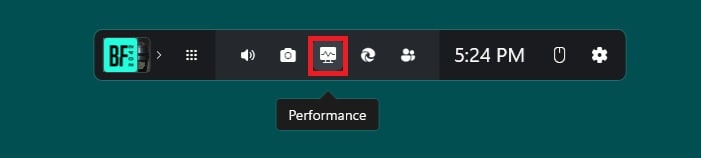

This method instantly hides the FPS counter from your screen.
Method 2: Disable FPS Counter in Steam
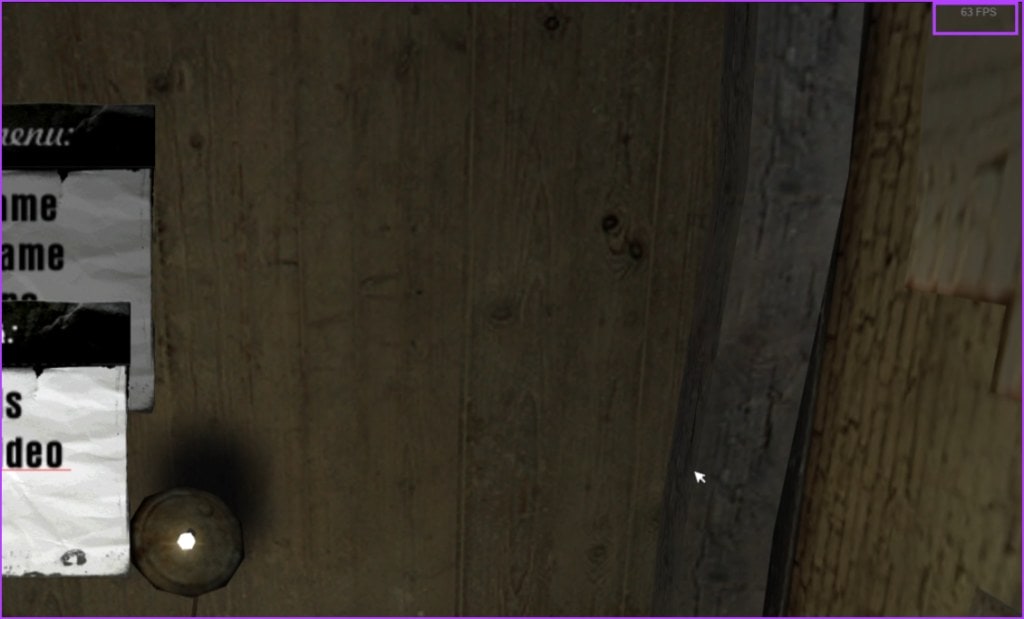
If you use Steam for gaming, its own FPS overlay may be enabled:
-
Open Steam and Settings
-
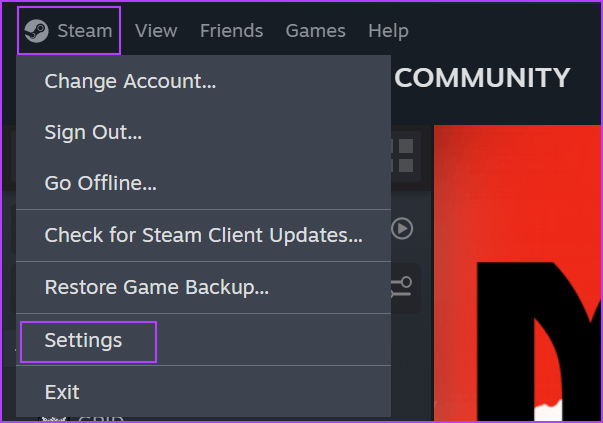
Start Steam and log in. Click “Steam” in the top-left and select “Settings.”

-
-
Go to In-Game Settings
-
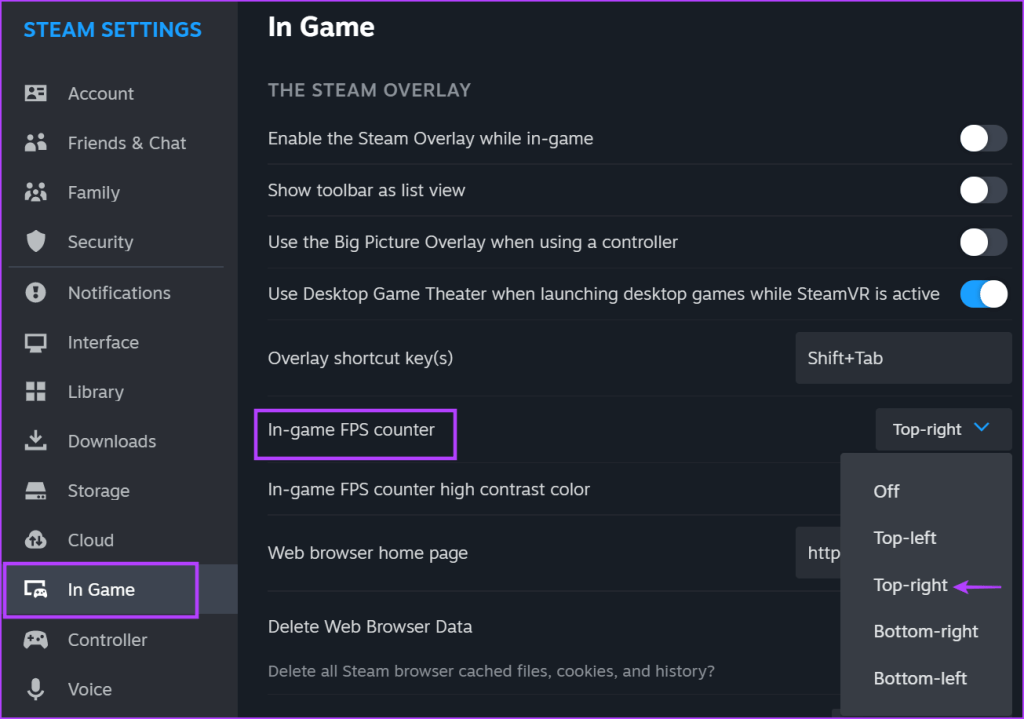
Select the “In-Game” tab from the sidebar.
-
-
Turn Off FPS Counter
-
Find “In-game FPS counter” and select “Off” or choose another location if you just want it moved.

-
-
Confirm
-
Close settings and launch your game. The FPS counter should be gone.
-
Method 3: NVIDIA GeForce Experience App Overlay

For users with NVIDIA graphics cards, the GeForce Experience app can show FPS counters. Sometimes the best way to turn them off is by using the keyboard shortcut Alt + R, but if that keyboard shortcut doesn’t work, try this:
- Open Nvidia App or GeForce Experience:
Launch the Nvidia control panel or GeForce Experience from the Start menu or system tray. - Access The Overlay:
PressAlt + Zto open the Nvidia overlay. If this doesn’t work, check or change the shortcut within the app’s settings. - Go to Settings:
Click the gear (settings) icon within the overlay. - Find Statistics:
Select the Statistics view. This shows various overlays, including the FPS counter. - Disable FPS Counter:
Click on Statistics view to set the value to “Custom” and either set the FPS counter’s position to “Off” or move the slider for the FPS counter to “Off.”
Alternatively, you can use the keyboard shortcutAlt + Rto instantly turn the FPS counter on or off. - Close the App:
After applying changes, exit the overlay and the app. The FPS counter should now be hidden.
If the FPS counter persists, check for other apps like MSI Afterburner or Razer Cortex, which may have their own overlays.
Method 4: AMD Radeon Software
AMD users may see FPS counters from Metrics or Radeon overlays:
-
Open AMD Radeon Software
-
Launch the app from your Start Menu.
-
-
Disable Performance Metrics
-
Find “Metrics Overlay,” and uncheck or toggle off FPS counter visibility.
-
Method 5: MSI Afterburner and Other Third-Party Apps
Third-party software often causes persistent FPS overlays:
-
MSI Afterburner: Open settings, go to the “Monitoring” tab, and uncheck “Show on Screen Display” for FPS.
-
Fraps: Uncheck “FPS” in the overlay settings.
-
Other Apps: If you recently installed any PC monitoring tool, check its settings to disable the FPS overlay.techcommunity.microsoft+2
Troubleshooting
If the FPS counter won’t go away:
-
Try pressing shortcut keys:
Alt + R,Alt + Z, or those specific to your overlay software. -
Reboot your PC after changing overlay settings.
-
Check for software updates that may reset preferences.
Why Turn Off The FPS Counter?
A constant FPS overlay can:
-
Break immersion during gaming.
-
Distract during multitasking or professional presentations.
-
Cause clutter and confusion in screenshots or recordings.
-
Often is unnecessary if your system runs smoothly.
Pro Tip: Keeping Your Screen Clutter-Free
Regularly review the overlays, widgets, and performance panels enabled on your system. Most features are helpful for benchmarking, but disabling them for daily use can make your Windows 11 experience smoother and more professional.
Turning off the FPS counter in Windows 11 is simple once you know where to look: Xbox Game Bar, Steam, NVIDIA/AMD control panels, or third-party apps. Take control of your display, declutter your gaming sessions, and enjoy a distraction-free experience.
If you found this guide helpful, share it with other Windows 11 users, and check out more of our troubleshooting and optimization tips!
Discover more from Microsoft News Now
Subscribe to get the latest posts sent to your email.
