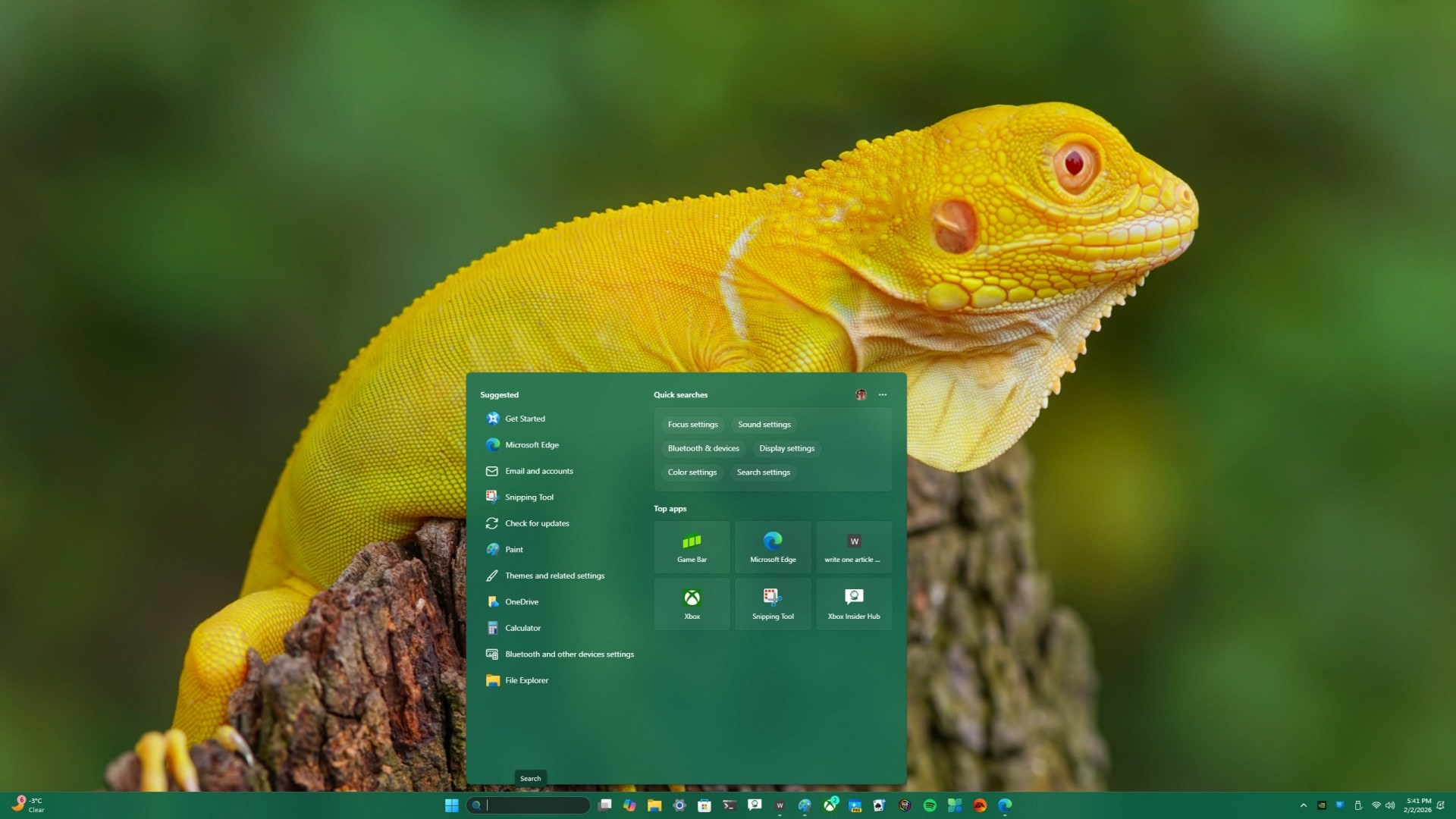

If you’ve opened Windows 11 Search or Microsoft Edge lately and felt bombarded by “Trending now” topics and web suggestions you never asked for, you’re not alone. The good news is you can switch most of this off using built‑in settings and, if needed, a simple policy tweak.
In this guide, we’ll walk through how to turn off or reduce “Trending now” in Windows Search, stop Start menu search from sending queries to Bing, and disable Edge’s Bing trending suggestions for a much cleaner and more private search experience.
What “Trending now” and web suggestions actually are
On Windows 11 and Edge, Microsoft uses a few different features that all feel like “trending stuff” bolted onto search. Understanding the names Microsoft uses will help you find the right toggles.
-
Search Highlights in Windows 11: This is the feature that shows news, holidays, and “what’s popular now” content in the Windows Search box and search home panel.
-
Web results in Start and taskbar search: When you type into Start or the taskbar search, Windows can send your query to Bing and mix web results into the list with local apps and files.

-
Bing “Trending now” in Microsoft Edge: Edge can show trending Bing searches in the address bar suggestions and on the new tab page.

If you want a local‑only, distraction‑free search experience, you’ll want to adjust all three areas.
How to turn off “Trending now” in Windows 11 Search
The fastest way to remove the tiles and trending content in Windows Search is to disable Search Highlights in Settings.
-
Open Settings (Start > Settings, or press Win + I).
-
Select Privacy & security in the left‑hand menu.
-
Under Windows permissions, click Search.

-
Scroll down to the More settings section.
-
Turn Show search highlights Off.

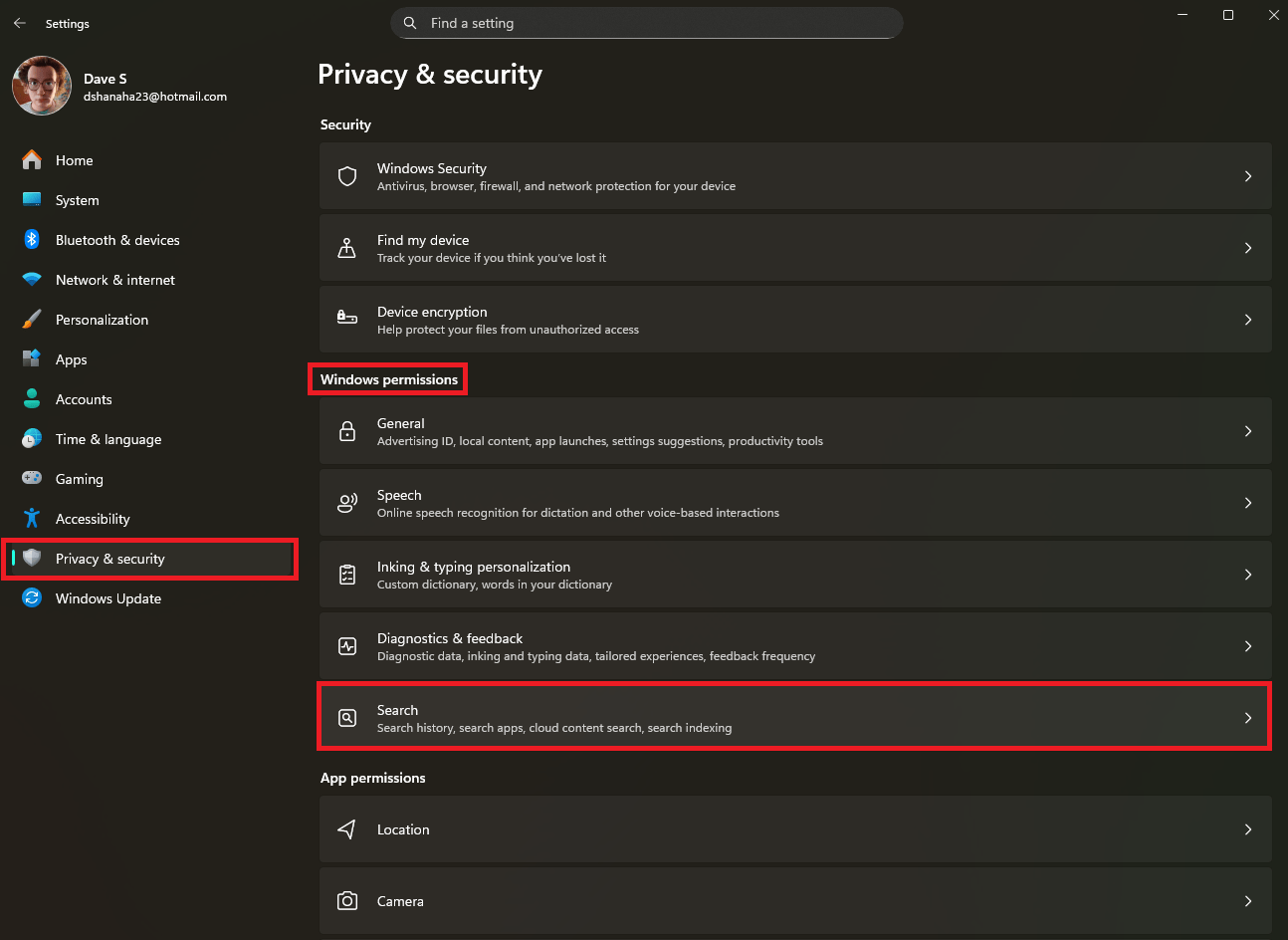

Microsoft’s Windows IT Pro blog and support docs confirm that this toggle controls the extra “today’s highlights” and “trending” content in search, both on the taskbar and in the full search window. Once it’s off, the search panel goes back to a much plainer look focused on your apps and recent activity.
If you’re an IT admin, the same experience can be centrally managed using Group Policy or MDM configuration policies that target Search Highlights, as documented in Microsoft’s group configuration guidance.
How to stop Start menu search from sending queries to Bing
Turning off Search Highlights doesn’t stop Windows 11 from sending your typed queries to Bing when you search from Start or the taskbar. If you want to keep search local‑only, Microsoft exposes a policy called DisableSearchBoxSuggestions that disables web suggestions.
Here’s the registry‑based method described in Microsoft’s own Q&A documentation:
-
Press Win + R, type
regedit, and press Enter to open Registry Editor. Please note you will likely need to accept a User Account Control prompt as well. -
Navigate to:
HKEY_CURRENT_USER\SOFTWARE\Policies\Microsoft\Windows\Explorer. -
If the Explorer key does not exist, create it under Windows.
-
In the Explorer key, create a new DWORD (32‑bit) Value named DisableSearchBoxSuggestions.
-
Set the value of DisableSearchBoxSuggestions to
1and click OK.
-
Sign out of your account and sign back in (or restart) for the change to take effect.
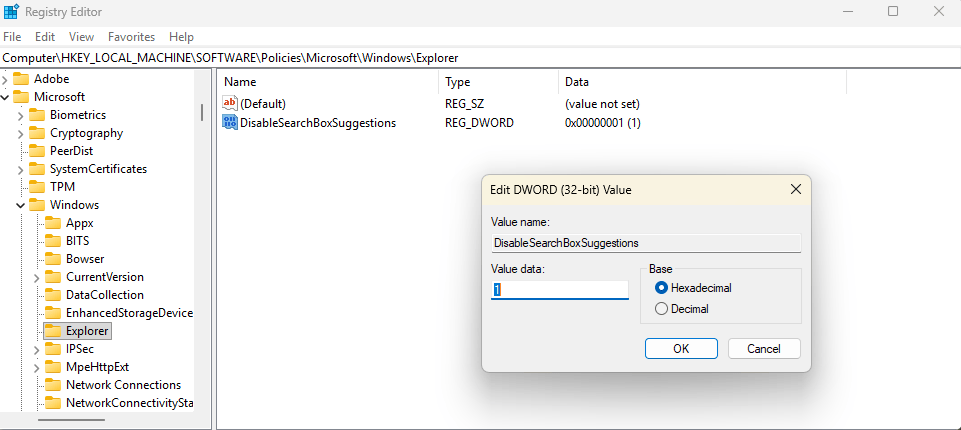
Once this policy is active, Start menu search stops pulling in Bing suggestions and sticks to local content such as apps, files, and system settings. This is the Microsoft‑supported way to fully disable Bing web search in the start search box.
In managed environments, admins typically set the same policy via Group Policy or mobile device management, pushing the registry value to all users automatically.
How to turn off “Trending now” in Microsoft Edge
On the browser side, Edge has its own “Trending now” behavior powered by Bing. This is what you see when you click in the address bar and a list of popular searches appears before you type anything.
Microsoft documents a specific toggle for this:
-
Open Microsoft Edge.
-
Click the Settings and more button (three dots) in the top‑right corner and choose Settings.
-
In the left menu, select Privacy, search, and services.
-
Scroll down and click Address bar and search.
-
Under Search suggestions and filters, turn Show me trending searches from Microsoft Bing Off.


Microsoft support responses and documentation for Edge’s “Trending now” feature point to this exact path—Privacy, search, and services → Address bar and search → Show me trending searches from Microsoft Bing—as the supported way to disable it. After switching it off, the address‑bar drop‑down will focus on your own history, favorites, and typed suggestions instead of global trends.
Optional: Clean up Edge’s new tab page
Even with Bing trending searches disabled in the address bar, the new tab page itself can still show news and trending content tiles. Microsoft treats this as a separate, customizable experience.
To tone that down:
-
Open a new tab in Edge.
-
Click the Customize (gear) icon on the page.
-
Adjust the layout (for example, choose a more minimal or “Focused” layout) and look for toggles that control news or content.

-
Turn off or minimize news and trending cards according to your preference.
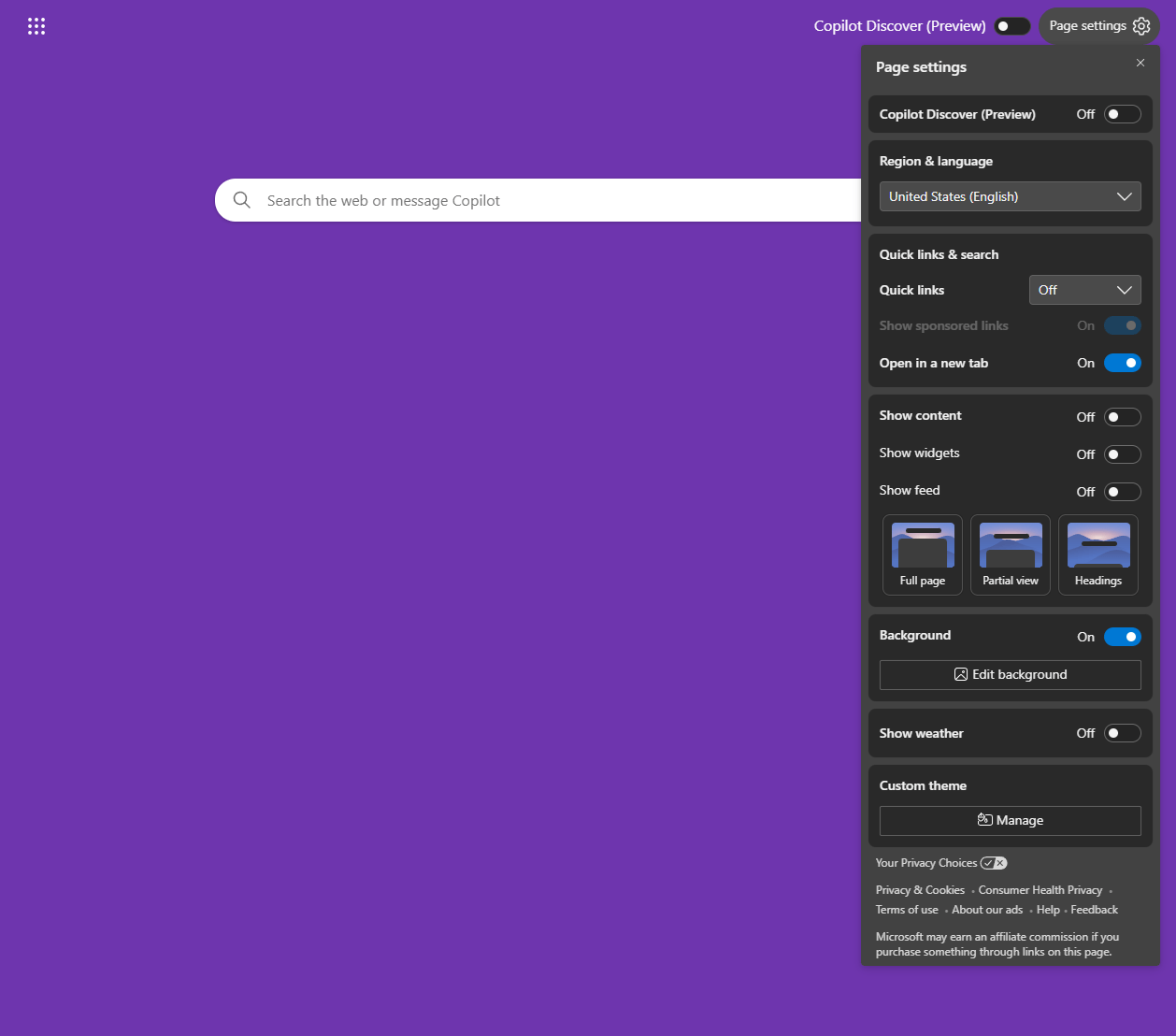
Microsoft’s documentation and community guidance make it clear that new tab content is configured separately from the “Show me trending searches” toggle, so you may need to change both for a truly distraction‑free Edge start page.
Which settings should you use?

If you’re trying to decide how aggressive to be, here’s a quick way to think about it:
-
Just annoyed by the tiles in Windows Search? Turn off Show search highlights in Settings and you’re done.
-
Want privacy and local‑only search on Start? Apply the DisableSearchBoxSuggestions policy so Start search stops talking to Bing.
-
Hate seeing global trending searches in Edge? Turn off Show me trending searches from Microsoft Bing under Edge’s address bar settings.
-
Want a minimal browser start page? Customize the Edge new tab page layout and content settings to hide news and trending modules.
With these switches flipped, Windows 11 and Microsoft Edge become much calmer: search focuses on what’s actually on your device, and your browser surfaces your own activity instead of whatever the internet is obsessed with today.
Recent Posts You Might Like
- Microsoft Figures Surface in New Epstein Files: Bill Gates Allegations and Former Windows Boss Emails
- Next Week on Xbox: Dragon Quest VII Reimagined, My Hero Academia: All’s Justice, Carmageddon: Rogue Shift, and More Land February 2–6
- Newly Released Epstein Files Reveal Microsoft Banned Jeffrey Epstein from Xbox Live in 2013
Discover more from Microsoft News Now
Subscribe to get the latest posts sent to your email.
