

The March 2026 cumulative update for Windows 11 adds a new “Perform speed test” option to the taskbar, giving you a one‑click way to use as an internet speed test of your connection. It’s not a native bandwidth meter built into Windows, but a shortcut that opens Bing’s web‑based speed test in your default browser.
What the new Windows 11 taskbar speed test actually is
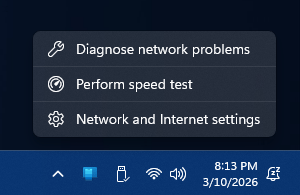
Microsoft’s new Internet speed test lives behind the network icon on the right side of the taskbar in Windows 11. When you use it, Windows opens your default browser to a Bing page that hosts a web speed test powered by Ookla’s Speedtest backend.
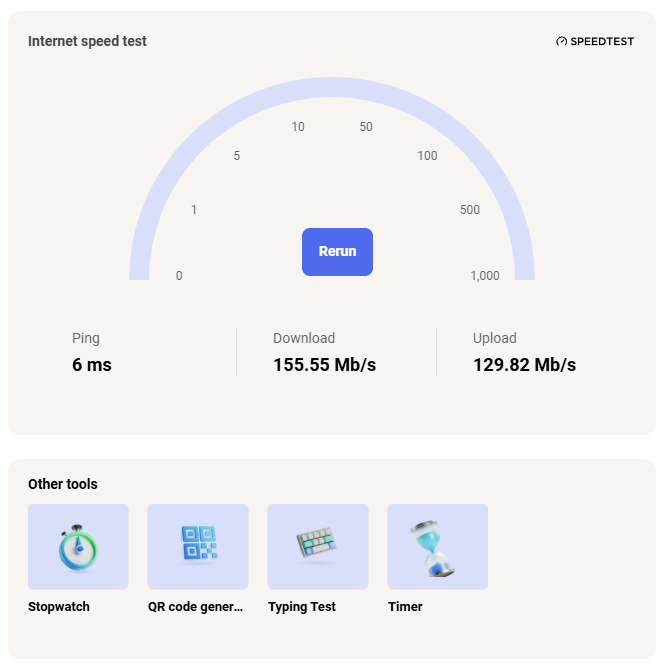
The internet speed test feature:
-
Works with Ethernet, Wi‑Fi, and supported cellular connections.
-
Shows ping (latency), download speed, and upload speed once the test finishes.
-
Helps you quickly confirm whether slow apps or streaming issues are caused by your internet connection or something else on your PC.
Critically, this is still just a shortcut: you could get the same test by going to Bing and searching “internet speed test,” but the taskbar makes it faster and more obvious for everyone.
How to use the Windows 11 taskbar speed test
Once the March 2026 update is installed on your PC, using the new speed test is straightforward.
-
Check that your PC is online
Make sure you’re connected to Wi‑Fi, Ethernet, or cellular, and that the network icon in the taskbar doesn’t show a disconnected or “x” status. -
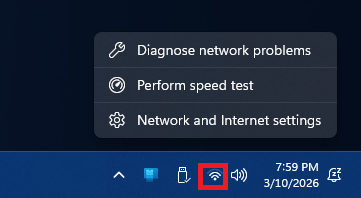
Right‑click the network icon in the taskbar
Look at the far right of the taskbar for the Wi‑Fi or Ethernet icon.-
On a laptop, you’ll usually see the wireless “fan” icon.

-
On a desktop, you might see a cable/Ethernet icon instead.
-
-
Select “Perform speed test” from the menu
When the feature has rolled out to your device, the context menu will include a new entry labeled Perform speed test.
Click it to launch your default web browser. -
Run the Bing speed test
Windows opens Bing’s internet speed test page automatically, typically with the query “internet speed test” pre‑filled.-
Click the Start button on the page.
-
Wait while Bing (via Ookla’s Speedtest) measures your ping, download, and upload speeds.
-
-
Review the results and, if needed, rerun the test
Once the test completes, you’ll see three main numbers: ping (ms), download (Mbps), and upload (Mbps).
If you’re troubleshooting, try running the test multiple times or comparing Wi‑Fi vs Ethernet to see if one path is clearly slower than the other.
Alternate way: use Quick Settings
You don’t have to right‑click the tray icon every time. The same “Perform speed test” button also shows up inside Quick Settings for Wi‑Fi and cellular.
To use it this way:
-
Click the network / volume / battery cluster in the taskbar to open Quick Settings.
-
In the Wi‑Fi or Cellular section, look for the Perform speed test button.
-
Click it and run the test in your browser as described above.
This route is handy on touch devices where right‑clicking the tray icon is less convenient.
Why your PC might not show “Perform speed test” yet
If you don’t see the new menu option, there are a few likely reasons.
-
The March 2026 cumulative update hasn’t finished rolling out to your region or device yet.
-
Your organization or admin may have paused updates or disabled some taskbar features via policy.
-
You’re on an older Windows 11 build that hasn’t received the KB5077241 feature payload or today’s Patch Tuesday rollup that carries it.
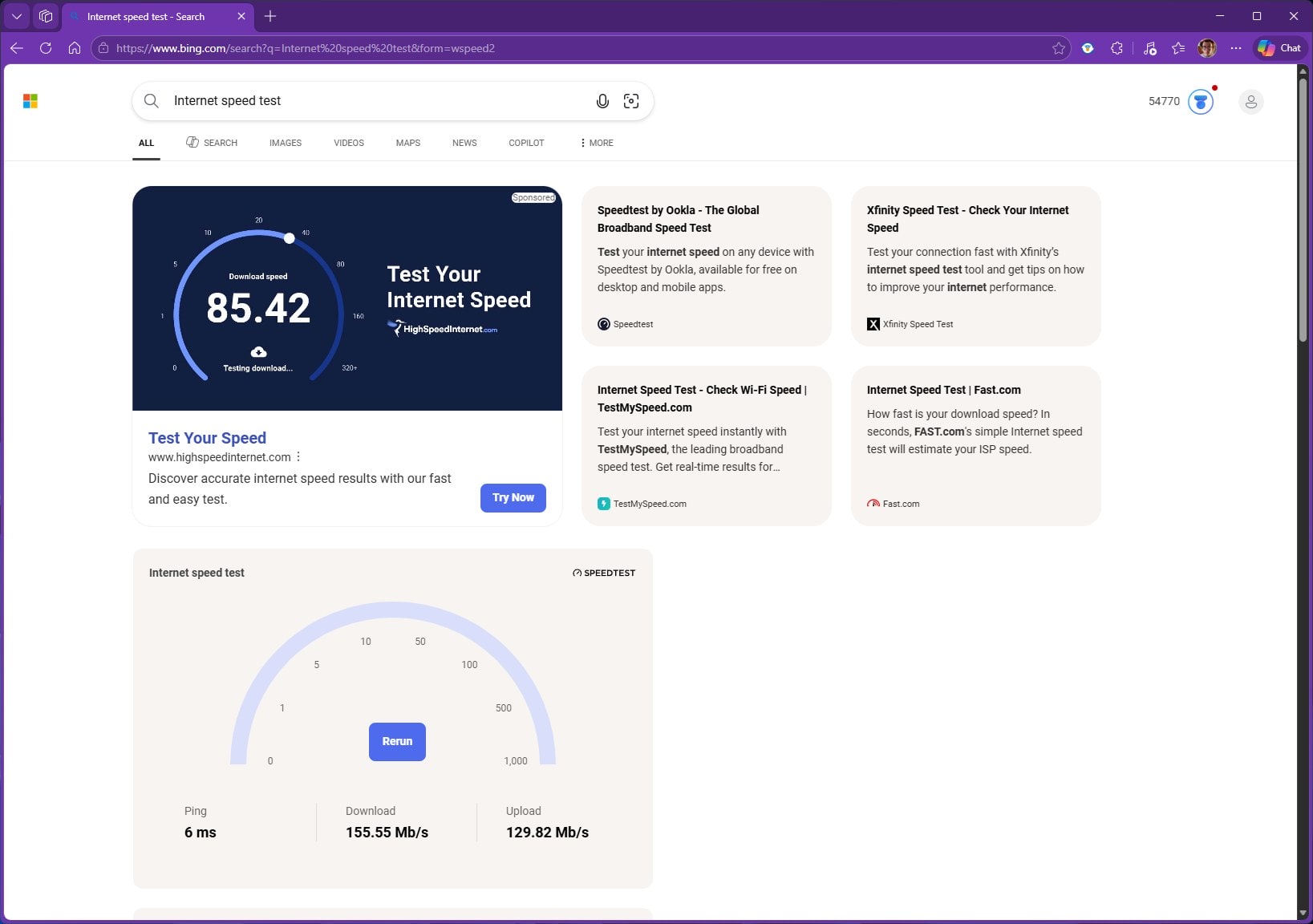
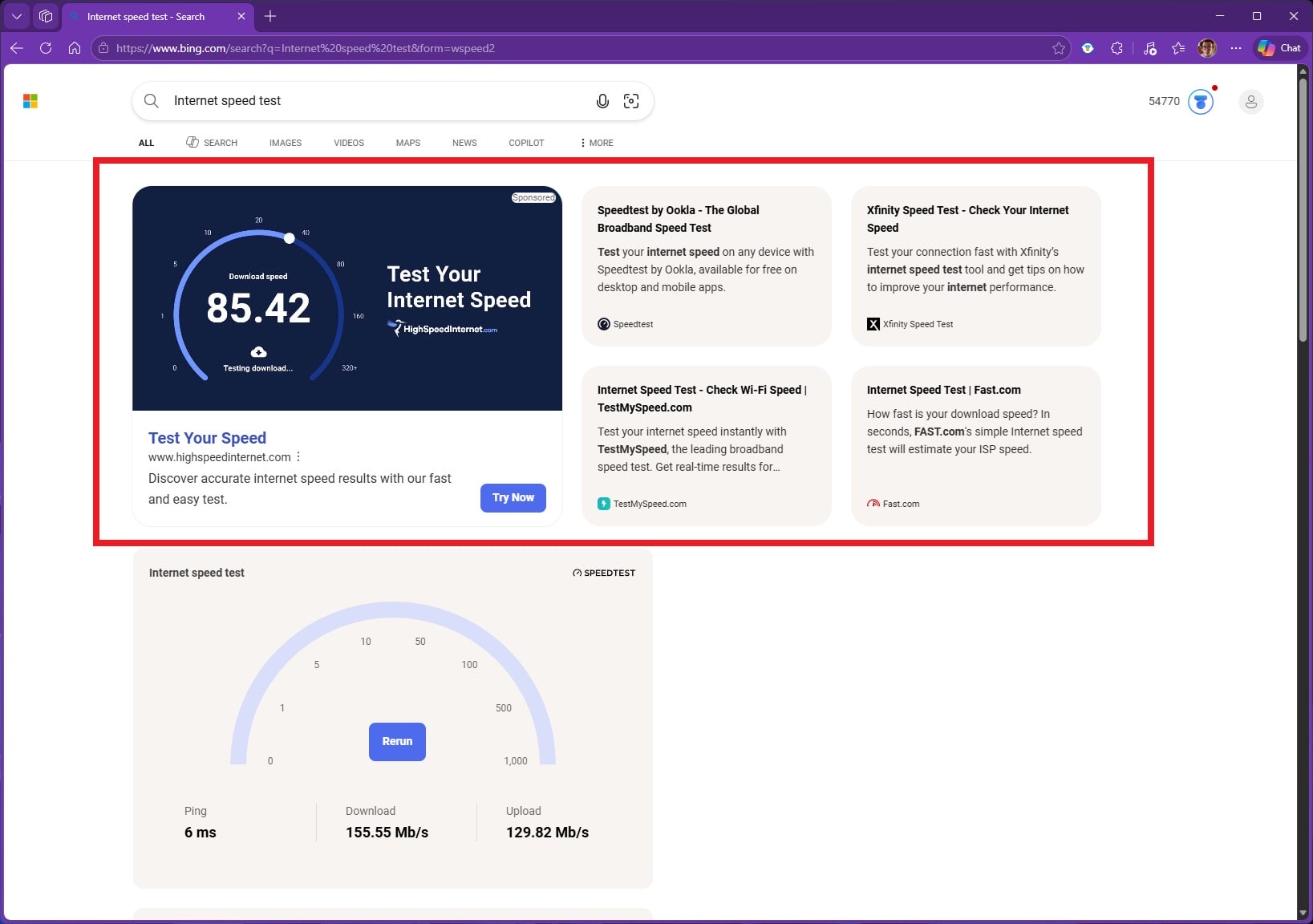
To check for the feature, go to Settings > Windows Update and click Check for updates, then restart after installing any pending cumulative updates. Don’t be sad that you don’t have this “feature” yet as it’s just another way for Microsoft to get you to use its Bing service where you’re instantly greeted by ads, as seen in the screenshot below.
When to use the built‑in speed test vs third‑party tools
The built‑in shortcut is perfect for quick checks when:
-
Streaming starts buffering unexpectedly.
-
Video calls keep freezing and you want a fast answer.
-
You’re on hotel Wi‑Fi or mobile data and need a rough idea of performance.
However, because it’s just a Bing‑hosted web test, power users and network admins may still prefer standalone tools or dedicated testing sites for deeper diagnostics, logging, or automation. Still, for most Windows 11 users, having “Perform speed test” only a right‑click away is a nice quality‑of‑life feature that removes a few steps during everyday troubleshooting.
Posts You Might Like
- How to create website shortcuts on your desktop in Windows 11 for quicker access to the web
- How to stop Microsoft Edge from starting automatically on Windows 11, Mac, and Linux
- How to factory reset Windows 11 from boot: A comprehensive step-by-step guide
- Minimize Distractions: Disable Windows 11 Lock Screen Tips and Tricks for a Focused Workday
Discover more from Microsoft News Now
Subscribe to get the latest posts sent to your email.
