
Microsoft is rolling out a subtle but genuinely time‑saving change to Microsoft Word that lets you turn selected text into a hyperlink just by pasting a URL over it, eliminating extra clicks and dialog boxes. The new “paste‑to‑link” experience is live in Word for the web and is now rolling out to Microsoft 365 Insiders on Word for Windows and Mac with specific build requirements.
What’s new in Microsoft 365 Word’s hyperlink experience
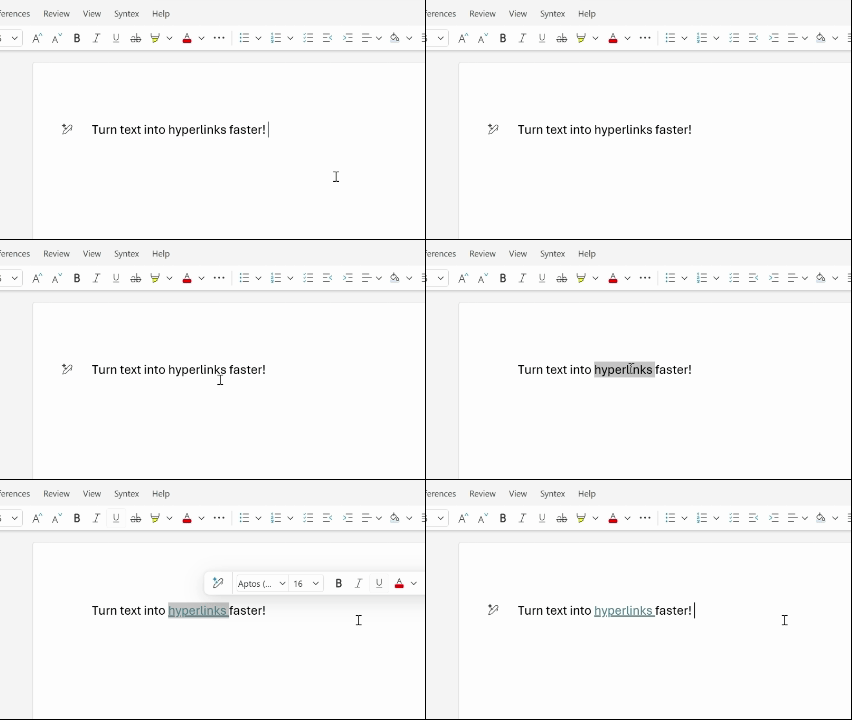
Microsoft describes this as an update to Word for the web, Word for Windows, and Word for Mac that makes hyperlinking “a lot quicker.” Instead of manually opening the Insert Link dialog every time, you can now simply select your text, paste the link, and Word automatically converts that text into a clickable hyperlink.
This “paste‑to‑hyperlink” behavior mirrors what writers already expect from modern editors like Slack, Notion, and WordPress, where pasting a URL over selected text wraps it in a link instead of replacing the text. It turns one of the most common formatting tasks in Word into a single action and helps you stay focused on writing, not UI.
The updated behavior is intentionally simple:
-
Copy the link you want from your browser or another app (for example, a web article, SharePoint link, or internal wiki URL).
-
In your Word document (web, Windows, or Mac), select the word or phrase you want to turn into a hyperlink.
-
Press paste (Ctrl+V on Windows, Cmd+V on Mac), and Word automatically attaches the URL to the selected text as a hyperlink instead of overwriting it.
If you prefer the classic workflow, you can still:
-
Paste a bare URL and let Word auto‑convert it into a link when you press space or Enter.
-
Use the Insert > Link command or the Ctrl+K / Cmd+K shortcut to open the full hyperlink dialog for more control over link type, screen tips, and internal document targets.
The new feature does not replace these options; it simply adds a faster inline way to apply a link when you already have your anchor text selected.
Availability and version requirements

Microsoft is shipping this as part of its Microsoft 365 Insider experience across web and desktop. Here is how availability breaks down today:
-
Word for the web
-
The paste‑to‑hyperlink experience is available to all Word for the web users, with no specific version requirement since the change is delivered from the server side.
-
-
Word for Windows (Microsoft 365)
-
The feature is rolling out to users running Version 2511 (Build 19530.20006) or later.
-
If you are on an earlier build, you may not see the behavior yet, even if you are in the Insider program.
-
-
Word for Mac (Microsoft 365)
-
On macOS, the feature is rolling out to Version 16.104 (Build 25120915) or later.
-
As with Windows, it may appear gradually as the rollout completes across Insider channels.
-
Microsoft’s broader messaging emphasizes that the change is part of a push to make working with links “as easy as working with text” across Word on Windows, macOS, and the web. External coverage and Microsoft’s own social posts highlight the change as “adding links in Word just got easier: highlight your text, paste your link, Word applies the hyperlink with no extra steps.”
Why this matters for everyday Microsoft Word users
Hyperlinks are a core part of modern documents: from research reports and academic writing to team knowledge bases and client-facing proposals. Until now, the Word desktop experience often required a multi‑step dance—select text, open a dialog, paste URL, confirm—to do something users perform dozens of times per document.
By collapsing that workflow into a single paste action, Word gains a small but meaningful productivity boost:
-
Fewer interruptions to your writing flow – You stay in the document, not in a dialog box, especially when dropping in quick references or sources.
-
More consistent behavior with other modern apps – Users coming from collaboration tools that already support paste‑to‑link will find Word’s behavior more intuitive.
-
Better for link‑heavy documents – Writers working on documentation, newsletters, knowledge articles, and legal or academic content can save dozens of clicks per session.
For Microsoft 365 Insiders, this feature is another example of Microsoft using the Insider ring to refine small, high‑frequency actions before pushing them broadly to all Word users.
How to give feedback and what’s next

Microsoft explicitly asks users to share feedback on this change directly from within Word.
-
In Word, go to Help > Feedback and submit your thoughts on the new hyperlink experience.
-
Include the hashtag #overpaste so the Word team can easily track responses related to this specific feature.
If you want to stay ahead of similar quality‑of‑life updates:
-
You can learn more about the Microsoft 365 Insider program and join to get early access builds of Word and other apps.
-
Microsoft also offers a Microsoft 365 Insider newsletter that delivers a monthly round‑up of new Insider features and improvements in your inbox.
For now, the paste‑to‑hyperlink update is a small but welcome change that brings Microsoft Word’s linking behavior in line with modern expectations—and if the response from Insiders is positive, it is likely to become the new default experience for all Microsoft 365 Word users over time.
Discover more from Microsoft News Now
Subscribe to get the latest posts sent to your email.
