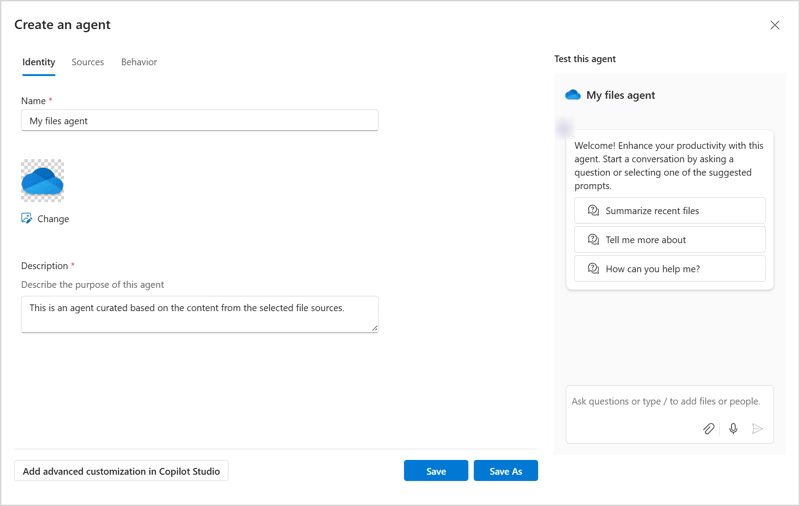

Microsoft is taking a big step in making Copilot feel more like a true project teammate with the general availability of Agents in OneDrive, announced this week in a Microsoft OneDrive blog post by Rob Nunez. These new AI agents live right alongside your regular files and folders and are designed to understand the context of your work so you don’t have to keep asking the same questions across individual documents.
What are OneDrive agents?
Agents in OneDrive are essentially focused AI assistants built from your own content, saved as .agent files directly in your OneDrive. Instead of querying Copilot one file at a time, you pick a set of documents, decks, notes, or plans and let the agent answer questions grounded in that collection as a whole.
An agent can help you answer questions across multiple documents, summarize discussions and decisions, highlight owners and deadlines, and keep shared context intact as your work evolves. When you open an .agent file, you’re dropped into a full‑screen Copilot experience that stays centered on that specific project or topic, so the conversation history and context remain in one place.
Because agents are just another file type in OneDrive, you can search for them, filter by file type, open them, and update them as your projects change. This makes agents feel like a natural extension of how people already organize and navigate their Microsoft 365 content today.
How to create an agent in OneDrive
Getting started with agents is designed to be simple and requires no special admin configuration beyond having OneDrive on the web and a Microsoft 365 Copilot license for a work or school account. Once your organization has agents enabled, you’ll see the option directly in your OneDrive file list.
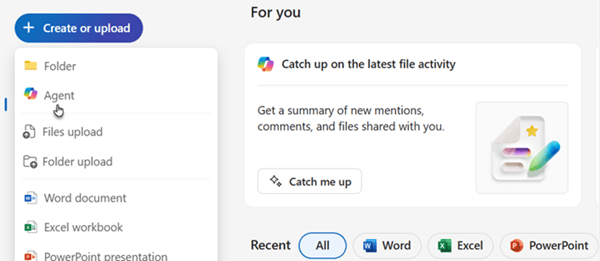
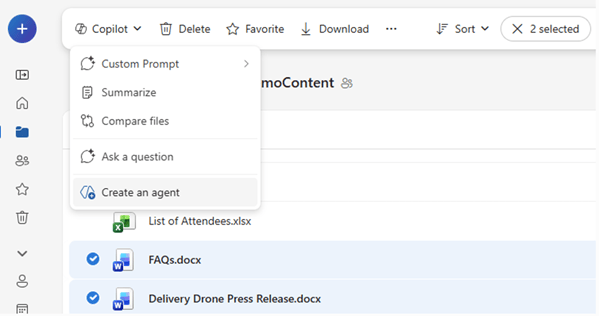
You can create an agent in two primary ways: by selecting “+ Create or upload” and choosing “Create an agent,” or by selecting files and choosing “Create an agent” from the toolbar or right‑click menu. From there, you pick up to 20 files, give your agent a name, optionally add instructions to steer its behavior, and save it to your OneDrive.
As soon as you save, the agent appears as a .agent file, ready to open in a full‑screen Copilot view where you can start asking questions and getting answers grounded in the selected content. You can edit or update your agent at any time to change its sources, name, or instructions so it stays aligned with the latest project information.
Where OneDrive agents shine in everyday work
Microsoft positions agents as especially powerful for work that spans people, time, and multiple files, where keeping everyone on the same page is a constant challenge. Project coordination is a prime example: instead of digging through folders, you can ask questions like “What decisions have we made so far?” or “What’s still open, and who owns it?” and let the agent surface the relevant details.
Onboarding and knowledge transfer are another high‑value scenario, where new teammates can use agents to ramp up on how a team operates or how features are shipped based on existing documentation. For meeting prep and follow‑up, agents can quickly remind you what was agreed in recent reviews or which risks keep coming up, without forcing you to reread every set of notes.
Research and synthesis also benefit from this model, because agents can look across collections of reports, spreadsheets, and slides to pull out recurring themes and key learnings. In all of these cases, the agent keeps the conversation in one place while preserving context and history per project, instead of fragmenting it across separate prompts and files.
Sharing, permissions, and governance details
One of the key design choices is that agents behave like any other OneDrive file when it comes to sharing and collaboration. You can share an agent with teammates using the same OneDrive sharing controls you use for documents, and as long as collaborators have access to the source files, the agent can provide complete, grounded responses to everyone involved.
Agents only work with the files you explicitly give them access to, and if someone receives an agent they don’t have permissions for on some underlying files, they won’t see full responses based on that restricted content. This aligns the AI behavior with existing Microsoft 365 permissions, which is critical for organizations that need to respect data boundaries while adopting AI.
It’s also worth noting that agents are currently available for Microsoft 365 Copilot customers using work or school accounts and require files to be stored in OneDrive or SharePoint. Agent creation or consumption of personal OneDrive content is not available for users on consumption‑based billing models, such as pay‑as‑you‑go.
Availability and what comes next
Agents in OneDrive are now generally available worldwide for OneDrive on the web, for customers with a Microsoft 365 Copilot license. Microsoft highlights that the experience is designed to become a natural part of how people organize information, stay aligned across teams, and keep projects moving forward without constant manual catch‑up.
The announcement is accompanied by a video walkthrough demonstrating agents in action, featuring Mithuna Soundararaj, Akash Ravi, and Vesa Juvonen, to help users visualize how this fits into daily workflows. For those who want deeper guidance or to roll this out across teams, Microsoft has published dedicated support articles on getting started with agents, creating and using agents, finding agent files, and sharing them within an organization.
Microsoft is actively soliciting feedback on how customers are using agents, what kinds of work they support, what insights surprised users, and what would make agents even more valuable in future updates. That feedback will inform how agents evolve as part of the broader Copilot and OneDrive roadmap, as AI becomes more tightly woven into everyday Microsoft 365 experiences.
Recent Posts You Might Like
- Xbox Free Play Days: 2K Takeover 2026 Brings NBA 2K26, Civilization VI, and More to Game Pass Members
- Welcome Microsoft 365 February 2026 Changes: MFA Enforcement, New Billing Rules, and Admin Action Items
- Claude Opus 4.6 Brings Next‑Gen Agentic Coding to GitHub Copilot Users Now Available
- Microsoft’s Return to Office Mandate Hits End of February 2026: What the Flexible Work Policy Means for Employees in the Bold New AI Era
- Microsoft’s Publisher Content Marketplace Aims to Fix AI’s Broken Content Economy
Discover more from Microsoft News Now
Subscribe to get the latest posts sent to your email.
