
What is Powercfg?

Powercfg.exe is a versatile command-line tool built into Windows that allows advanced users and IT professionals to configure power settings, manage power schemes, and generate detailed reports on energy efficiency and battery usage. Whether troubleshooting battery drain, tweaking performance, or automating power management for enterprise deployments, Powercfg is an essential tool for taking control of Windows power management beyond the graphical interface. This guide explains essential Powercfg commands, real-world use cases, and advanced options for maximizing your device‘s energy efficiency and reliability.
Why Use Powercfg?
-
Unlock hidden power settings not available in standard Windows menus.
-
Automate and enforce power policies in business and personal setups.
-
Generate reports that help identify and resolve energy inefficiency or battery problems.
Getting Started: Running Powercfg
-
Open Command Prompt as Administrator: Powercfg requires administrator privileges for most commands. Right-click Start > Windows Terminal (Admin) or Command Prompt (Admin).
-
Check Version Compatibility: Powercfg is available on all modern Windows versions, including Windows 10 and 11.
Common Powercfg Commands and Use Cases
List All Power Schemes

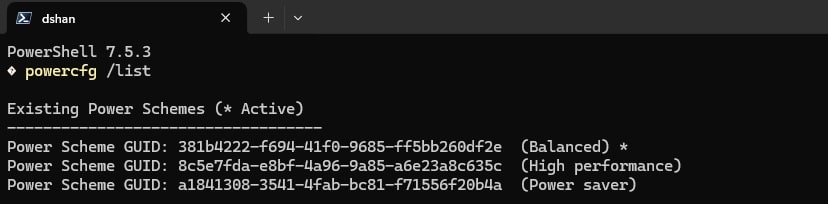
To view all power plans on your system, use:
powercfg /list
This command displays all available power schemes and their GUIDs. Each power plan can be further managed by referencing its GUID in subsequent commands.
Query and Modify Power Settings
-
Display Current Scheme Details:
textpowercfg /query
Or, for a specific scheme:
textpowercfg /query <scheme_GUID>
This reveals all the detailed configuration settings in the current or specified power plan.
-
Change Monitor Sleep Timeout (set to 5 minutes as an example):
textpowercfg /change monitor-timeout-ac 5
Replace 5 with your preferred number of minutes. Substitute
-acwith-dcfor battery mode.
Set Active Power Plan
To activate a specific power scheme:
powercfg /setactive <scheme_GUID>
This instantly applies your chosen power plan, optimizing performance or energy efficiency as needed.
Enable or Disable Hibernation
Hibernation saves the system state to disk to reduce power usage. Enable or disable it with:
powercfg /hibernate on

powercfg /hibernate off
Disabling hibernation can free up significant disk space if not needed, but it removes the ability to use Fast Startup in Windows 10/11.
Generate Battery Health Report
To analyze battery usage and health, use:
powercfg /batteryreportyou can add
/output "C:\batteryreport.html" or whichever location you prefer, but Windows will save the battery report in your user folder by default.
This generates a detailed HTML file outlining charge history, usage cycles, and battery life estimates for laptops and tablets.
Analyze System Energy Efficiency
Powercfg’s /energy command provides a deep analysis of your system’s energy efficiency and highlights any software or hardware causing unnecessary power drain:
powercfg /energy /output "C:\energyreport.html" /duration 120
It checks for misconfigured sleep settings, background processes, or drivers preventing efficient power management.
Advanced & Essential Commands
-
Check Which Device Woke Up Your PC Last:
textpowercfg /lastwake
-
List Devices Capable of Waking the System:
textpowercfg /devicequery wake_armed
-
Enable/Disable Device Wake (e.g., for USB Mouse):
textpowercfg /deviceenableawake "Device Name"
powercfg /devicedisablewake "Device Name"
-
List All Sleep States Supported:
textpowercfg /availablesleepstates
-
Enumerate Active Wake Timers:
textpowercfg /waketimers
-
Enumerate and Override Power Requests:
textpowercfg /requests
powercfg /requestsoverride process wmplayer.exe display system
-
Export or Import Power Schemes:
textpowercfg /export "C:\scheme.pow" <scheme_GUID>
powercfg /import "C:\scheme.pow"
Great for backup or deployment across multiple systems.
Powercfg in Real-World Scenarios
Scenario 1: Stop Your Laptop from Sleeping During Downloads
powercfg /requestsoverride process chrome.exe system awaymode
Prevent your laptop from sleeping while downloads run overnight. This overrides sleep for Chrome only with Administrator privileges.
Scenario 2: Optimize Battery Life on Laptops
-
Reduce screen timeout, disable unused devices, and monitor battery health:
textpowercfg /change standby-timeout-dc 10
powercfg /devicequery wake_armed
powercfg /batteryreport /output "battery_health.html"
Advanced Customizations
-
Automate Power Settings with Batch Files:
Save a list of Powercfg commands in a.batfile for easy system-wide deployment. -
Group Policy Integration:
Configure Powercfg in scripts as part of company-wide Group Policy for standardized settings. -
Provisioning XML:
Powercfg can generate provisioning XML for Windows Configuration Designer, helping IT admins roll out custom power settings at scale.
Troubleshooting and Best Practices
-
Always run Powercfg as administrator for full access.
-
After making changes, generate new energy or battery reports to confirm the effect.
-
Use
/exportbefore modifying power schemes to back up your settings.
Powercfg Command Table
| /?, -help | Displays information about command-line parameters. |
| /list, /L | Lists all power schemes. |
| /query, /Q | Displays the contents of a power scheme. |
| /change, /X | Modifies a setting value in the current power scheme. |
| /changename | Modifies the name and description of a power scheme. |
| /duplicatescheme | Duplicates a power scheme. |
| /delete, /D | Deletes a power scheme. |
| /deletesetting | Deletes a power setting. |
| /setactive, /S | Makes a power scheme active on the system. |
| /getactivescheme | Retrieves the currently active power scheme. |
| /setacvalueindex | Sets the value associated with a power setting while the system is powered by AC power. |
| /setdcvalueindex | Sets the value associated with a power setting while the system is powered by DC power. |
| /import | Imports all power settings from a file. |
| /export | Exports a power scheme to a file. |
| /aliases | Displays all aliases and their corresponding GUIDs. |
| /getsecuritydescriptor | Gets a security descriptor associated with a specified power setting, power scheme, or action. |
| /setsecuritydescriptor | Sets a security descriptor associated with a power setting, power scheme, or action. |
| /hibernate, /H | Enables and disables the hibernate feature. |
| /availablesleepstates, /A | Reports the sleep states available on the system. |
| /devicequery | Returns a list of devices that meet specified criteria. |
| /deviceenableawake | Enables a device to wake the system from a sleep state. |
| /devicedisablewake | Disables a device from waking the system from a sleep state. |
| /lastwake | Reports information about what woke the system from the last sleep transition. |
| /waketimers | Enumerates active wake timers. |
| /requests | Enumerates application and driver Power Requests. |
| /requestsoverride | Sets a Power Request override for a particular Process, Service, or Driver. |
| /energy | Analyzes the system for common energy-efficiency and battery life problems. |
| /batteryreport | Generates a report of battery usage. |
| /sleepstudy | Generates a diagnostic system power transition report. |
| /srumutil | Dumps Energy Estimation data from System Resource Usage Monitor (SRUM). |
| /systemsleepdiagnostics | Generates a diagnostic report of system sleep transitions. |
| /systempowerreport | Generates a diagnostic system power transition report. |
Discover more from Microsoft News Now
Subscribe to get the latest posts sent to your email.
