
Microsoft Edge integrates Copilot directly into the browser so you can summarize pages, ask questions, and get work done without leaving your tab—while honoring enterprise security and admin policies when you sign in with your work account. When Microsoft Copilot in Edge is used with an Entra ID work profile, you get enterprise data protection in the sidebar experience, which is indicated by a shield and governed by your organization’s DLP and access policies.
Sign in and open Copilot
-
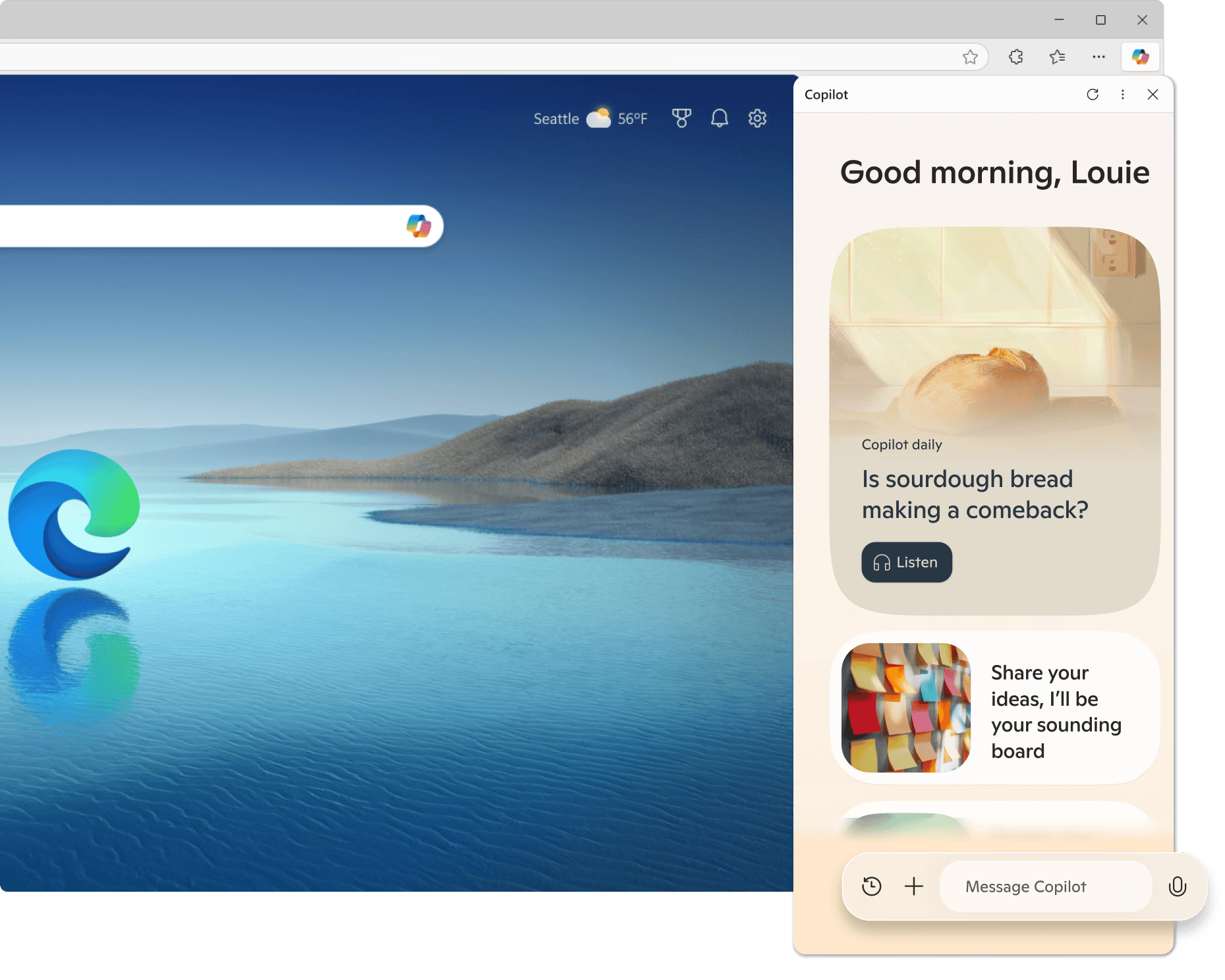
Sign into Edge with your Microsoft Entra work or school account; in most cases, you’ll be automatically signed into Copilot in the Edge sidebar with that profile.
-
Open Copilot from the Copilot icon in the upper-right of Edge or use Ctrl+Shift+. to launch the side pane.
-
Look for the enterprise protection shield at the top of Copilot Chat in Edge to confirm enterprise data protection is active.
What Microsoft Copilot in Edge can do
-
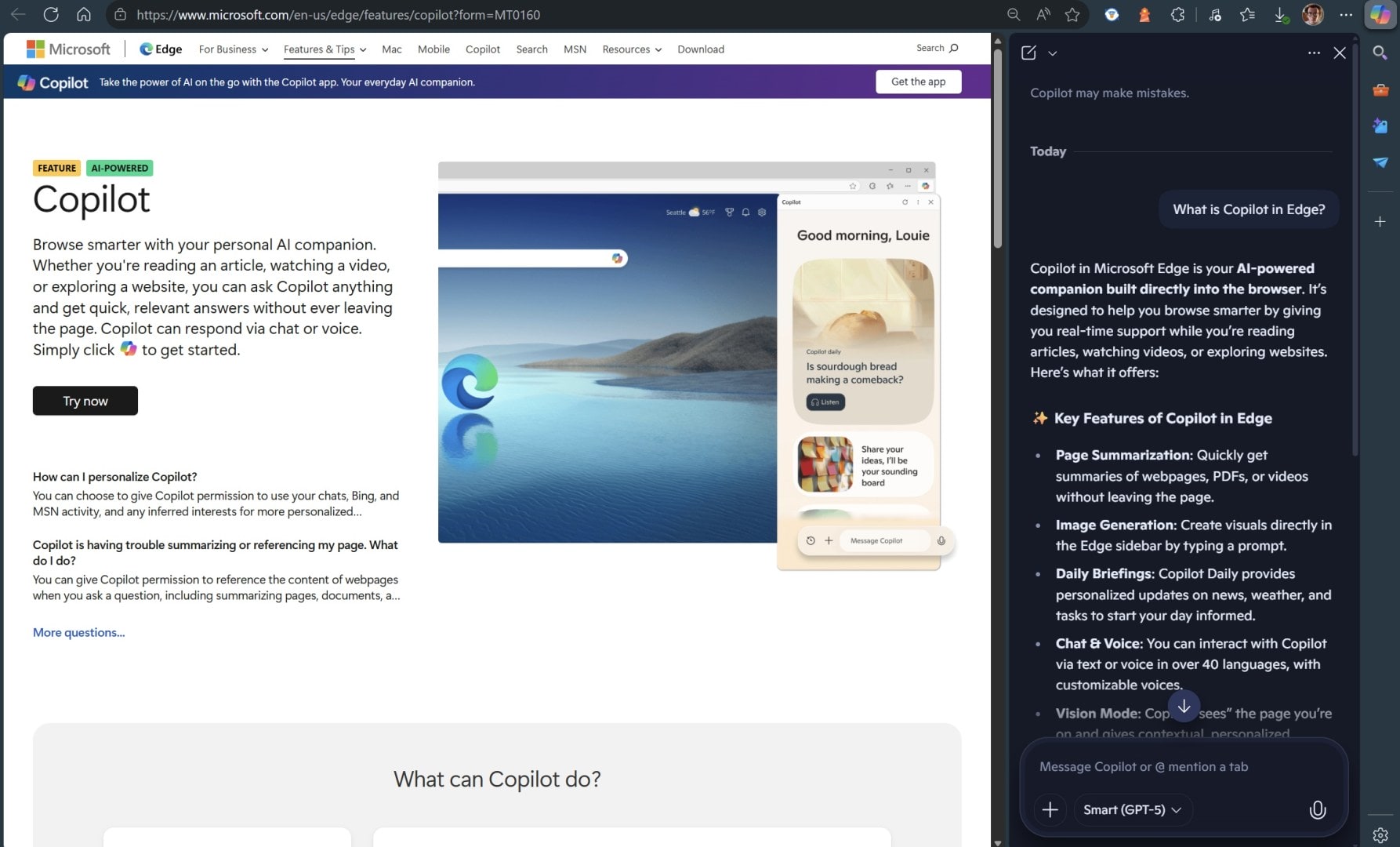
Summarize the page or PDF that’s open in your tab, and ask follow-up questions like “Who is quoted on this page?” to dig into specifics.
-
Use chat to research topics, compare information, and pull citations—without switching tabs—based on allowed page context and your admin’s policies.
-
Access previous chats for continuity when enterprise data protection is on; certain consumer features like tone selector and Notebook are not available under this mode.
Page context and consent
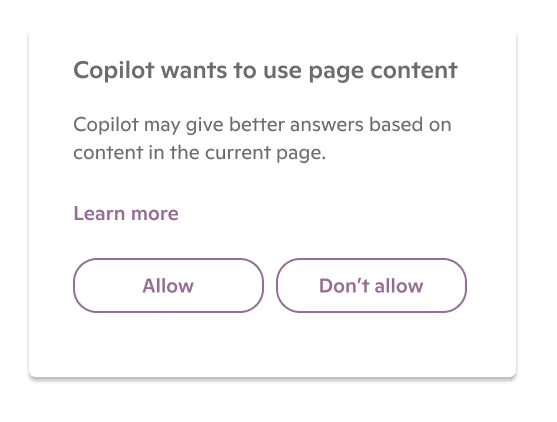
Copilot in Edge can ground responses in the page you’re viewing by using the page URL and content when your organization enables access; you may see a consent dialog if admins allow user control. If admins have explicitly enabled or disabled page content access via policy, you won’t see a consent prompt and Copilot will behave according to that configuration.
Enterprise data protection (EDP)
When you sign in with an Entra ID work profile, Microsoft Copilot in Edge offers enterprise data protection that isolates your prompts and responses from model training and applies heightened safeguards for organizational data. The shield indicator in the sidebar confirms the protected experience, and your chat operates under enterprise-grade security and compliance controls.
Data Loss Prevention (DLP) in Edge for Business

Edge for Business enforces your organization’s DLP policies, which extend to Copilot in the sidebar; if a site or document is protected, Copilot will explain that it cannot access the page. Admins can configure blocking or restrictions using Microsoft Purview, Intune MAM, and related controls, which can prevent copying, printing, downloads, uploads, or page extraction—and suppress Copilot from page access when required.
Admin controls and policies
Admins configure Copilot access to page content and contextual grounding with Edge policies (including CopilotPageContext/EdgeEntraCopilotPageContext) and Purview DLP, scoped by Entra group membership. Microsoft’s Edge management capabilities and Purview DLP make it straightforward for IT to enable Copilot while maintaining control of sensitive data across sites and documents.
Using the sidebar effectively
-
Summarize this page: Ask Copilot to “Summarize this page” to get a brief, linked overview.
-
Ask targeted questions: Try “List the key findings on this page” or “Extract dates and names mentioned,” subject to your organization’s DLP settings.
-
Research without tab switching: Request comparisons, definitions, or quick facts, and follow the citations Copilot provides for deeper reading.
Writing and rewrite features
When composing in editable fields on a web page, you can use right-click rewrite and editing assistance from Copilot as it becomes available under enterprise protection; this replaces some earlier consumer compose experiences in the Edge sidebar. If a tone selector or older Notebook features appear, updating Edge to the latest stable release removes non-compliant items in enterprise-protected mode.
File uploads under EDP
Copilot can analyze uploaded files in chat—like Word, PDFs, Excel, and PowerPoint—to summarize or extract information, but content is treated as if pasted into the chat and is not used to train foundation models under enterprise data protection. Organizations can also block sensitive files from being sent to Copilot via DLP policies in Edge for Business.
Privacy, storage, and responsible AI
Under enterprise data protection, prompts and responses aren’t used to train foundation models, and Microsoft documents how web queries and data are protected for work use. Microsoft outlines ongoing safeguards and responsible AI practices for Copilot and Edge to meet enterprise security and compliance needs.
Delete your Copilot activity
-
Open Copilot Chat in Edge via the toolbar icon.
-
Select the three dots next to the close icon, choose Privacy, which opens your Microsoft account privacy settings.
-
Open Copilot activity history, choose Delete history, select the product, and confirm.
Troubleshooting tips
-
Check the shield: If you don’t see the enterprise shield, verify you’re signed into Edge and Copilot with your Entra ID and on a supported, updated Edge build.
-
Confirm policy behavior: If Copilot can’t access a page or PDF, your organization’s DLP or page context policy may be blocking access by design.
-
Update Microsoft Edge: Older features like Notebook or Compose may still show until you update to Edge stable 128.0.2739.54+ or later in managed environments.
Pro tips for better prompts
-
Be specific about the task: “Summarize this page into 5 bullet points focused on risks and mitigations.”
-
Reference the page context: “From this open tab, extract deadlines and owners into a list I can copy.”
-
Add constraints: “Rewrite this paragraph for an executive audience in 120–150 words.”
Notes for admins
Microsoft’s admin guidance details how to enable Copilot Chat in Edge for Entra users, manage page context access, and enforce DLP rules for sensitive sites and documents. Roadmap communications also note that contextual grounding across tabs and Microsoft 365 content in the side pane respects existing DLP and can be centrally managed.
Important for Microsoft Copilot in Edge: For definitions of terms such as “prompt,” “response,” “recent conversation history,” “grounding,” “page information,” and “page context,” see Microsoft’s glossary on the support page linked here. Learn more about using Copilot in the Edge sidebar and how data is protected on Microsoft Copilot in Edge feature and protection pages.
Recent Posts
Discover more from Microsoft News Now
Subscribe to get the latest posts sent to your email.
