

Microsoft is quietly rolling out one of the more interesting Windows 11 preview updates in recent months. Optional update KB5077241 for Windows 11 versions 24H2 and 25H2 introduces a built‑in internet speed test directly from the taskbar, native Sysmon support, and a batch of performance and reliability tweaks that should make PCs wake from sleep faster and behave more consistently day to day. For power users and admins, this is also the first time System Monitor (Sysmon) is shipping as an in‑box Windows feature instead of a separate Sysinternals download.
KB5077241 is a non‑security preview update, meaning it does not install automatically for most users—you have to actively choose it in Windows Update if you want to test the new capabilities early. Once installed, it bumps Windows 11 25H2 to build 26200.7922 and 24H2 to build 26100.7922, continuing the slow rollout of “continuous innovation” features Microsoft has been layering on top of the main annual releases. Many of the under‑the‑hood fixes complement the broader Windows 11 26H1 line of updates covered by KB5077239, which focuses more on Copilot, lock screen, File Explorer, and reliability improvements.
What KB5077241 changes in Windows 11
Microsoft’s documentation describes KB5077241 as a functionality, performance, and reliability update for Windows 11 24H2 and 25H2. Third‑party coverage highlights three changes most users are likely to notice:
-
A native internet speed test launched from the taskbar’s network icon
-
Native Sysmon support built into Windows 11
-
Improvements to wake‑from‑sleep and general system responsiveness
On top of that, KB5077241 rolls in various quality‑of‑life tweaks and bug fixes, including refinements to the taskbar, window behavior, BitLocker, and other system components. As with other late‑month previews, anything that tests well here will likely roll into the next Patch Tuesday cumulative update for all eligible PCs.
New: Internet speed test from the taskbar
The most visible user‑facing change is the built‑in internet speed test tied to the network icon in the taskbar. After installing KB5077241, Windows 11 adds a “Perform speed test” option in two places:
-
In the Wi‑Fi/Cellular Quick Settings flyout
-
On the network icon context menu in the taskbar
When you select it, Windows launches your default browser and runs a web‑based speed test that reports latency, download, and upload values. Documentation and forum notes emphasize that this is effectively a launcher for a web‑hosted measurement widget (based on Bing’s embedded speed test using providers like Speedtest/Ookla), not a deep kernel‑level probe built into the networking stack.
How to use the taskbar speed test
Once KB5077241 is installed:
-
Click the network icon (Wi‑Fi or Ethernet) in the taskbar to open Quick Settings.
-
Otherwise, you can right-click the network icon and look for the “Perform speed test” entry.

-
Click it to launch your browser and start the test; you’ll see ping, download, and upload results in the page UI.

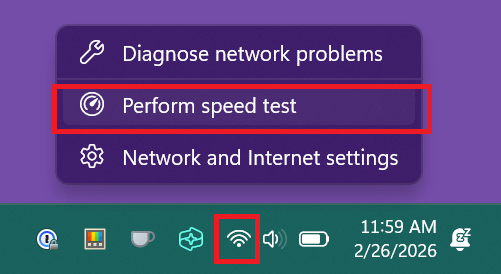
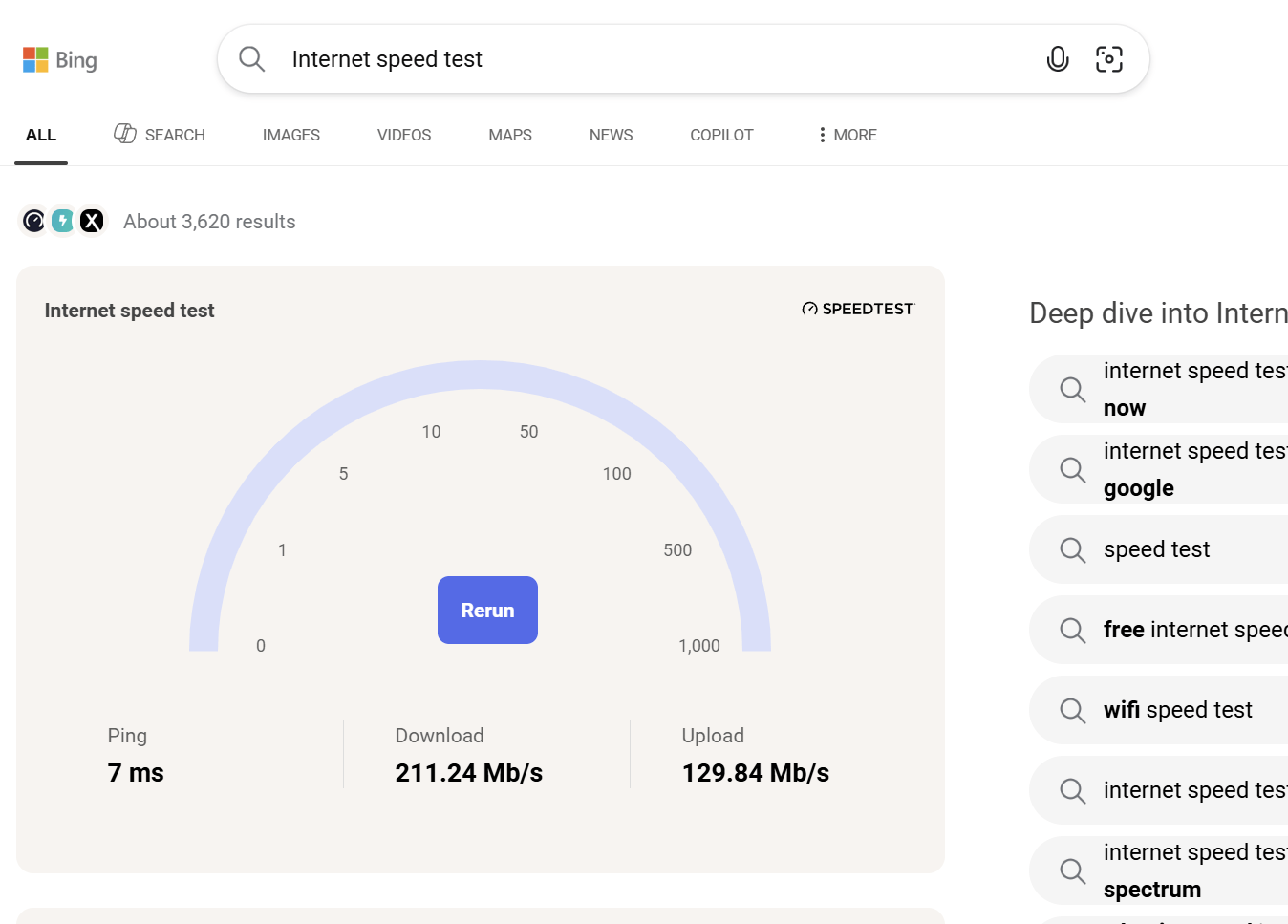
Alternatively, you can right‑click the network icon in the taskbar and select the speed test option there, depending on your configuration. This gives casual users a simple, built‑in way to check if their connection or ISP is the problem before diving into more advanced troubleshooting.
Sysmon is now built into Windows 11
For IT admins, security teams, and power users, the biggest news is that System Monitor (Sysmon) is now included as an in‑box Windows component with KB5077241. Sysmon has been part of Microsoft’s Sysinternals toolkit for years, widely used to log detailed system activity, process creation, and network events for security monitoring and troubleshooting.
How Sysmon works in this update
-
Sysmon is now available as an optional Windows feature in Windows 11 24H2 and 25H2.
-
It remains off by default; installing KB5077241 does not automatically enable it.
-
When enabled, Sysmon can record system events and background activity to help investigate performance issues or potential security incidents.
How to enable Sysmon in Windows 11
After installing KB5077241, you can enable Sysmon through Settings:
-
Open Settings.
-
Go to System.
-
Choose Optional features and then More Windows features.
-
Scroll through the list and select Sysmon.
-
Click OK and follow the prompts to install/enable it.

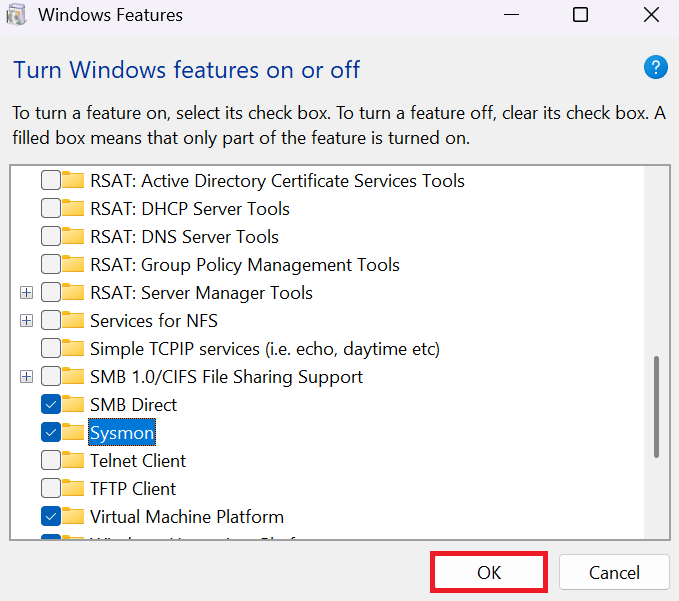
Once active, Sysmon behaves much like the stand‑alone Sysinternals version Windows admins are used to, but you no longer need to deploy a separate binary across endpoints. That makes it easier to standardize monitoring and logging in enterprise environments, and it opens the door for Microsoft to integrate Sysmon capabilities more deeply with Windows Defender or other security stacks in future updates.
Better wake‑from‑sleep and overall responsiveness
Beyond the headline tools, KB5077241 brings a set of performance and reliability improvements, with a particular focus on faster and more reliable wake‑from‑sleep behavior. Microsoft describes general reliability and performance enhancements, while independent coverage points to:
-
Reduced delays when resuming from sleep or hibernation
-
Smoother behavior in common UI areas, including the taskbar and windows
These changes complement the broader tweaks in KB5077239 for the 26H1 line, where Microsoft fixed lock screen hangs, File Explorer toolbar oddities, startup app interactions that could break the taskbar, and several reliability issues around logging in and User Account Control. Taken together, the February optional updates are aimed at smoothing out the small paper‑cut issues that make Windows 11 feel less responsive or predictable.
Other fixes and improvements in KB5077241
While Microsoft’s full changelog for KB5077241 runs long, community roundups and support notes call out a handful of notable refinements:
-
BitLocker improvements – Aligning with changes in KB5077239, Microsoft has been refining BitLocker recovery behavior to prevent devices from hanging after entering recovery keys and to improve startup reliability.
-
Taskbar and window overflow tweaks – Starting with this update, Windows no longer moves all window buttons together when space runs out on the taskbar. Instead, it moves only the individual app buttons that don’t fit into the overflow menu, which should feel more predictable when you juggle many windows.
-
Emoji 16 support – KB5077241 also adds support for Emoji 16, bringing a new batch of emoji characters to Windows 11, which will show up in the emoji picker and supported apps once the update is installed.
Like other cumulative previews, KB5077241 also bundles various smaller fixes that may matter a lot to specific setups, such as app compatibility quirks, UI glitches, or rare crashes that most users never see spelled out in marketing materials.
How to install (or skip) KB5077241
Because KB5077241 is a preview (optional) update, it will not force‑install on most systems. If you’re on Windows 11 24H2 or 25H2 and want to try the new speed test and Sysmon capability early:
-
Open Settings > Windows Update.
-
Click Check for updates.
-
Look for “2026‑02 Preview Update (KB5077241)” with build 26200.7922 (25H2) or 26100.7922 (24H2).
-
Choose Download & install to opt into the preview.
If you prefer maximum stability, you can skip KB5077241 and wait for its contents to show up in the next Patch Tuesday cumulative update, where they’ll arrive alongside the month’s security fixes. Many admins test this preview in a staging environment first to validate that nothing breaks line‑of‑business apps before approving it broadly, especially given early reports that some users noticed odd icon behavior or other minor regressions tied to this update.
Why this update matters for Windows 11 users
Individually, features like a taskbar speed test and bundled Sysmon might look minor, but together they show Microsoft continuing to fold power‑user tools and everyday diagnostics into the core Windows 11 experience. The speed test option makes life easier for non‑technical users who just want to know if their internet is slow, while native Sysmon is a clear nod to enterprise and security teams who rely on deep telemetry.
At the same time, the ongoing performance and wake‑from‑sleep fixes—plus the broader reliability work visible in KB5077239—should make Windows 11 feel more responsive, resilient, and predictable on modern PCs. If you’re a power user or admin, KB5077241 is worth installing on a test machine to get ahead of the curve and start experimenting with the new Sysmon integration and diagnostic tools.
Recent Posts You Might Like
- Windows 11 KB5077239: What’s New in the February 24, 2026 Preview Update
- Copilot on Windows 11: An Easy Beginner’s Guide for 2026
- Japan Raids Microsoft Japan Over Massive Alleged Azure Anti‑Monopoly Violations
- Azure Storage Adds Secure User-Bound User Delegation SAS to Lock Tokens to a Single Entra ID Identity
Discover more from Microsoft News Now
Subscribe to get the latest posts sent to your email.
