
On July 19, 2024, a critical issue with the CrowdStrike Falcon agent caused widespread disruptions to Windows machines, including Azure Virtual Machines (VMs). This unexpected event has left many users scrambling to restore their affected Azure VMs. If you’re one of the impacted users, don’t panic. This comprehensive guide outlines several recovery options to get your Azure VMs back up and running smoothly. Whether you’re a seasoned Azure administrator or new to cloud computing, these step-by-step instructions will help you navigate this challenging situation and minimize downtime for your critical infrastructure. This guide outlines recovery options for affected Azure VMs.
Quick recovery: Multiple Microsoft Azure VM restarts
Many users have successfully recovered their VMs by performing multiple restarts:
- Open the Azure Portal.

- Navigate to your affected VM.
- Click “Restart.”
- Repeat up to 15 times if necessary.
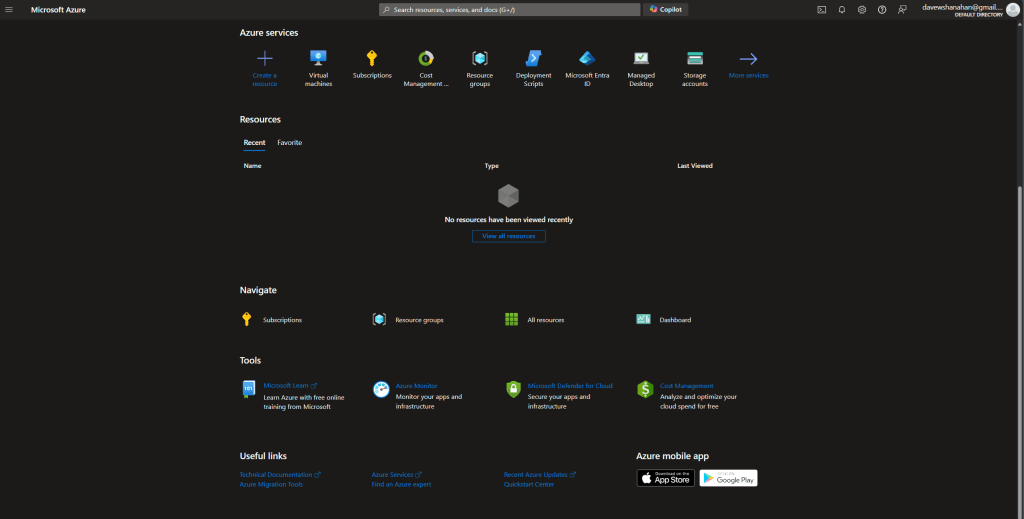
Alternatively, use Azure CLI: az vm restart -g <resource-group> -n <vm-name>
Option 1: Restore from backup
If you have a backup from before July 19, 2024 at 04:09 UTC:
- Open Azure Backup.
- Select your VM.
- Choose “Restore VM”
- Select a restore point before the incident.
- Follow the prompts to complete the restoration.
Option 2: Remove problematic file using Azure VM repair
- Create a rescue VM:
az vm repair create -g <resource-group> -n <vm-name> --verbose
For encrypted VMs:az vm repair create -g <resource-group> -n <vm-name> --unlock-encrypted-vm --verbose - Run the fix script:
az vm repair run -g <resource-group> -n <vm-name> --run-id win-crowdstrike-fix-bootloop --run-on-repair --verbose - Restore the VM:
az vm repair restore -g <resource-group> -n <vm-name> --verbose
Option 3: Manual disk repair
- Create a repair VM.
- Attach the affected VM’s OS disk to the repair VM.
- Boot the repair VM and navigate to:
C:/Windows/System32/Drivers/CrowdStrike/ - Delete the file:
C-00000291*.sys - Reattach the disk to the original VM.
Need further assistance with the CrowdStrike Falcon agent bug?

If these steps don’t resolve your issue, contact CrowdStrike support directly for additional guidance. The CrowdStrike global outage has undoubtedly caused significant disruption for many Azure VM users. However, with the recovery options outlined in this guide, you should be able to restore your affected Azure VMs and resume normal operations. Remember, the key to a successful recovery is to act promptly and follow the steps carefully. If you encounter any difficulties during the recovery process, don’t hesitate to reach out to Microsoft Azure support or CrowdStrike for additional assistance.
As cloud technologies continue to evolve, incidents like these serve as important reminders of the need for robust backup strategies and disaster recovery plans. By staying informed and prepared, you can better navigate future challenges and ensure the resilience of your Azure infrastructure.
Stay vigilant, keep your systems updated, and remember that the Azure community is here to support you through these technical hurdles. Together, we can overcome this issue and emerge stronger and more knowledgeable in managing our cloud environments.
Stay tuned for updates as Microsoft and CrowdStrike continue to investigate this incident and avoid future fallout. CrowdStrike is working on fixing the problem, here is their latest statement for Windows hosts as well as technical details for yesterday’s global outage.
Discover more from Microsoft News Now
Subscribe to get the latest posts sent to your email.