
Updated August 2026: This guide was refreshed to reflect current Microsoft settings, pricing, and terminology.
Voice access in Windows 11 is a feature that lets you navigate your PC and compose text with voice commands. This guide will walk you through the simple steps to enable and use voice access, making your Windows 11 experience more accessible and efficient. Legacy Windows Speech Recognition is deprecated in favor of voice access.
Step 1: Check your Windows 11 version
Before you begin, ensure you’re running Windows 11, version 22H2, or later. You can check your version by going to Settings > System > About.

Since I have Windows 11 version 23H2, my PC will be able to use voice access, the next step is to enable the feature and pick startup options.
Step 2: Enable voice access in Windows 11 and pick startup options
You can enable Voice Access in two ways:
- From Settings: Go to Start > Settings > Accessibility > Speech. Here, turn on the Voice Access toggle.

- Windows Search: Type “voice access” in the Windows search bar and select Open to start Voice Access.

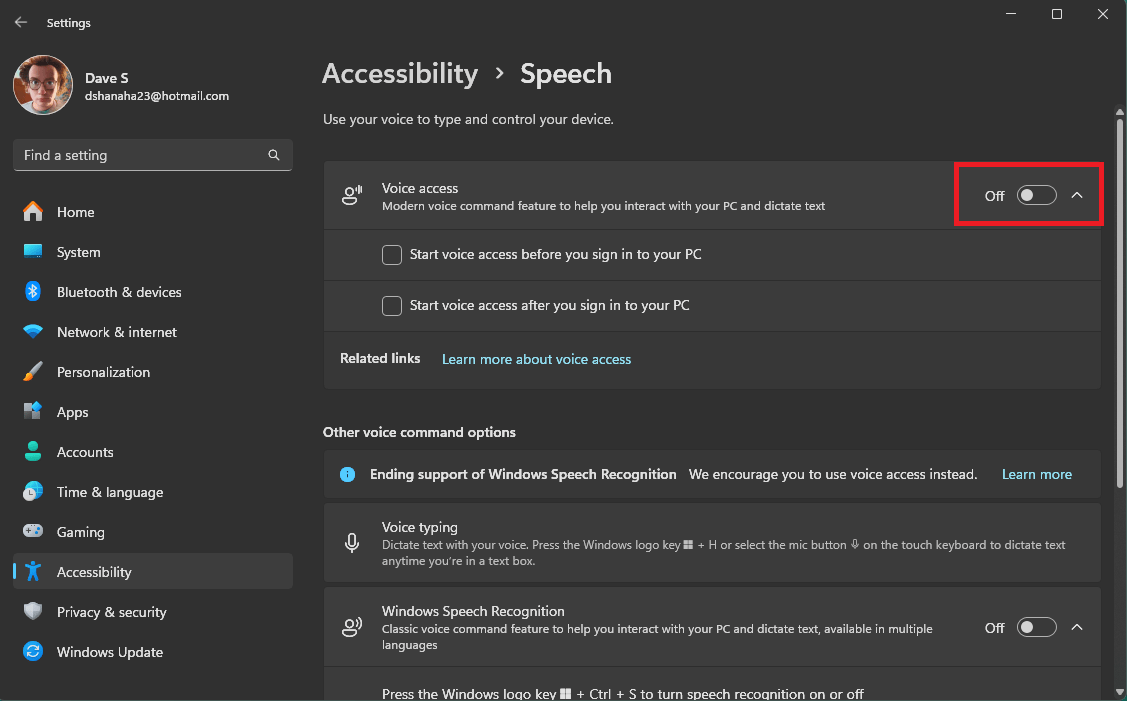

Once Voice Access in Windows 11 is enabled, the current setup begins with a welcome screen. Select Agree and continue, then follow the prompts to choose your microphone and download a language file. You can also choose additional options, such as starting Voice Access automatically before or after you sign in to your PC.

Step 3: Download language files
Upon launching Voice Access for the first time, you may need to download language files. Follow the prompts to complete this step. If you encounter issues downloading the language files, ensure you have an active internet connection and can access the Microsoft Store app.
Voice access in Windows 11 supports several English dialects (US, UK, India, New Zealand, Canada, and Australia), Spanish (Spain and Mexico), German (Germany), and French (France and Canada). Newer choices include Simplified Chinese (China), Traditional Chinese (Taiwan), Japanese, and Italian. You can switch the language later from Voice access settings > Languages.
During the initial setup, you’ll be prompted to download the necessary language files for on-device speech recognition. You can choose to download immediately or do it later. The download process may take a few minutes. Check out the provided links to learn more about Voice Access or the Microsoft Privacy Statement. Once the language files are downloaded, Voice Access can function offline, without an internet connection.
Step 4: Select your microphone

Choose the microphone you wish to use with Voice Access. If your desired microphone isn’t listed, select Add new microphone. You can also adjust sound settings if necessary. Click the arrow at the bottom left of the screen to advance to the next screen.
Step 5: Finalize the setup

Once you finish with your microphone setup, you can get started using voice access in Windows 11. Remember you can always go back to the settings again by clicking the gear cog in the upper left of your screen or by saying “open voice access settings.”

Additional Tips
1. Voice Access Commands
Familiarize yourself with voice commands by visiting the Voice Access command list. You can also access the “Voice access commands” window by saying “Open voice access command list” to view the entire list of commands or by saying “What can I say?”

2. Troubleshooting
If you encounter issues setting up Voice Access, verify your internet connection, check microphone functionality, and ensure you have the necessary language pack installed.
3. Voice access guide
Use the Voice Access guide to learn and practice basic commands. You can access the guide from the Voice Access help menu or by saying “Open voice access guide.”
4. Control Windows and apps
- Open and close apps: Say “Open [app name]” to launch an application, or “Close [app name]” to close it. For example, “Open Edge” or “Close Word.”
- Switch between apps: Use “Switch to [app name]” to move between open applications. If multiple instances of the same app are open, Voice Access will prompt you to select the desired instance by number.
- Minimize and maximize Windows: Commands like “Minimize window” or “Maximize window” allow you to control the current window’s size.
- Scrolling: Use commands like “Scroll up” or “Scroll down” to navigate within a window. For more precise scrolling, you can say “Start scrolling [direction]” and “Stop scrolling” to cease.
5. Use grid and numbers for precision
For screens with many clickable items, saying “Show numbers” will assign a number to each interactable element. You can then say “Click [number]” to select an item.
The “Show grid” command overlays a grid on the screen, allowing you to narrow down to a specific area for more precise clicks.
Setting up Voice Access in Windows 11 is a straightforward process that can significantly enhance accessibility and convenience for users.
By following these steps, you’ll be able to control your PC and author text using your voice, making it an invaluable tool for those with mobility disabilities or anyone looking to streamline their PC.
Discover more from Microsoft News Now
Subscribe to get the latest posts sent to your email.