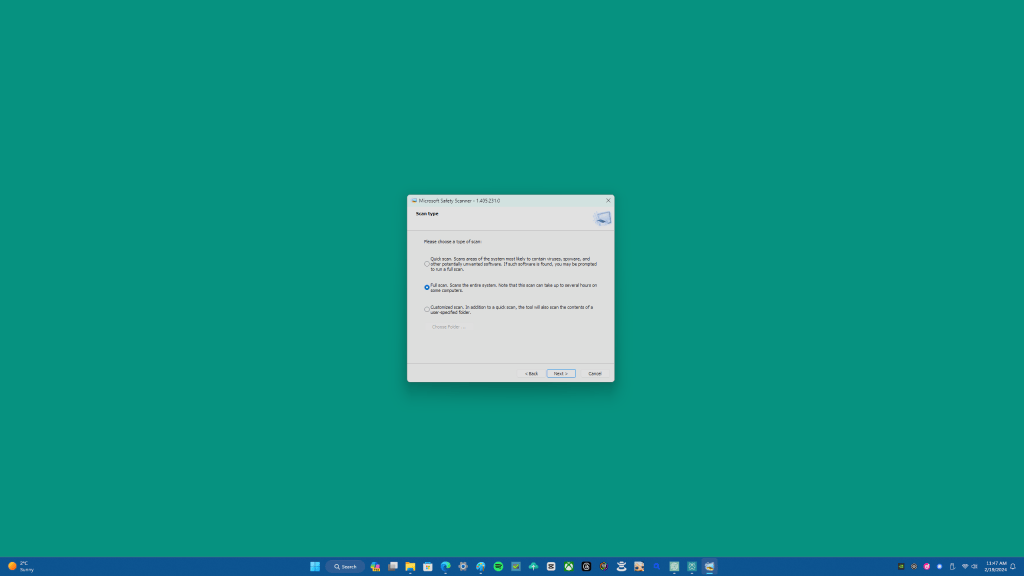

Microsoft Safety Scanner is a free security tool that scans your computer for all types of malware and helps remove any infections found. It’s a standalone tool that can be used even if you have an antivirus program installed, including big names like Microsoft’s antivirus program Windows Defender.
But it helps to have another tool to see if your antivirus program might be infected. Here’s a step-by-step guide on how to download, run, and use Microsoft Safety Scanner.
Step 1: Download Microsoft Safety Scanner
- Visit the official Microsoft Safety Scanner download page at [https://learn.microsoft.com/en-us/microsoft-365/security/defender/safety-scanner-download?view=o365-worldwide].

- Choose the correct version for your system: 32-bit or 64-bit. If you’re unsure which version you need, you can check your system type by going to
Settings > System > Abouton Windows 10 or 11, orControl Panel > Systemon older versions of Windows. - Click the download link for either the 32-bit or 64-bit version.

Step 2: Run Microsoft Safety Scanner
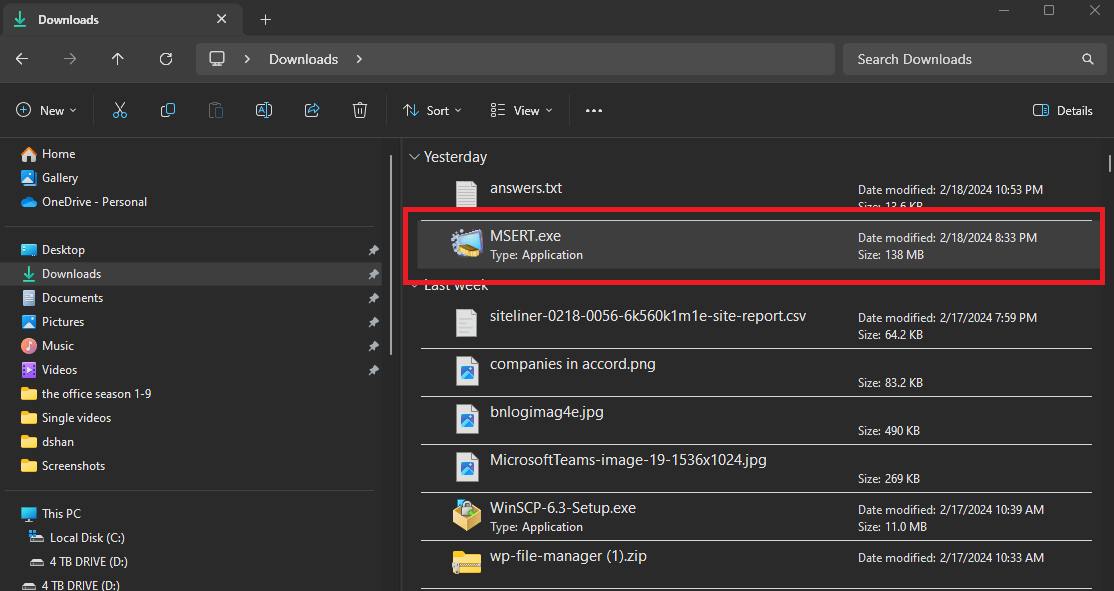
- Find the location where you downloaded MSERT.exe and double-click it to start the program.
- If prompted by User Account Control (UAC), click “Yes” to allow the program to make changes to your device.
- Read the end-user license agreement, check the box to accept the terms, and click Next to proceed.

- You will need to click Next once more to choose a scan type.


Step 3: Choose a scan type
You will be presented with three scan options: Quick scan, Full scan, and Customized scan.
- Quick scan: Checks areas of the system most likely to contain malware.
- Full scan: Thoroughly checks the entire system.
- Customized scan: Allows you to specify folders to scan. This option is especially helpful to scan external drives and USB devices.
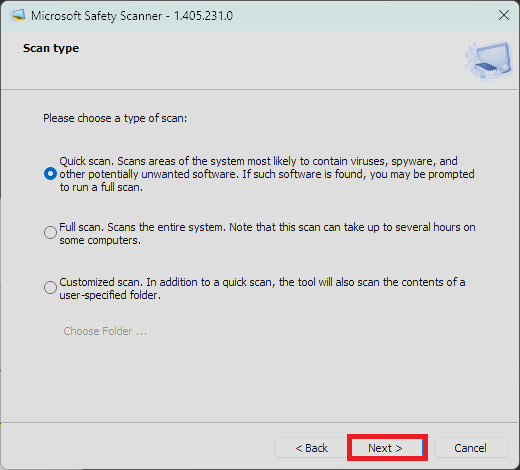
Select the scan type you prefer and click Next to start the scanning process.
Step 4: Review and clean infections

The Microsoft Safety Scanner will begin scanning your computer for malware. This process may take some time, depending on the scan type selected and the size of your hard drive.
Once the scan is complete, the tool will display any detected malware and take action to clean the infections. Follow any prompts to remove the malware.
Step 5: Finish up
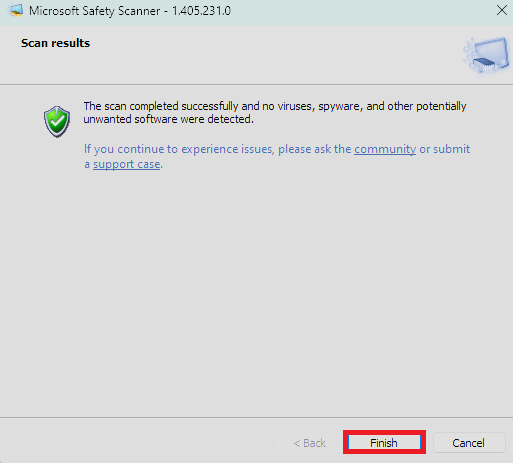
- After the cleaning process is complete, a summary of the scan results will be displayed.
- Review the results to ensure that all threats have been successfully removed.
- If there are no issues, you can click Finish to close the Microsoft Safety Scanner.

Important notes
- Microsoft Safety Scanner is compatible with Windows 11, Windows 10, Windows 8.1, Windows 7, and various Windows Server versions.
- Microsoft Safety Scanner is exclusively SHA-2 signed. Ensure your system supports SHA-2 to run the tool.
- Microsoft Safety Scanner is not a replacement for an antivirus program. It does not provide real-time protection and should be used as a supplementary tool. There are some instances where you might not be able to download the tool.
By following these steps, you can use Microsoft Safety Scanner to help keep your computer free from malware when you need protection right away. Remember to always keep your Windows operating system and security software up to date for the best protection against threats.
Discover more from Microsoft News Now
Subscribe to get the latest posts sent to your email.
