Skip to content
July 27, 2026
  • AI & Copilot
  • Azure Cloud
  • How To Guides
  • Microsoft 365 Office
  • Windows
  • XBOX
  • Privacy Policy

Microsoft News Now

The Home of Microsoft News Today

Primary Menu
  • AI & Copilot
  • Azure Cloud
  • How To Guides
  • Microsoft 365 Office
  • Windows
  • XBOX
  • Privacy Policy
Light/Dark Button
Subscribe

Home - How To Guides - How to use Microsoft Safety Scanner to remove malware in 5 easy steps

  • How To Guides
  • Security

How to use Microsoft Safety Scanner to remove malware in 5 easy steps

Microsoft Safety Scanner is a free security tool that scans your computer for all types of malware.
Dave W. Shanahan February 18, 2024 (Last updated: August 11, 2025) 3 minutes read
microsoft safety scanner

Microsoft Safety Scanner is a free security tool that scans your computer for all types of malware and helps remove any infections found. It’s a standalone tool that can be used even if you have an antivirus program installed, including big names like Microsoft’s antivirus program Windows Defender.

But it helps to have another tool to see if your antivirus program might be infected. Here’s a step-by-step guide on how to download, run, and use Microsoft Safety Scanner.

Step 1: Download Microsoft Safety Scanner

  1. Visit the official Microsoft Safety Scanner download page at [https://learn.microsoft.com/en-us/microsoft-365/security/defender/safety-scanner-download?view=o365-worldwide].How to use Microsoft Safety Scanner to remove malware in 5 easy steps
  2. Choose the correct version for your system: 32-bit or 64-bit. If you’re unsure which version you need, you can check your system type by going to Settings > System > About on Windows 10 or 11, or Control Panel > System on older versions of Windows.
  3. Click the download link for either the 32-bit or 64-bit version.

Step 2: Run Microsoft Safety Scanner

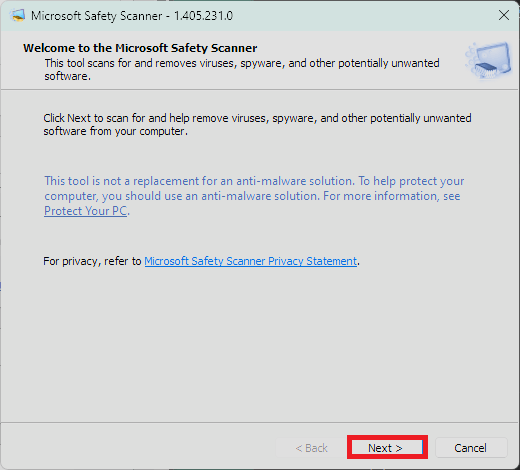
  1. Find the location where you downloaded MSERT.exe and double-click it to start the program. How to use Microsoft Safety Scanner to remove malware in 5 easy steps
  2. If prompted by User Account Control (UAC), click “Yes” to allow the program to make changes to your device.
  3. Read the end-user license agreement, check the box to accept the terms, and click Next to proceed. How to use Microsoft Safety Scanner to remove malware in 5 easy steps
  4. You will need to click Next once more to choose a scan type. How to use Microsoft Safety Scanner to remove malware in 5 easy steps

Step 3: Choose a scan type

You will be presented with three scan options: Quick scan, Full scan, and Customized scan.

  1. Quick scan: Checks areas of the system most likely to contain malware.
  2. Full scan: Thoroughly checks the entire system.
  3. Customized scan: Allows you to specify folders to scan. This option is especially helpful to scan external drives and USB devices.

How to use Microsoft Safety Scanner to remove malware in 5 easy steps
Select the scan type you prefer and click Next to start the scanning process.

Step 4: Review and clean infections

How to use Microsoft Safety Scanner to remove malware in 5 easy steps

The Microsoft Safety Scanner will begin scanning your computer for malware. This process may take some time, depending on the scan type selected and the size of your hard drive.

Once the scan is complete, the tool will display any detected malware and take action to clean the infections. Follow any prompts to remove the malware.

Step 5: Finish up

  1. After the cleaning process is complete, a summary of the scan results will be displayed.
  2. Review the results to ensure that all threats have been successfully removed.
  3. If there are no issues, you can click Finish to close the Microsoft Safety Scanner.
    How to use Microsoft Safety Scanner to remove malware in 5 easy steps

Important notes

  1. Microsoft Safety Scanner is compatible with Windows 11, Windows 10, Windows 8.1, Windows 7, and various Windows Server versions.
  2. Microsoft Safety Scanner is exclusively SHA-2 signed. Ensure your system supports SHA-2 to run the tool.
  3. Microsoft Safety Scanner is not a replacement for an antivirus program. It does not provide real-time protection and should be used as a supplementary tool. There are some instances where you might not be able to download the tool.

By following these steps, you can use Microsoft Safety Scanner to help keep your computer free from malware when you need protection right away. Remember to always keep your Windows operating system and security software up to date for the best protection against threats.

About The Author

Microsoft Safety Scanner

Dave W. Shanahan

I’m Dave W. Shanahan, a Microsoft enthusiast with a passion for Windows, Xbox, Microsoft 365 Copilot, Azure, and more. I started MSFTNewsNow.com to keep the world updated on Microsoft news. Based in Massachusetts, you can email me at davewshanahan@gmail.com.

See author's posts

Like this:

Like Loading…

Related


Discover more from Microsoft News Now

Subscribe to get the latest posts sent to your email.

Tags: Microsoft Security Settings Windows Windows 10 Windows 11 Windows Server

Post navigation

Previous: Deceptive AI election content: Big U.S. tech companies sign accord combating the massive problem in 2024
Next: How to stop Microsoft Edge from running in the background on your Windows 10 or Windows 11 PC

Related Stories

How to Join the New Windows Insider Program (and Switch Channels) on Windows 11
  • How To Guides
  • Windows

How to Join the New Windows Insider Program (and Switch Channels) on Windows 11

Dave W. Shanahan June 29, 2026
Windows key + G XBOX GAME BAR keyboard shortcut
  • How To Guides
  • XBOX and Gaming

How to Enable XBOX Game Bar and Capture Epic Game Clips on Windows 11 (No Frustrating Setup Required)

Dave W. Shanahan June 21, 2026
Copilot on Windows: Install and Launch in Under 5 Minutes
  • How To Guides
  • AI and Copilot

Copilot on Windows: Seamless Install and Launch in Under 5 Minutes

Dave W. Shanahan June 21, 2026

Accessibility Amazon Android Authentication Azure Call of Duty Copilot Cybersecurity Developer Enterprise Free Play Days Gaming Generative AI GitHub Google Linkedin Microsoft Microsoft 365 Microsoft 365 Copilot Microsoft Copilot Microsoft Edge Microsoft Store Microsoft Teams Next Week on XBOX OpenAI Outlook Patch Tuesday Privacy Security Settings SharePoint Surface Twitter Windows Windows 10 Windows 11 Windows Insider XBOX XBOX Game Pass XBOX Game Pass Ultimate XBOX One XBOX Play Anywhere XBOX Series X XBOX Series X|S XBOX Wire

Useful Links

  • AI and Copilot (250)
  • Azure & Cloud (35)
  • Developers (3)
  • Enterprise (4)
  • How To Guides (99)
  • Microsoft 365/Office (98)
  • Microsoft Announcements (97)
  • News (1,287)
  • Security (78)
  • Surface (47)
  • Windows (169)
  • XBOX and Gaming (428)

You May Have Missed

e1c3c690-5e12-49cf-aa8d-c5aa8ae529f1
  • News
  • XBOX and Gaming

Next Week on XBOX Packs July 27 to 31 With Halo: Campaign Evolved, Dispatch, and Dozens More Releases

Dave W. Shanahan July 24, 2026 0
Microsoft Backs Open Weight AI as U.S. Tech Giants Push for American AI Leadership
  • News
  • AI and Copilot

Microsoft Backs Open Weight AI as U.S. Tech Giants Push for American AI Leadership

Dave W. Shanahan July 24, 2026 0
XBOX Insiders Test Promising New Ad-Supported Game Streaming For 1-Hour Sessions
  • News
  • XBOX and Gaming

XBOX Insiders Test Promising New Ad-Supported Game Streaming For 1-Hour Sessions

Dave W. Shanahan July 23, 2026 0
XBOX Free Play Days Adds Weekend Access to For Honor, BLEACH Rebirth of Souls, and Metal Gear Solid – Master Collection Version
  • News
  • XBOX and Gaming

XBOX Free Play Days Adds Weekend Access to 5 Games Including For Honor, Metal Gear Solid – Master Collection Version, and More

Dave W. Shanahan July 23, 2026 0
Copyright © 2026 All rights reserved. ReviewNews by AF themes.

    %d