
Microsoft has recently acknowledged a significant problem affecting the Windows 11 Photos app in versions 22H2 and 23H2. Users have reported difficulties launching the application, with the app either crashing or failing to open entirely. In response, Microsoft has provided a temporary workaround while they work on a permanent solution.
The Windows 11 Photos app issue
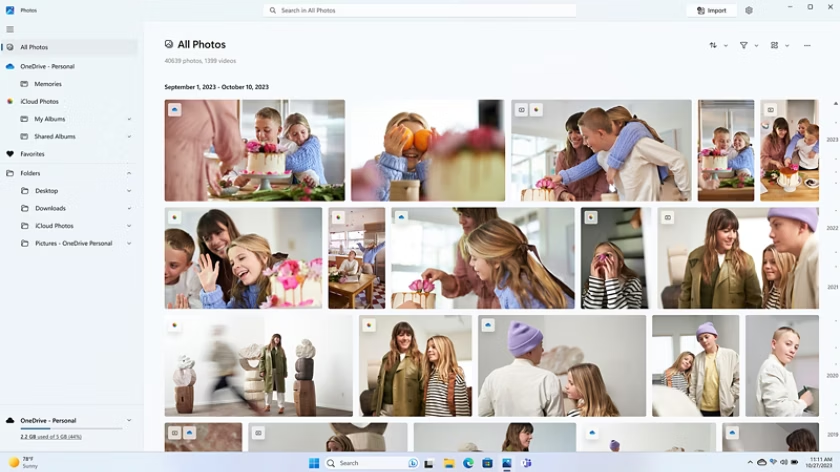
The problem primarily affects Windows 11 devices running versions 22H2 and 23H2 where specific policies are enabled. These policies include:
- Prevent non-admin users from installing packaged Windows apps
- BlockNonAdminUserInstall Configuration Service provider (CSP)
It’s worth noting that Windows 11 Home edition users are less likely to encounter this issue, as these policies are typically not enabled on home systems.
The Windows 11 Photo app issue manifests in the following ways:
- The Photos app displays a spinning circle and then disappears upon launch.
- Users with the Procmon monitoring tool may see an “Access Denied” error on Process Exit.
This problem affects devices that have updated the Microsoft Photos app from the Microsoft Store on or after June 4, 2024, to version 2024.11050.29009.0 or later.
Microsoft’s temporary fix
 While Microsoft works on a permanent solution, they have provided a temporary fix for affected users. The workaround involves installing the latest Windows App SDK, which was released during the July 2024 Patch Tuesday. Here’s how to apply the fix:
- Download the Windows App SDK installer appropriate for your system architecture (x86, x64, or ARM64). You can determine your system type using the “System Information” app.
- Right-click the downloaded installer file (e.g., windowsappruntimeinstall-x64.exe) and select Run as administrator.
- A command prompt window will open, displaying text as the installation progresses. No user action is required during this process, and the window will close automatically once installation is complete.
For IT administrators managing multiple devices, the installer can be run using system or admin context. Adding the -quiet parameter to the command will prevent user interaction with the prompt. The installer only needs to be run once per device, not per user.
Additional troubleshooting steps

If the Windows 11 Photo app temporary fix doesn’t resolve the issue, users can try the following troubleshooting steps:
- Reset the Photos app:
- Go to Settings > Apps > Installed apps
- Find the Photos app
- Click the three-dot menu and select Advanced options
- Click the Reset button.
- Check for and install any pending Windows updates in Settings.
- If problems persist, users can explore additional troubleshooting steps outlined in Microsoft’s support documentation or third-party resources.
Ongoing developments
 Microsoft has stated that they are actively working on a permanent fix for the Windows 11 Photos app issue. Users are advised to keep their systems updated and watch for future announcements regarding a more comprehensive solution.
It’s important to note that this Windows 11 Photos app issue is not isolated. Microsoft has recently addressed other Windows 11 problems, including update issues when using Windows Update automation scripts and restart loops after installing the June KB5039302 preview update.
While the Windows 11 Photos app issue has caused inconvenience for many users, Microsoft’s acknowledgment of the problem and provision of a temporary fix demonstrate their commitment to resolving the issue. Users experiencing this problem should apply the temporary fix and stay tuned for further updates from Microsoft. As always, keeping your Windows system and apps up-to-date is crucial for maintaining optimal performance and security.
Discover more from Microsoft News Now
Subscribe to get the latest posts sent to your email.