

Windows is rolling out a new Themes section in the Microsoft Store that makes it dramatically easier to personalize your PC with over 400 curated theme packs, many brand-new. This new Windows Themes hub turns themes into a first‑class experience, letting you apply a complete visual makeover to Windows with a single click and manage everything from Settings.
Windows Themes hub: A new home for Windows personalization
In a new Windows Experience Blog post, Microsoft Store VP Giorgio Sardo announced a dedicated Themes department inside the Microsoft Store on Windows, designed as a central hub for curated and trending themes. The goal is to make it feel natural to express your personality every time you turn on your PC, whether you’re a gamer, creator, or someone who just wants a desktop that feels fresh and uplifting.
Microsoft says the new Themes hub is rolling out now and focuses on one‑click setup: choose a theme in the Store, apply it, and your wallpaper and accent colors update instantly across Windows. Compared to the old, hidden “themes” experience, this is a much more approachable and visible way to discover new looks for your device.
400+ themes, 35+ new collections, and something for every vibe
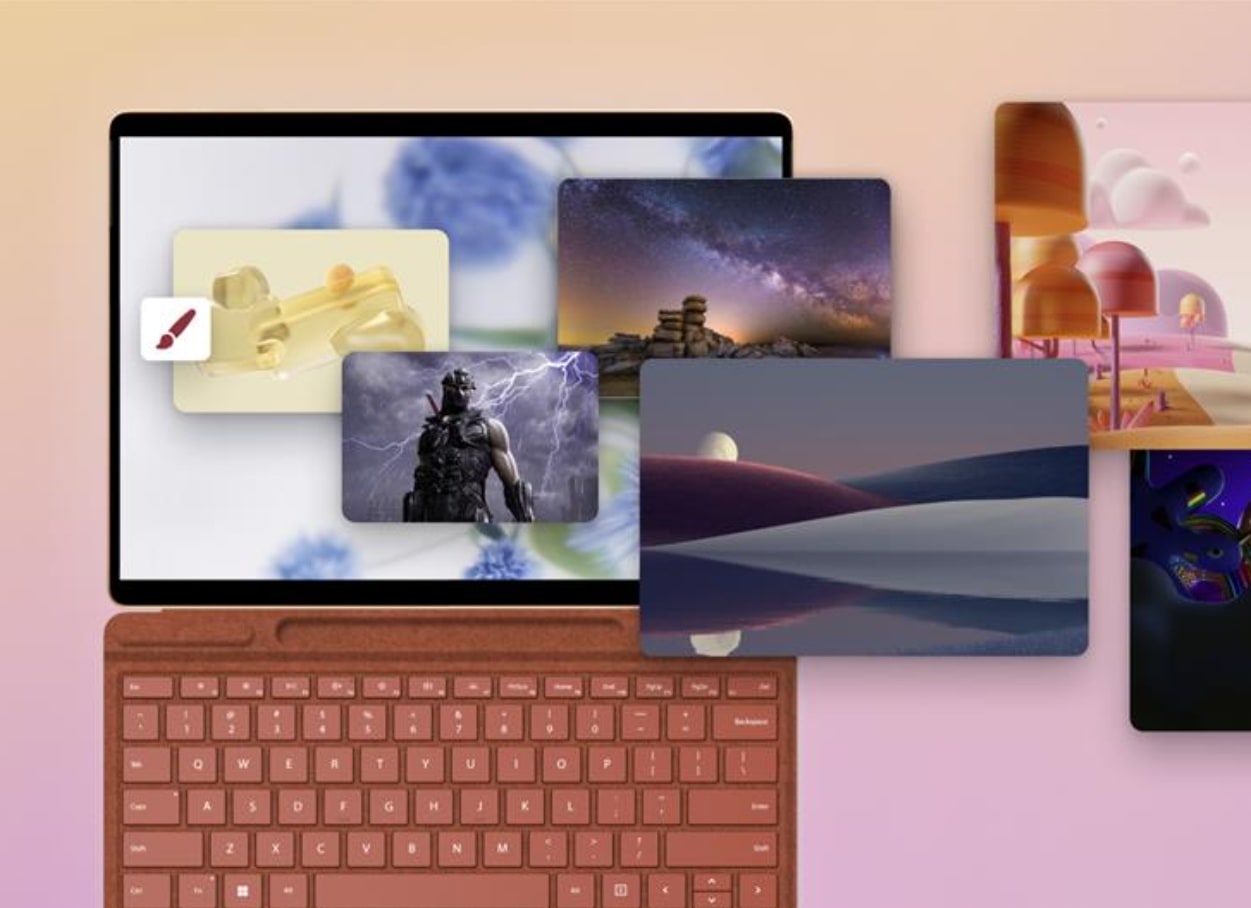
At launch, the Themes section offers more than 400 themes, including over 35 completely new collections created for this rollout. Each theme is a bundle of wallpapers and accent colors that can even change over time, giving your desktop a more dynamic, living feel instead of a static background.
Microsoft highlights a wide spread of styles and fandoms: official game‑branded sets like the Sea of Thieves Official Theme and World of Warships Official Theme, nature collections such as World National Parks, dreamy art packs like Ethereal Escapes by PicsArt, and playful abstractions like Geometric Tales. The company notes that Microsoft Design has also contributed a variety of aesthetics so that, whether you’re “running on vibes,” chasing minimalism, or going full neon, there’s something that matches your mood.
Here are some of the themes in the Microsoft Store on Windows:
Luminous Flow Theme | Microsoft Store

Mountain Dwellings Theme | Microsoft Store

Dreamscapes Theme | Microsoft Store

Sea of Thieves Official Theme | Microsoft Store

Blooming Dimensions Theme | Microsoft Store

Neon Dreams Theme | Microsoft Store

World of Warships Official Theme | Microsoft Store

Opaline Theme | Microsoft Store

Razer Axon Official Theme | Microsoft Store

With so many styles and fandoms represented, Microsoft pitches this as “something for everyone,” whether you care about the latest release, iconic characters, or simply a background that sparks creativity when you log in.
One‑click themes, easy management in Settings
One of the key advantages of the new Themes department is how simple it is to apply and manage your setup. Once you choose a theme in the Microsoft Store, applying it is a single click, and Windows automatically picks up the new look without any manual tweaking.
From there, everything is managed in the familiar Settings > Personalization > Themes page, where you can:
-
View all installed themes in one place
-
Switch between them instantly as your mood changes
-
Organize your collection to keep favorites handy
If a theme you just grabbed doesn’t appear right away, some community guides note that opening the Themes page and selecting “Browse themes” can force a refresh so new installs show up correctly. This integration between Store and Settings means your device can always feel “new” without needing to dig around for download links or import packs manually.
Beyond themes: apps that push Windows customization further
Microsoft’s announcement also spotlights how themes are only part of the personalization story. The Microsoft Store on Windows highlights a selection of popular customization apps—like TranslucentTB, Lively Wallpaper, and Seelen UI—that go beyond wallpapers and accent colors.
-
TranslucentTB lets you tweak the taskbar, including transparency and blur effects, to better match your chosen theme.
-
Lively Wallpaper is a powerful engine for animated and interactive wallpapers, pushing your desktop beyond static images.
-
Seelen UI offers deeper UI customization, including themes, widgets, and layout changes that can radically alter the look and feel of Windows without modifying core system files.
Together, these tools turn the new Themes hub into a starting point rather than an endpoint: you can grab a Store theme for a quick transformation and then layer on apps for live wallpapers, taskbar tweaks, and full desktop redesigns.
Why this matters for Windows users
Microsoft frames this move as part of Windows’ 40‑year mission to “empower people to make technology their own.” In practice, the new Themes department creates a guided, low‑friction path for users who might never have explored personalization before but still want their PC to feel like “them.”
For power users and enthusiasts, centralizing themes in the Store has two benefits: it makes discovery easier and creates a more consistent, trusted distribution channel for new themes. With more than 400 packs already live and dozens of new ones at launch, the hub also sets the stage for ongoing updates as new games drop, seasonal events land, or design trends shift.
How to get started and how creators can join
If you want to try the new experience, you just need to open the Microsoft Store on your Windows 11 PC and look for the new Themes section, which appears with a paintbrush icon below the AI Hub. From there, you can browse by curation, trending picks, and collections, apply a theme with one click, and then refine your setup in Settings.
Microsoft also explicitly invites community participation. The blog post links a Microsoft Store Theme Publisher Interest Form for creators interested in contributing their own themes to the catalog. Feedback on the feature can be submitted via Feedback Hub (WIN + F) under the Microsoft Store section, which Microsoft says will help shape future personalization improvements.
In short, this is just the first step in a broader vision: making Windows personalization feel natural, accessible, and tightly integrated—from official themes and partner packs to community‑driven designs and powerful personalization apps.
Related Posts
-
- How to Use Using AI Theme Generator in Microsoft Edge in 5 Steps: Transform Your Words into Beautiful Browser Themes
- Celebrate Microsoft’s 50th Anniversary with New Xbox Dynamic Backgrounds, Profile Themes, and More
- Microsoft to kill legacy Windows Themes page: Here’s everything you need to know in 2025
- A Look Back at Windows PC Gaming in 2025: ROG Ally Handhelds, More Powerful Arm Laptops, and DirectX Push the Platform Forward
- Microsoft Launches Sales Agent in Microsoft 365 Copilot: How To Get Smarter AI That Speaks Sales
Discover more from Microsoft News Now
Subscribe to get the latest posts sent to your email.
