

Personalizing a web browser has become easier and more creative than ever, thanks to the integration of AI-powered tools in Microsoft Edge. The new AI Theme Generator lets users describe the look they want, then see those words turned into stunning visuals and custom color palettes that refresh the browser’s new tab page, window frame, and tabs. In this detailed guide, learn how to harness this exciting feature to turn your imagination into a living browser experience using nothing but words.
What Is the AI Theme Generator in Microsoft Edge?

The AI Theme Generator is a feature built into Microsoft Edge that allows users to create browser themes by simply describing what they want to see. Leveraging Microsoft Designer and DALL·E 3.0 AI models, it transforms natural language prompts into one-of-a-kind visual themes you can immediately apply or further refine.
What the AI Theme Generator Changes
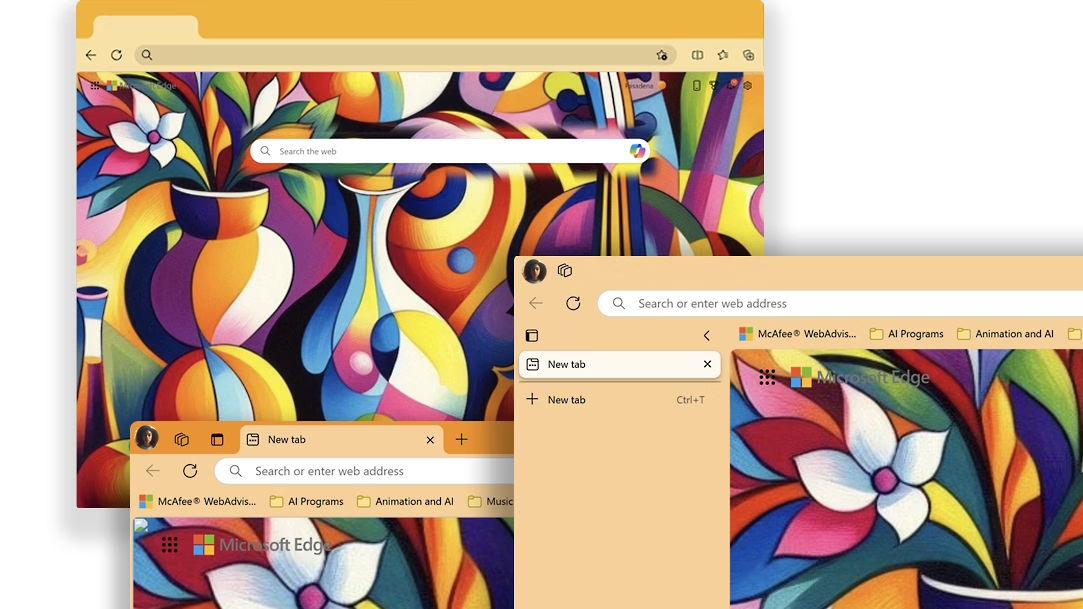
When you generate an AI-powered theme, the following browser elements are visually transformed:
-
New Tab Page: The visual background and style for every new tab you open.
-
Browser Frame: The color and appearance of the title bar, bookmarks bar, and sidebar.
-
Tabs: The active and inactive tab colors update to match your chosen theme.
Prerequisites: Get Ready to Use the AI Theme Generator
Before starting, ensure you meet these prerequisites for a seamless experience:
-
Latest Edge Version: The AI Theme Generator requires Microsoft Edge version 127.0.2651.74 or newer. Check your version by entering
edge://settings/helpin the address bar.
-
Personal Microsoft Account: You must be logged into Edge with a personal (not work or school) Microsoft account.

-
Desktop Requirement: Theme generation and application are currently available only on Windows and Mac desktop devices.


Step-by-Step Guide: Creating Custom Themes with AI Prompts
Step 1: Launch the AI Theme Generator
-
Open Microsoft Edge on your desktop.
-
Go to the official theme generator page at:
-
Alternatively, from Edge’s menu (
...), navigate to Settings > Appearance and find the AI Theme Generator section.

Step 2: Describe Your Vision

-
In the prompt box, type a detailed description of the theme you want Edge to create.
-
Examples:
-
“A peaceful autumn forest at sunrise”
-
“Retro neon cityscape at night”
-
“Abstract blue geometric shapes”
-
-
-
The more specific your wording, the more tailored and creative the theme result will be.
Step 3: Generate and Preview Your Theme
-
Click the Create Theme button.
-
The AI will process your prompt, generate a visual theme, and display a preview on the new tab page and browser frame.
-
Wait a few moments; AI image generation typically takes about 20–30 seconds.
Step 4: Customize and Refine
-
If you love the result, proceed to the next step.
-
To tweak colors, use the palette provided after the image renders. Adjust hues and balance to better match your personal style.
-
If you want to try again, use the Create Another Theme option to enter a new prompt or modify your description.
Step 5: Apply Your New Theme

-
Click Apply Theme to instantly activate your creation across Edge.
-
Confirm in the pop-up dialog that appears.
-
Edge will refresh, applying your theme to the browser frame, tabs, and new tab page.
-
Open a new tab or window to enjoy your personalized experience.
Step 6: Share Your Theme (Optional)

-
When available, use the Share button to generate a URL or download the background image for sharing with friends or on social media.
-
Note: Sharing functionality may be rolling out gradually and could be unavailable for some users at the time of reading.
Advanced Tips & Best Practices
1. Writing Powerful Prompts
-
Add details about color, mood, or style (e.g., “minimalist”, “cartoon”, “photorealistic”).
-
Mention the main subject or location—for example, “sunflower field,” or “snowy mountain peak.”
-
Try including emotional tone: “Serene rainy city morning,” or “energetic sports stadium crowd.”
2. Adjusting Edge Appearance Manually
-
Access Settings > Appearance for further browser elements (fonts, accent hues, etc.).
-
Restore the default theme any time through Edge’s appearance menu.
3. What If the Theme Doesn’t Match Expectations?
-
Refine your prompt for clarity or try a completely new description.
-
Use “Surprise Me” (if present), which generates a random theme for creative inspiration.
Frequently Asked Questions (FAQ)
Is the AI Theme Generator free?
-
Yes, currently, theme generation is a free feature in supported builds of Edge for logged-in personal accounts.
Does it work on mobile?
-
Not yet. As of summer 2025, the feature is desktop-only.
Can AI-generated themes be removed?
-
Absolutely. Return to Settings > Appearance to reset to Microsoft’s default Edge theme or select a different pre-made theme.
Troubleshooting
-
Theme not generating?
-
Ensure Edge is up-to-date and signed into a personal Microsoft account.
-
-
Theme option missing?
-
Check your Edge version. This feature may not be available in work/school profiles or older versions.
-
The Microsoft Edge AI Theme Generator empowers users to create a more personalized, visually engaging browsing environment with just a few clever words. By following the steps outlined, anyone can innovate their workspace, boost creativity, or simply enjoy a fresh screen every day.
Discover more from Microsoft News Now
Subscribe to get the latest posts sent to your email.