

Keeping PowerShell updated on Windows 11 makes your system more secure, ensures you have the latest bug fixes, and unlocks new language features and modules for your scripts. Whether you prefer using the command line, the Microsoft Store, or a traditional installer, there are several reliable ways to upgrade from the built‑in Windows PowerShell 5.1 to the latest PowerShell 7+ or to keep an existing PowerShell 7 installation current.
You can update PowerShell on Windows 11 using several methods, including winget, Microsoft Store, MSI installers from GitHub, and Windows Update for some versions.
1. Before you start: check your current PowerShell
-
Open Windows Terminal (or PowerShell):
-
Press Start, type “Windows Terminal,” and press Enter.
-
-
Run one of these:
-
Windows PowerShell version table:
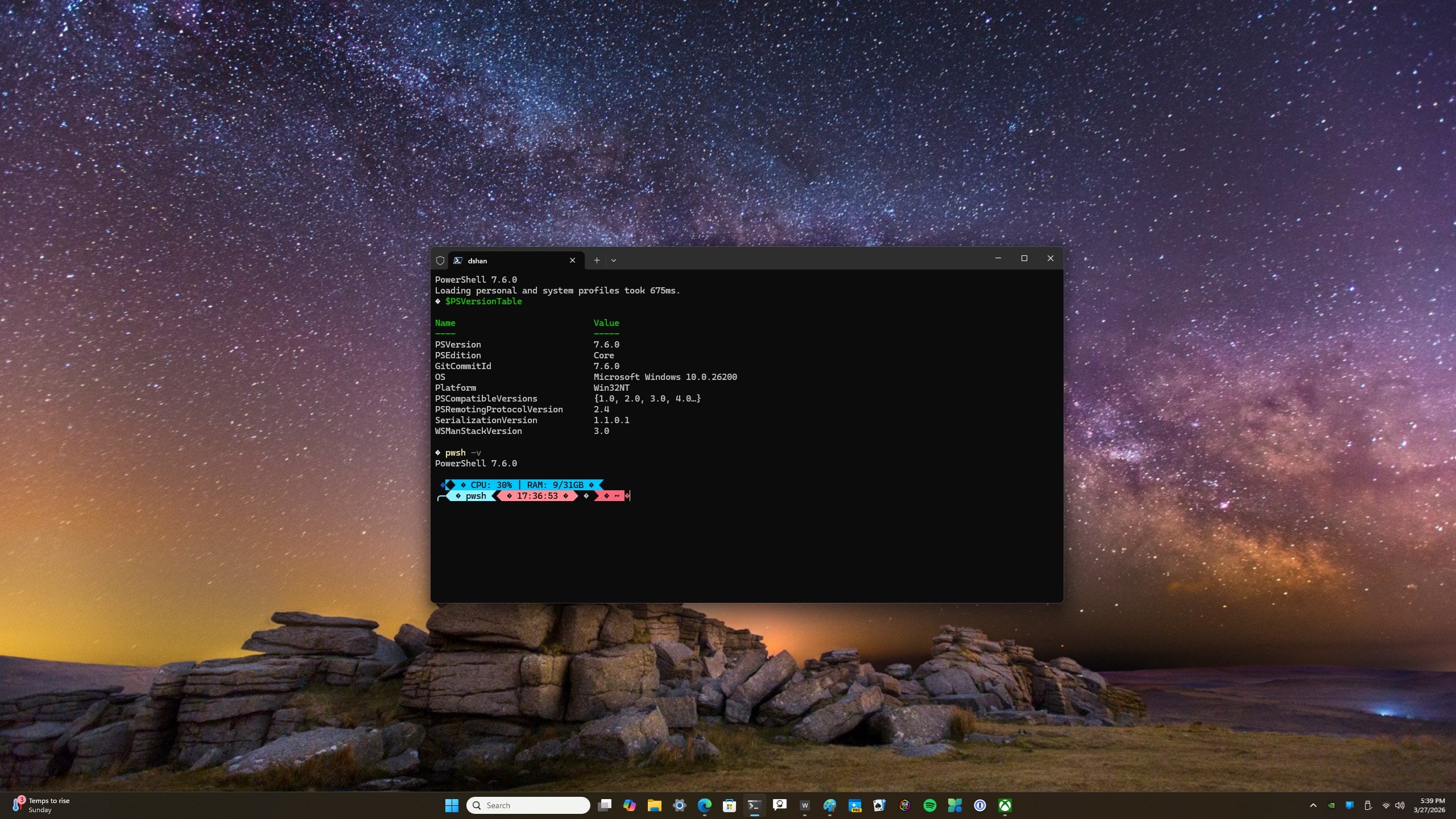
powershell→"$PSVersionTable" -
PowerShell 7+ version table:
pwsh→"$PSVersionTable"
-
-
Or just check the binary version:
pwsh -v(PowerShell 7+) orpowershell -v(older).
This tells you whether you’re still on Windows PowerShell 5.1 (built into Windows) or already using PowerShell 7+ side‑by‑side.
2. Update PowerShell with winget (recommended)
Winget is the fastest way to update PowerShell 7+ on Windows 11.
2.1. Open an elevated terminal
-
Right‑click Start.
-
Select “Windows Terminal (Admin)” or “Terminal (Admin).”
2.2. Search for the PowerShell package
Run:
winget search Microsoft.PowerShell
-
Confirm any first‑time terms prompt with
Y.
2.3. Install or update PowerShell
-
Install or update to the latest version explicitly:
winget install --id Microsoft.PowerShell --source winget
This command will install the latest stable PowerShell 7 and upgrade an existing 7.x install in place. 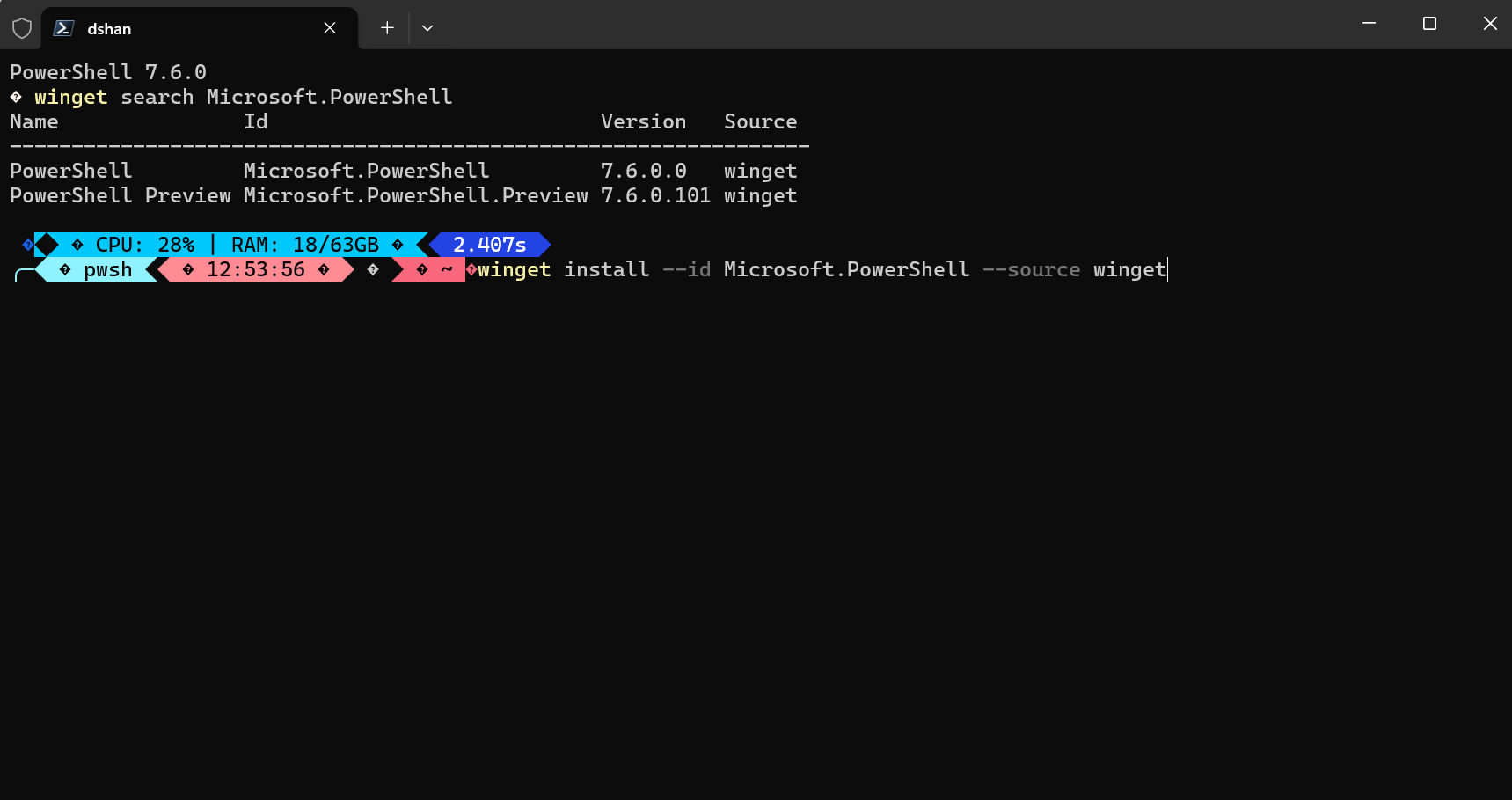
-
If you already have it and just want to upgrade:
winget upgrade --id Microsoft.PowerShell --source winget
You can also list all upgradeable apps first:
winget list Microsoft.PowerShell

winget upgrade Microsoft.PowerShell
2.4. Verify the update
After winget finishes:
pwsh -v
or inside PowerShell 7:
$PSVersionTable
3. Update or install from Microsoft Store
The Microsoft Store package keeps PowerShell updated automatically once installed.
3.1. Install via Microsoft Store app
-
Open Microsoft Store from Start.
-
Search for “PowerShell” (published by Microsoft).
-
Click Get or Install.

-
The Store will handle future updates automatically, just like other Store apps.
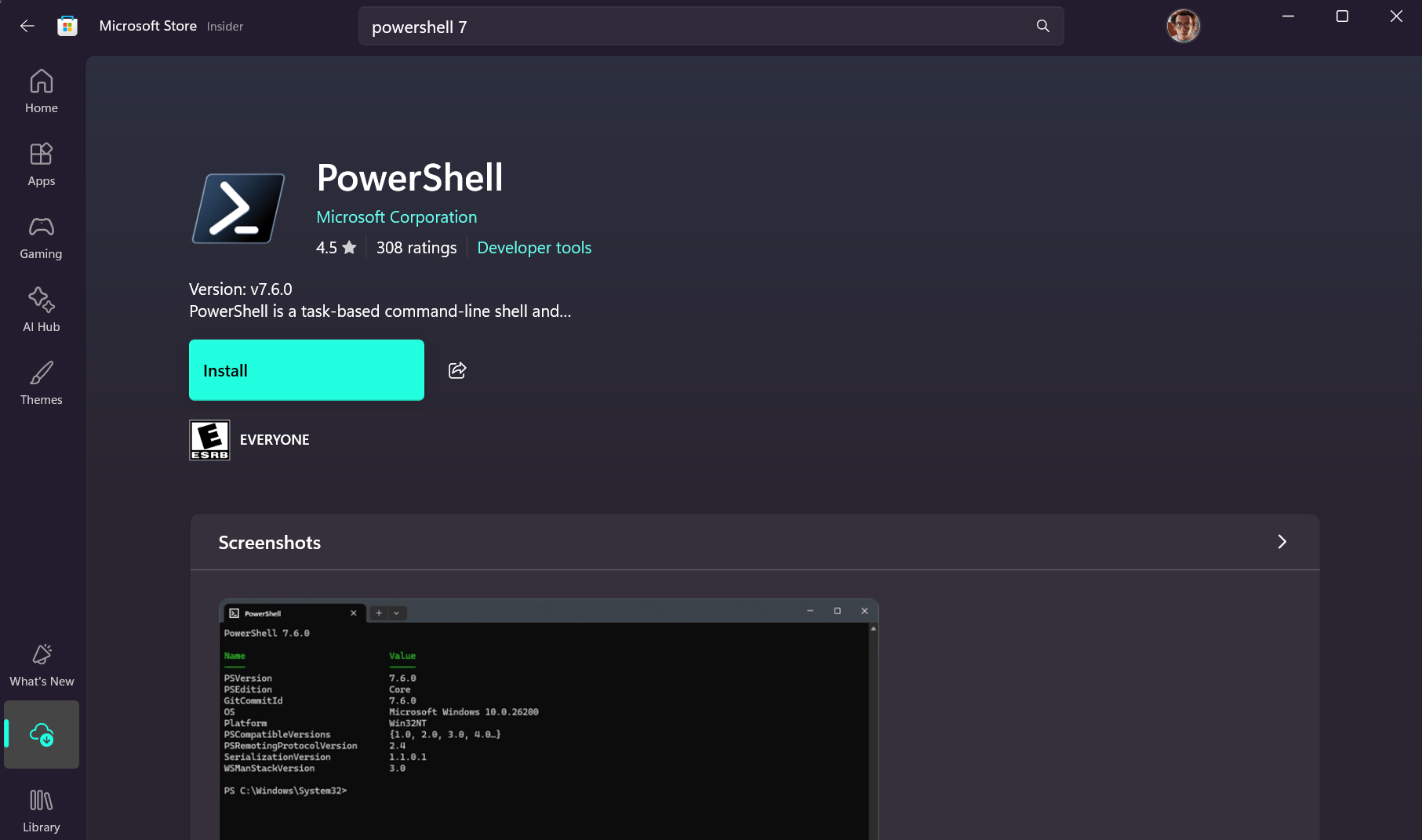
You’ll then launch it as PowerShell 7 or “PowerShell” from Start; it installs side‑by‑side with Windows PowerShell 5.1.
3.2. If the Store is missing or broken
If Microsoft Store isn’t working, you can often repair or reinstall it via documented commands such as wsreset.exe -i or Store‑reinstall instructions from Microsoft’s support articles before using the Store to get PowerShell.
4. Update with MSI installer from GitHub (offline / controlled)
If you prefer a standalone installer (for offline machines, packaging, or more control), use the official MSI from GitHub.
4.1. Download the latest MSI
-
Go to the official “Install PowerShell 7 on Windows” documentation on Microsoft Learn and follow the link to the latest stable release on GitHub.
-
Download the
.msifile that matches your system:-
x64for most modern Windows 11 installs. -
arm64for ARM‑based devices (Surface Pro X, etc.).
-
4.2. Run the installer
-
Double‑click the MSI.
-
Follow the wizard:
-
Accept the license.
-
Choose whether to:
-
Add PowerShell to PATH,
-
Enable PowerShell remoting,
-
Add “Open here” context menu, etc.
-
-
-
Finish and reopen your terminal—look for a new PowerShell 7 shortcut.
When installing a newer MSI over an older version, it upgrades in place.
4.3. Verify
Open the new PowerShell 7 app or run pwsh and check:
$PSVersionTable
5. Update via Windows Update (for Windows PowerShell)
Windows PowerShell 5.1 (the built‑in version) is updated through Windows itself; you don’t manually upgrade it like PowerShell 7.
5.1. Enable Microsoft product updates
-
Open Settings → Windows Update.
-
Click Advanced options.
-
Turn on “Get updates for other Microsoft products”
When Microsoft ships relevant fixes or servicing updates, they arrive with regular Windows updates.
6. Updating from inside PowerShell (using winget)
You can run winget commands directly from a PowerShell prompt as long as you’re in an elevated terminal.
From an admin PowerShell session:
winget search Microsoft.PowerShell

winget install --id Microsoft.PowerShell --source winget

# or

winget upgrade --id Microsoft.PowerShell --source winget
Then close and reopen the session to start using the new version.
7. Handling multiple PowerShell versions
On Windows 11 it’s normal to have both Windows PowerShell 5.1 and PowerShell 7+ installed:
-
Windows PowerShell 5.1:
-
Launched as
powershell. -
Lives in
C:\Windows\System32\WindowsPowerShell\v1.0\powershell.exe. -
Updated through Windows Update.
-
-
PowerShell 7+:
-
Launched as
pwsh(or from the “PowerShell 7” shortcut). -
Installed via winget, Store, or MSI, usually under
C:\Program Files\PowerShell\7\pwsh.exe.
-
You can pin the PowerShell 7 profile in Windows Terminal so it’s your default shell while still keeping 5.1 for legacy scripts.
8. Quick reference: common commands
-
Check version (in any PowerShell):
pwsh -v$PSVersionTable
-
Update with winget (recommended):
winget install --id Microsoft.PowerShell --source winget

# or

winget upgrade --id Microsoft.PowerShell --source winget
-
Verify after update:
pwsh -v

# or

$PSVersionTable
9. Troubleshooting common PowerShell update problems
9.1. “winget is not recognized” error
If you run winget and see:
“winget : The term 'winget' is not recognized as the name of a cmdlet, function, script file, or operable program,” Windows Package Manager is missing or not registered for your user.
Try these steps:
-
Make sure you’re on a supported Windows 11 build and have installed all latest updates in Settings → Windows Update.
-
Sign out and sign back in (winget is sometimes registered on first sign‑in only after opening a new session).
-
Open PowerShell as admin and run the Microsoft‑documented registration/repair steps (for example via the Microsoft.WinGet.Client module’s
Repair-WinGetPackageManager -Force -Latest). -
Open a new terminal window and try
winget --versionagain.
If it still fails, you can install PowerShell using the MSI from GitHub or the Microsoft Store as described earlier, then revisit winget later.
9.2. PowerShell 7 won’t start or disappears from Terminal
Sometimes after an update, Windows Terminal can’t find pwsh.exe, or launching PowerShell 7 does nothing.
To fix it:
-
Check whether
pwsh.exestill exists underC:\Program Files\PowerShell\7\(or a similar path). -
If it’s missing or the folder only has partial files, reinstall the latest version using:
-
winget install --id Microsoft.PowerShell --source winget, or -
the latest MSI from the official GitHub release page.
-
-
In Windows Terminal, open Settings → Profiles and make sure the PowerShell profile points to the correct
pwsh.exepath (or delete and let Terminal recreate it).
After reinstalling, open a fresh Terminal window and run $PSVersionTable to confirm everything works.
9.3. Multiple PowerShell entries in Start or Terminal
Having both Windows PowerShell 5.1 and PowerShell 7+ is expected on Windows 11, but it can be confusing.
Keep this in mind:
-
Windows PowerShell 5.1:
-
Label: “Windows PowerShell”.
-
Command:
powershell. -
Updated only via Windows Update.
-
-
PowerShell 7+:
-
Label: “PowerShell” or “PowerShell 7”.
-
Command:
pwsh. -
Updated via winget, Store, or MSI.
-
If you want 7+ as your default:
-
Open Windows Terminal → Settings → Startup, set default profile to PowerShell (the one that runs
pwsh). -
Optionally unpin the old “Windows PowerShell” tile from Start so you always launch the newer shell first.
Keeping PowerShell current doesn’t have to be complicated: once you know which version you’re using and which method fits your setup—winget, Store, MSI, or just letting Windows Update handle 5.1—you can standardize on a simple routine for all your machines. For most users, a quick winget upgrade every so often is enough, while administrators can script MSI or winget deployments across fleets and rely on the troubleshooting steps above if anything goes wrong.
Discover more from Microsoft News Now
Subscribe to get the latest posts sent to your email.
