
If you’ve used Microsoft Edge for any length of time, you’ve probably let it save a password or two — okay, maybe a few hundred. The good news: getting to those saved passwords (and editing the ones that are out of date) takes about three clicks once you know where to look.
This guide walks you through every way to view, edit, delete, and secure your logins inside Microsoft Password Manager in 2026 — including what changed after Microsoft pulled password support out of the Authenticator app in August 2025, how passkeys fit in, and how to keep everything synced between your PC and phone.
What is Microsoft Password Manager?
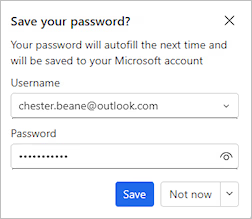
Microsoft Password Manager is the free, built-in password tool that lives inside Microsoft Edge and your Microsoft account. It saves the usernames and passwords you type on websites, encrypts them, and syncs them to every device where you sign in to Edge with the same profile — Windows, Mac, iPhone, Android, even Linux.
A couple of things to know up front:
- Personal accounts only. Password Manager in Edge only works when you’re signed in with a personal Microsoft account. If you’re using a work or school profile, your IT admin may have features locked down.
- Authenticator no longer stores passwords. As of August 2025, Microsoft removed password storage and autofill from the Microsoft Authenticator app. Your existing saved passwords were migrated to your Microsoft account and are now accessed through Edge instead.
- Edge 146+ no longer wipes passwords with browsing data. Clearing browsing data used to nuke your saved passwords by accident — that’s been fixed in Edge 146.
How to view your saved passwords in Microsoft Edge

Here’s the fastest way to pull up every password Edge has ever saved for you.
- Open Microsoft Edge and confirm your profile picture in the top-right is your personal Microsoft account.

- Click the three-dot menu in the top-right corner and choose Settings. Shortcut: paste
edge://settings/passwordsin the address bar to jump straight there. - In the left sidebar, click Passwords and autofill, then choose Microsoft Password Manager.
- Find the website you want and click the right arrow next to it. Edge will ask for your Windows PIN, fingerprint, or device password to confirm it’s really you.
- Click the eye icon to reveal the password in plain text. Done.
💡 Pro tip: Add the password manager to your favorites bar by dragging the URL
edge://settings/passwordsinto Edge’s bookmarks. You’ll save yourself the menu safari every single time.
How to edit a saved password
Got a stale password that doesn’t match what you actually use anymore? Updating it takes seconds.
- Open Microsoft Password Manager using the steps above.
- Click the right arrow next to the entry you want to change.
- Click Edit. Authenticate with your PIN or biometrics if prompted.
- Update the username, password, or any notes you’ve attached, then click Save.

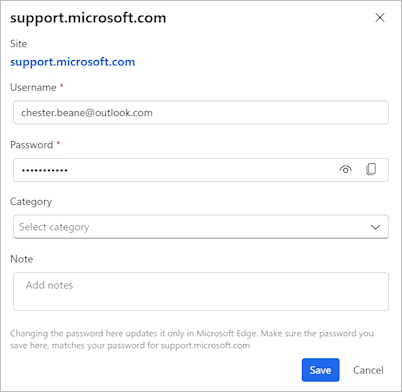
⚠️ Important: Editing a password inside Edge only changes the local copy in your password manager — it does not change the password on the actual website. You’ll need to log into that site separately and change the password there too. Otherwise, autofill will just hand the website the wrong password.
How to delete a saved password
Cleaning out logins for sites you no longer use is a smart habit — fewer credentials means a smaller attack surface if anything ever leaks.
- Head to
edge://settings/passwordsand open Microsoft Password Manager. - Click the right arrow next to the entry you want gone.
- Click the three-dot menu next to the entry and choose Delete.
- Confirm the deletion. The password is removed from your Microsoft account and stops syncing to other devices.
💡 Pro tip: Want to wipe a bunch at once? Use Export passwords first to grab a CSV backup, then delete in bulk. Just make sure you store (or shred) that CSV carefully — it’s plain text.
Manage passwords on iPhone and Android
With Authenticator out of the password game, the official mobile route is now Microsoft Edge for iOS or Android.
On iPhone (iOS 17 and later)
- Install Microsoft Edge from the App Store and sign in with your Microsoft account.
- Open iOS Settings › General › AutoFill & Passwords.
- Toggle Edge on. You can leave iCloud Keychain on too — iOS will offer both.
- Inside Edge, tap your profile picture › Settings › Passwords to view, edit, or delete entries.
On Android
- Install Microsoft Edge from the Play Store and sign in.
- Open Android Settings › Passwords, passkeys & accounts (or System › Languages & input › Autofill on older versions).
- Choose Microsoft Edge as your default autofill service.
- Open Edge › tap the … menu › Settings › Passwords to manage entries.
Sync passwords across all your devices
Sync is what makes the whole thing worth using — your Outlook password lives in your Microsoft account, not your laptop.
- In Edge, click your profile picture in the top-right corner and choose Manage profile settings.
- Click Sync.
- Make sure the Passwords toggle is On. Toggle on Addresses and more and Payment info too if you want full autofill parity.
- Sign in to Edge with the same Microsoft account on every device. That’s it — passwords replicate within a few seconds.
Manage passkeys in Microsoft Edge

Passkeys are the password’s better-looking cousin. Instead of a string you can forget (or get phished out of), they use your device’s biometrics or PIN to prove it’s you. Microsoft is leaning hard into them — Edge Canary now has a setting to automatically upgrade existing accounts to passkeys when sites support them.
View passkeys in Windows Settings

- Open Windows Settings › Accounts › Passkeys. (Shortcut:
ms-settings:savedpasskeys.) - Click Advanced options to see passkeys saved to your Microsoft account, your Windows device, or a security key.
- To remove one, click the three dots next to the entry and choose Delete.
Create a passkey for a website
- Sign in to a site that supports passkeys (Microsoft, Google, Amazon, GitHub, eBay, and most major banks now do).
- Look in the site’s Security settings for Add a passkey or Sign-in options.
- Choose where to save it: Windows Hello, Microsoft account, your phone, or a hardware key.
- Authenticate with your fingerprint, face, or PIN. The passkey is created and synced.
💡 Pro tip: Even after you create a passkey, keep your old password saved in Microsoft Password Manager as a fallback — at least until the site lets you remove it entirely. Some sign-in flows still require it for account recovery.
Security best practices
A password manager is only as strong as the habits around it. A few simple moves dramatically lower your risk:
- Turn on two-step verification for your Microsoft account at account.microsoft.com/security. If a bad actor gets your master password, 2SV stops them at the door.
- Use Password Monitor. Edge automatically scans your saved passwords against known data breaches. Open
edge://settings/passwordsand check the Password Monitor section weekly — change any flagged ones immediately. - Run the Password Health check. Same screen — it surfaces weak and reused passwords. Fixing the top 5 worst offenders takes ten minutes and pays for itself the first time a breach hits the news.
- Use a strong device PIN or Windows Hello. Anyone with access to your unlocked PC can read your saved passwords. Treat your device login like a master password.
- Adopt passkeys wherever they’re offered. They literally cannot be phished.
- Don’t export to CSV unless you have to. Exported password files are unencrypted plain text. Delete them the second you’re done.
⚠️ Heads up: Edge 146 retired the ability to set a custom primary password for the password manager. Existing custom primary passwords stop working on June 4, 2026 — Edge will switch you over to device authentication automatically. If you relied on it, lock down your Windows account with Hello and a strong PIN now.
Troubleshooting common issues
“Microsoft Password Manager” option is missing
You’re almost certainly signed in with a work or school account. Click your profile picture in the top-right of Edge and switch to a personal Microsoft account profile — the option will reappear.

Passwords aren’t syncing between devices
- Confirm both devices are signed in to the same Microsoft account in Edge.
- Open
edge://settings/profiles/syncon both devices and check that Passwords is toggled on. - Force a sync by signing out of the profile and signing back in.
Edge keeps asking for my PIN every time
That’s the new default and it’s there for a reason — it stops anyone with momentary access to your PC from reading your passwords. If it’s truly excessive, check that Windows Hello is set up properly under Settings › Accounts › Sign-in options.
I can’t find my old Authenticator passwords
They were migrated to your Microsoft account in August 2025. Sign in to Edge with the same Microsoft account you used in Authenticator and they’ll be waiting in edge://settings/passwords.
Frequently Asked Questions (FAQ)
Is Microsoft Password Manager free? Yes. It’s built into Microsoft Edge and ships with your free Microsoft account at no extra cost — no subscription, no ads, no upsell.
Did Microsoft Authenticator stop storing passwords? Yes. Microsoft removed password storage and autofill from the Authenticator app in August 2025. Existing passwords were migrated to your Microsoft account and are now accessed through Microsoft Edge. Authenticator is still used for two-step verification codes and as a passkey provider.
Can I use Microsoft Password Manager on iPhone or Android? Yes. Install Microsoft Edge for iOS or Android, sign in with your Microsoft account, and set Edge as your default autofill provider in your phone’s system settings. Your saved passwords sync automatically.
Where are my saved passwords actually stored? They’re encrypted and stored in your Microsoft account in the cloud, then synced to any device where you sign in to Edge with that same profile. The passwords are protected by your Microsoft account credentials plus your local device authentication (Windows Hello, PIN, biometrics).
Does changing a password in Edge change it on the website? No. Editing a password in Microsoft Password Manager only updates the local saved copy. You still need to go to the website and change the password there. After changing it on the site, Edge will usually offer to update its saved copy automatically.
What is a passkey and should I use one? A passkey is a phishing-resistant replacement for a password. It uses your device’s biometrics (fingerprint, face) or PIN to sign you in, with no typed password to steal or guess. If a website offers a passkey option, use it — it’s faster and dramatically more secure than passwords.
Can I import passwords from another password manager? Yes. Export your passwords from your other manager (LastPass, 1Password, Bitwarden, Chrome, etc.) as a CSV, then in Edge go to edge://settings/passwords, click the three-dot menu next to “Saved passwords,” and choose Import passwords. Delete the CSV file afterward.
Is Microsoft Password Manager safe enough to replace a paid password manager? For most people, yes. It uses strong encryption, syncs across devices, runs breach monitoring, and is free. Power users who want shared family vaults, advanced sharing, or platform independence may still prefer a dedicated tool like 1Password or Bitwarden — but for everyday use, Microsoft Password Manager is more than capable.
Discover more from Microsoft News Now
Subscribe to get the latest posts sent to your email.