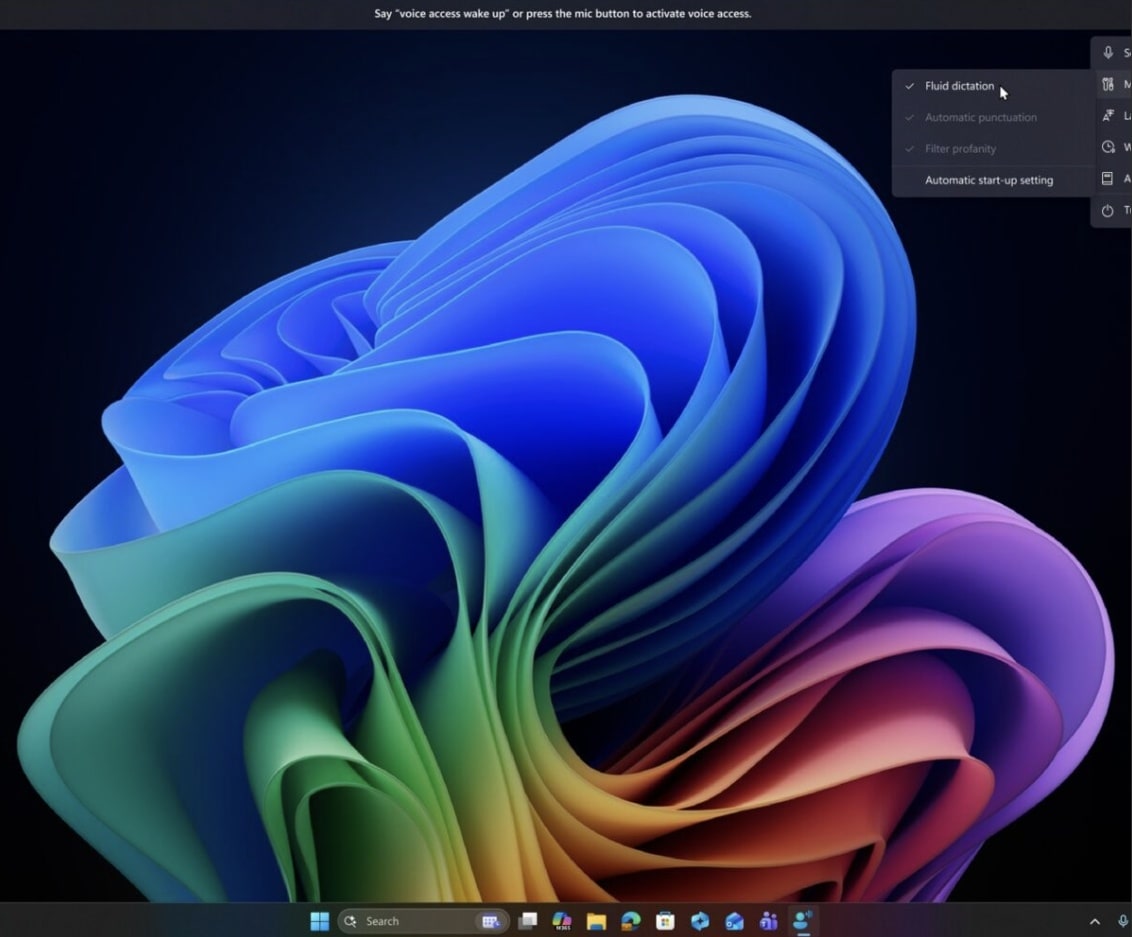

Microsoft is marking the International Day of Persons with Disabilities with a new Windows Experience Blog post, “2025 – A year in recap – Windows Accessibility,” authored by product manager Akheel Firoz. The article highlights how Windows 11 accessibility has evolved over the past year, guided by feedback from the disability community and Microsoft’s Inclusive Design principles. From AI‑powered dictation on Copilot+ PCs to richer Narrator features and new tools for Voice Access, 2025 has been a busy year for assistive technology on Windows 11.
Centering disability-led design in Windows 11 accessibility
The Windows 11 Accessibility team frames its work around the community mantra “nothing about us, without us,” emphasizing direct engagement with advisory boards representing blind, mobility and hard of hearing users. Microsoft notes that these ongoing conversations shape everything from early prototypes to final features, ensuring that accessibility work is grounded in real‑world scenarios rather than theoretical use cases. The recap reinforces that inclusive design is now a core part of how Windows features are planned, tested and refined across the product lifecycle.
Fluid Dictation and voice-first computing

One of the marquee additions this year is Fluid Dictation, an AI‑powered enhancement designed to make voice-based text entry smoother and more accurate on Windows. It automatically corrects grammar, punctuation and spelling in real time, so dictated text comes out cleaner with fewer manual edits, helping people who rely on voice input to stay in the flow. Fluid Dictation can also tap into a custom vocabulary defined in Voice Access, improving recognition of specialized terms, names and jargon.
Crucially, Fluid Dictation runs on-device on Copilot+ PCs, using local AI models instead of cloud processing, which improves responsiveness and keeps speech data private. Microsoft says the feature works across both first‑party and third‑party apps, increasing its usefulness whether users are drafting emails, capturing notes or collaborating in productivity tools. For those who prefer classic Voice Typing, an Insider build also exposes Fluid Dictation there, accessible with the Windows key + H shortcut.
Smarter, more flexible Voice Access

Voice Access itself received multiple refinements aimed at accommodating a wider range of speech patterns and preferences. A new “wait time before acting” setting lets people add a delay before commands execute, which benefits users who speak slowly, pause often or need more time to complete a phrase. The custom word dictionary allows users to add their own terms—including difficult‑to‑pronounce words—so Voice Access can recognize them more reliably across supported languages.
Natural language command handling has also become more flexible, particularly on Copilot+ PCs, where Voice Access can interpret multiple phrasings of the same intent and still perform the correct action. Microsoft calls out improvements in recognizing speech patterns associated with conditions like Parkinson’s, reducing errors during dictation and navigation. The feature now supports Chinese and Japanese as well, extending voice navigation and dictation to more users globally.
Narrator and Magnifier get more human voices

Narrator and Magnifier now offer new human‑sounding HD voices powered by Azure AI, which are designed to sound more natural and expressive than traditional screen reader voices. These voices include subtle pauses, emphasis and tone changes to reduce cognitive load and make long reading sessions less tiring. Users can enable them from the voice options in Narrator or Magnifier settings, download the HD voice model and immediately benefit from a more conversational read‑aloud experience.
These upgrades complement a broader push toward AI‑assisted reading, where voice quality matters as much as raw speech speed for comprehension. By bringing higher‑fidelity voices into built‑in tools, Microsoft is lowering the barrier for people who may not have access to third‑party screen readers or prefer to stick with native Windows solutions.
More efficient document work in Word with Narrator
Microsoft also highlights Narrator improvements aimed at making Word document creation and review more efficient for screen reader users. Changes include clearer, less cluttered announcements when working with tables, footnotes and formatting changes, helping users track structure without getting overwhelmed by verbosity. Comment workflows have been streamlined so it takes fewer keystrokes to read comments and their associated content without losing your place in the document.
Proofing is smoother as well, with spelling and grammar feedback announced in a more concise way that can automatically adjust speech rate to keep corrections from feeling disruptive. The post notes that Copilot usability with Narrator has also improved, giving users a more accessible way to work alongside AI while authoring or editing content.
Narrator fundamentals: privacy, image descriptions and recap
A key part of the recap is a renewed focus on “fundamentals” such as reliability, privacy and consistency across assistive technologies. On Narrator, that shows up in features like Screen Curtain, which blacks out the display while the screen reader continues speaking, helping users keep sensitive content private in shared spaces. Richer image descriptions on Copilot+ PCs use AI to describe people, objects, colors, text and numbers in images, charts and graphs when the user presses Narrator key + Ctrl + D.
Speech Recap lets users press Narrator key + Alt + X to see the last 500 spoken strings, making it easier to review or copy what was read aloud—especially valuable for teachers, AT trainers or people who are hard of hearing and want to follow along visually. A new Braille Viewer shows both on‑screen text and its Braille equivalent, helping sighted educators and testers support Braille users even if they do not read Braille themselves.
Magnifier usability boosts
Magnifier, another core Windows accessibility tool, also benefits from usability improvements focused on speed and clarity. Microsoft calls out one‑click zoom controls and a reset‑zoom option that make it easier to move between magnified and normal views during everyday use. HD voices for Magnifier align with the Narrator upgrades, delivering a more natural read‑aloud experience for users who depend on magnification and audio together.
These refinements, while smaller than headline AI features, are crucial for people using Magnifier all day, since even minor friction in zooming or reading can add up to real fatigue.
A year in recap: important assistive tech highlights

The blog post closes with a concise year‑in‑review table grouping the major accessibility enhancements by tool.
-
Voice Access and Voice Typing: AI‑powered dictation that cleans up speech automatically, natural language commands, personal dictionaries, adjustable command timing, profanity controls and new Chinese and Japanese support—some capabilities limited to Copilot+ PCs.
-
Narrator: Rich image descriptions, smoother reading in Word, Screen Curtain for privacy, Speech Recap, Braille Viewer and new HD voices that are more natural and expressive.
-
Magnifier: Faster navigation with simplified zoom toggles and natural HD voices for engaging read‑aloud sessions.
Features marked with an asterisk in the recap are available only on Copilot+ PCs, reflecting how newer AI‑capable hardware is enabling more on‑device intelligence.
How to give feedback and get help in Windows 11 accessibility
Microsoft ends the recap by encouraging customers—especially Windows Insiders—to keep sending feedback through the Feedback Hub, launched with Windows logo key + F. The Windows 11 accessibilty team reiterates that real‑world feedback drives prioritization, with a particular focus on fixing critical functional issues across assistive technologies so users can work without disruption. For customers with disabilities who need direct support, Microsoft points to the Disability Answer Desk, which offers help over phone, chat and American Sign Language via videophone.
Related Posts
- How To Start Or Stop Windows 11 Narrator: The Complete, Updated Guide for Accessibility and Screen Reader Users (Updated September 2025)
- Using Microsoft Copilot in Edge at Work: A Complete How-To Guide
- Windows 11 25H2 rolls out AI actions, widgets revamp, gaming boosts, and security upgrades
- Turn Off Sticky Keys on Windows 11 Fast (And Stop It Coming Back)
- How to set up Voice Access in Windows 11 now that Windows Speech Recognition is ending support
Discover more from Microsoft News Now
Subscribe to get the latest posts sent to your email.
