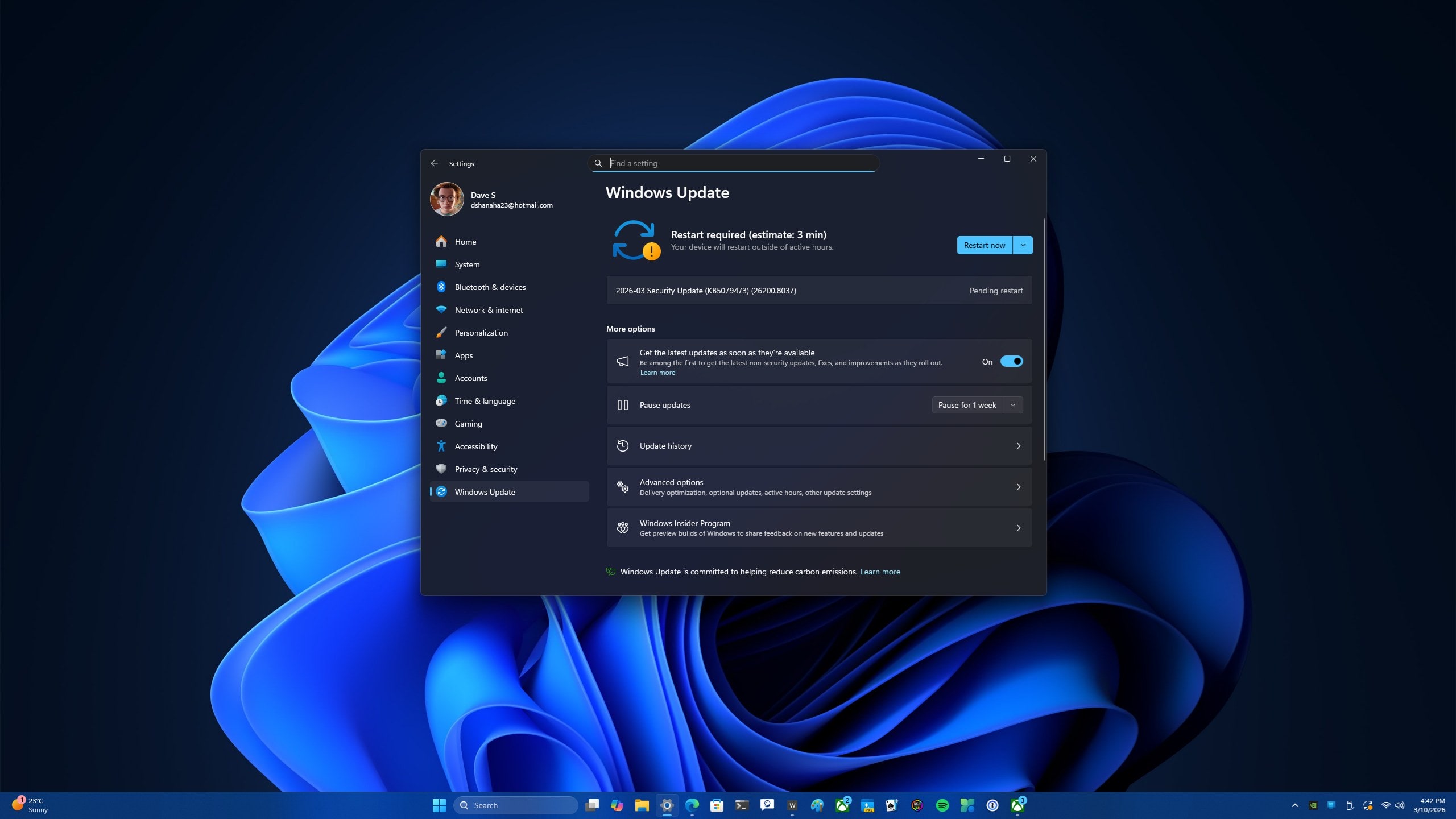

Microsoft is rolling out the March 2026 Patch Tuesday cumulative updates for Windows 11 today, with KB5079473 for versions 25H2/24H2 and KB5078883 for version 23H2. These Patch Tuesday releases don’t introduce brand‑new features on their own, but they continue the surprisingly substantial mid‑cycle refresh that began with February’s cumulative and preview updates, and they layer in the latest security and reliability fixes on top.
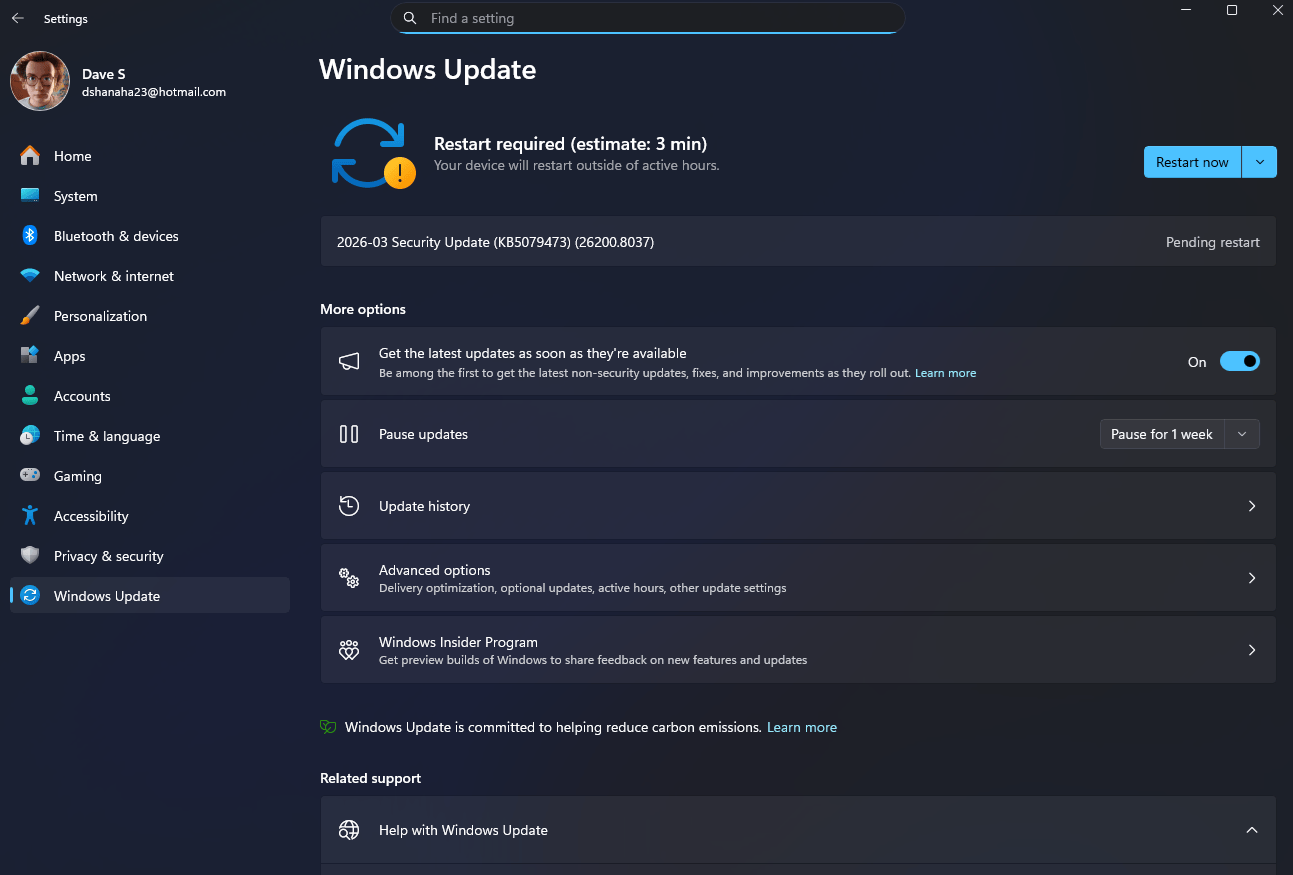
KB5079473 bumps Windows 11 25H2 to build 26200.8037 and 24H2 to 26100.8037, while KB5078883 raises 23H2 to build 22631.6783. Microsoft describes both as security cumulative updates that will roll out automatically via Windows Update on most consumer PCs over time, unless updates are paused or controlled by an administrator.
KB5079473 & KB5078883: what’s new at a glance
Microsoft’s March cumulative updates build on the feature work that started with the February KB5077241 preview and earlier February LCUs, carrying those changes forward to more devices as part of the ongoing security and quality rollup. On newer Windows 11 versions (25H2/24H2), that means you’re getting the already‑announced front‑end quality‑of‑life improvements plus this month’s security fixes, while 23H2 primarily sees security and reliability fixes with a narrower set of visible changes.
According to Microsoft’s documentation and early changelog analysis, these March updates continue the Secure Boot certificate refresh and various platform hardening efforts, while the more eye‑catching user‑facing tweaks—like the taskbar network speed test, Start menu account entry, in‑box Sysmon, and UI polish—remain tied to the February feature wave on supported builds
Taskbar network speed test: still a Bing shortcut, now broadly shipped

On Windows 11 25H2 and 24H2 devices that already picked up February’s feature wave, the March KB5079473 update continues to roll out Microsoft’s new taskbar network speed test as one of the most visible user‑facing additions. After installing the earlier feature updates (and now KB5079473), right‑clicking the Wi‑Fi or Ethernet icon in the system tray surfaces a “Perform speed test” entry that launches your default browser to a Bing‑hosted internet speed test powered by Ookla’s Speedtest backend.
Microsoft is rolling this out as one of the headline user‑facing features across supported Windows 11 builds. After installing KB5079473 or KB5078883, right‑clicking the Wi‑Fi or Ethernet icon in the system tray surfaces a “Perform speed test” entry that launches your default browser to a Bing‑hosted internet speed test powered by Ookla’s Speedtest backend.
It’s not a native, always‑on bandwidth monitor, but a very convenient shortcut:
-
One click from the taskbar opens a full ping/download/upload test in your browser.
-
The same button also appears inside Quick Settings under Wi‑Fi or cellular on many devices.
Power users can fairly point out that you could always just type “speed test” into a browser, but having it one right‑click away on every Windows 11 machine is a genuine quality‑of‑life upgrade for casual users trying to figure out whether the problem is their PC, their router, or their ISP.
Start menu, camera controls, and Sysmon in‑box
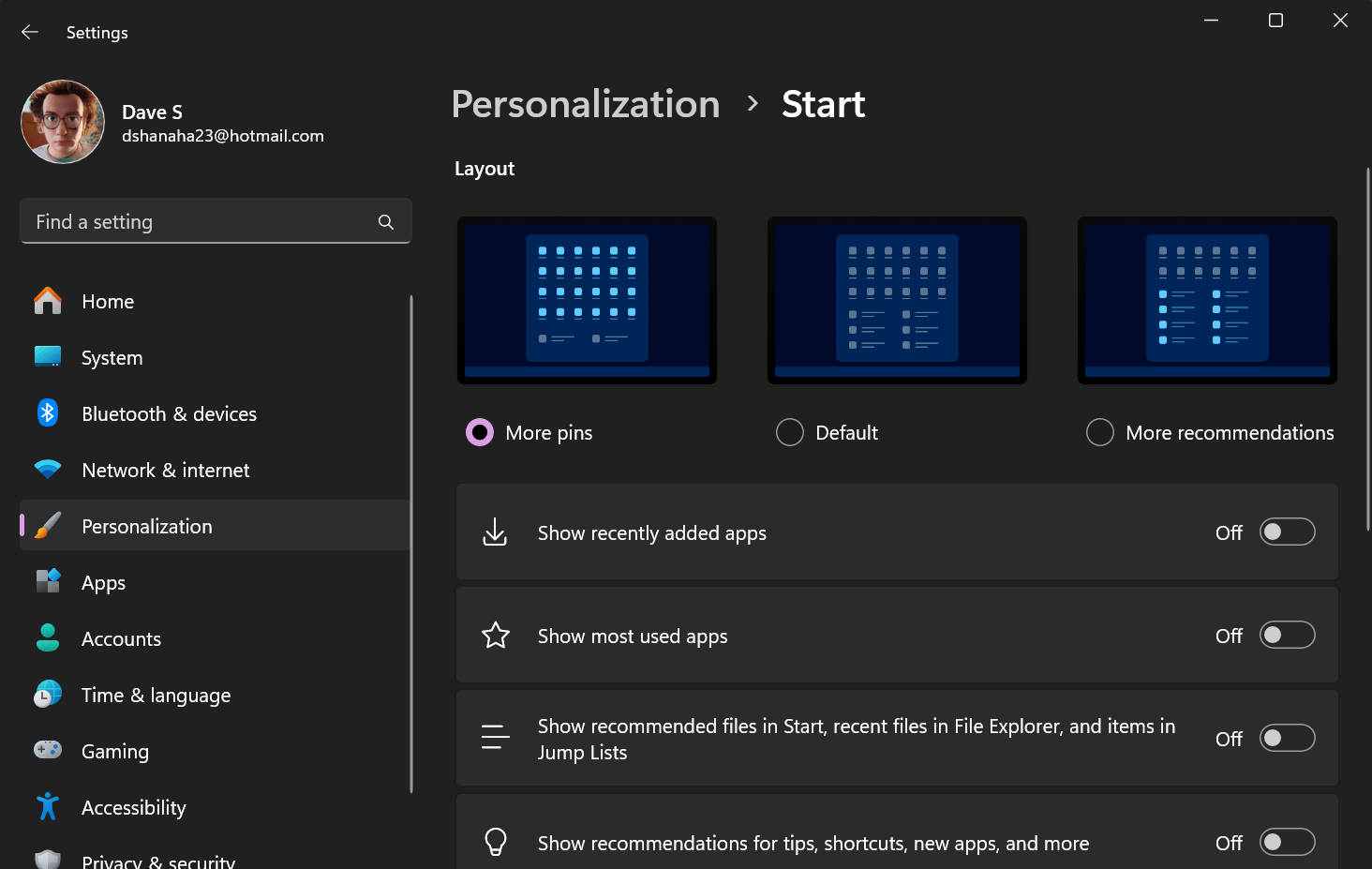
These March updates also carry over several quality‑of‑life improvements that were tested earlier in the year.
-
Start menu tweaks for Microsoft account users
Microsoft is quietly tuning the Start menu with a new entry aimed at users signed in with a Microsoft account, surfacing a clearer path to manage account benefits, subscriptions, and identity directly from Start. It reinforces the role of the Start menu as a hub for cloud‑connected account features rather than just a local launcher. -
Camera pan and tilt controls in Settings
If you use an external webcam or a display with a built‑in motorized camera, Windows 11 now exposes pan and tilt controls directly in the Camera section of the Settings app on supported devices. That means you can adjust framing from Windows without relying on OEM utilities, which is a nice win for hybrid workers and streamers juggling multiple setups. -
Sysmon becomes an in‑box Windows feature
A big win for admins: Sysmon, previously a separate Sysinternals download, is now an in‑box component that you can enable via Settings > System > Optional features > More Windows features or with DISM/PowerShell. This reduces deployment friction and makes it easier to standardize endpoint telemetry for threat hunting across large fleets.
UI polish: File Explorer, Settings, printing, and display
KB5079473 and KB5078883 ship a long list of refinements to core Windows experiences.
Highlights called out in the documentation and early coverage include:
-
File Explorer
-
More reliable opening of new File Explorer windows using Shift‑click or middle‑click on the taskbar icon.
-
New Extract all option on the File Explorer command bar when browsing supported non‑ZIP archive folders.
-
More reliable device discovery on the Network page.
-
-
Storage & Settings UI
-
Modernized dialogs in Storage Settings with more consistent design and spacing, plus better performance when scanning for temporary files.
-
Additional design clean‑up across Windows Update and other Settings areas to keep marching away from legacy UI.
-
-
Printing service
-
Performance improvements to the Windows printing service (spoolsv.exe) to reduce slowdowns during heavy print jobs.
-
-
Task Manager & visuals
-
The Windows Search process now uses a magnifier icon in Task Manager, making it clearer what that process is.
-
Improved visual consistency for the auto‑hidden taskbar, Windows Security credential prompts, and the print dialog.
-
-
Display and resume from sleep
-
Reduced resume‑from‑sleep time on heavily loaded systems and better reliability for docked laptops resuming with the lid closed and connected to AC.
-
Together, these tweaks add up to a smoother, more coherent Windows 11 experience—especially if you live in Settings, File Explorer, or print a lot from your PC.
Quick Machine Recovery and admin‑focused changes

On the resilience and admin side, the March 2026 updates meaningfully extend some previously Home‑only capabilities and deepen Entra integration.
-
Quick Machine Recovery (QMR) enabled by default on more Pro devices
Quick Machine Recovery—Microsoft’s fast rollback and refresh capability—is now automatically enabled for Windows 11 Professional devices that are not domain‑joined and not enrolled in enterprise management. These PCs now get the same recovery features that Home users enjoy, making it easier for freelancers and small businesses to recover from bad updates, drivers, or apps without deep troubleshooting. -
First sign‑in restore via Windows Backup for Organizations
The first sign‑in restore experience is now integrated into Windows Backup for Organizations, automatically restoring user settings and Microsoft Store apps on Entra hybrid‑joined devices, Cloud PCs, and multi‑user environments. This gives IT a more consistent, predictable setup flow during refreshes, upgrades, and migrations. -
Better Microsoft Entra ID readability
Windows 11 continues to refine how it handles Microsoft Entra ID: group and role SIDs can now be resolved to readable names more consistently, which makes security auditing and troubleshooting less cryptic on Entra‑joined systems.
Emoji 16, ARM64 RSAT, Defender tweaks, and Secure Boot
There are also a few “fun” and deeply technical bits sprinkled into this Patch Tuesday.
-
Emoji 16 and small UX touches
Windows 11 picks up Emoji 16, adding new characters like face with bags under eyes, fingerprint, leafless tree, root vegetable, harp, shovel, and splatter. It’s not life‑changing, but it keeps Windows current with the latest emoji set. -
ARM64 RSAT
Admins running ARM64 hardware can now install Remote Server Administration Tools (RSAT) from Optional features or “More Windows features,” bringing ARM devices closer to parity with x64 for on‑the‑go management. -
Windows Defender Application Control (WDAC)
Microsoft says these updates improve how WDAC handles COM objects, allowing listing policies to work more reliably and tightening application control in security‑sensitive environments. -
Secure Boot certificate refresh
Both KB5079473 and KB5078883 continue Microsoft’s phased rollout of updated Secure Boot certificates ahead of older ones expiring in June 2026, using “high‑confidence device targeting data” to increase coverage. More legacy devices—especially those shipping with early Secure Boot certs—should quietly receive updated certificates, hardening the boot chain without user interaction.
How to get KB5079473 and KB5078883
The March 2026 Patch Tuesday updates are available now via Windows Update, Windows Update for Business, WSUS, and the Microsoft Update Catalog.
-
On Windows 11, go to Settings > Windows Update > Check for updates and install the 2026‑03 Security Update that matches your version (KB5079473 for 25H2/24H2, KB5078883 for 23H2).
-
If the automatic install fails, you can grab the .msu installers directly from the Microsoft Update Catalog and install them manually.
For most users, these updates will quietly roll out in the background, but if you’re interested in the new taskbar speed test, in‑box Sysmon, Quick Machine Recovery defaults, or Secure Boot hardening, it’s worth hitting “Check for updates” and rebooting sooner rather than later.
Recent Posts You Might Like
- Microsoft Reveals Powerful Microsoft 365 Copilot Wave 3 With New Agents, Agent 365, and E7 Frontier Suite
- Microsoft’s March 2026 Patch Tuesday Recap: 79+ Fixes, Two Zero‑Days, and Big Windows 11 Improvements
- Microsoft Announces Copilot Cowork: 4 Powerful Ways of Turning AI Chat into Getting Real Work Done
- New (and Old) Games Dropping This Week on Xbox: March 8-14, 2026 – Fatal Frame, Monster Hunter, WWE 2K26 & More!
- How to Use the New Windows 11 Taskbar Internet Speed Test Available Now in the March 2026 Update
Discover more from Microsoft News Now
Subscribe to get the latest posts sent to your email.
