
Updated August 2026: This guide was refreshed to reflect current Microsoft settings, pricing, and terminology.
Microsoft Family Safety is a free set of digital-safety features, separate from a Microsoft 365 Family subscription, designed to help families build healthy digital habits. This guide covers family settings, screen time, content filters, location sharing, and more. Web filtering only works in Microsoft Edge.
Setting up Microsoft Family Safety
Create a Microsoft Family Group
- Sign up or log in: To use Microsoft Family Safety, you need a Microsoft account. If you don’t have one, sign up at the Microsoft account website.

- Download the app: Download the Microsoft Family Safety app from the Google Play Store or Apple App Store. If you have a Windows 10 or Windows 11 PC, you can download the app from the Microsoft Store.

- Add family members: Open the app, sign in, and add family members by entering their email addresses. They will receive an invitation to join your family group.
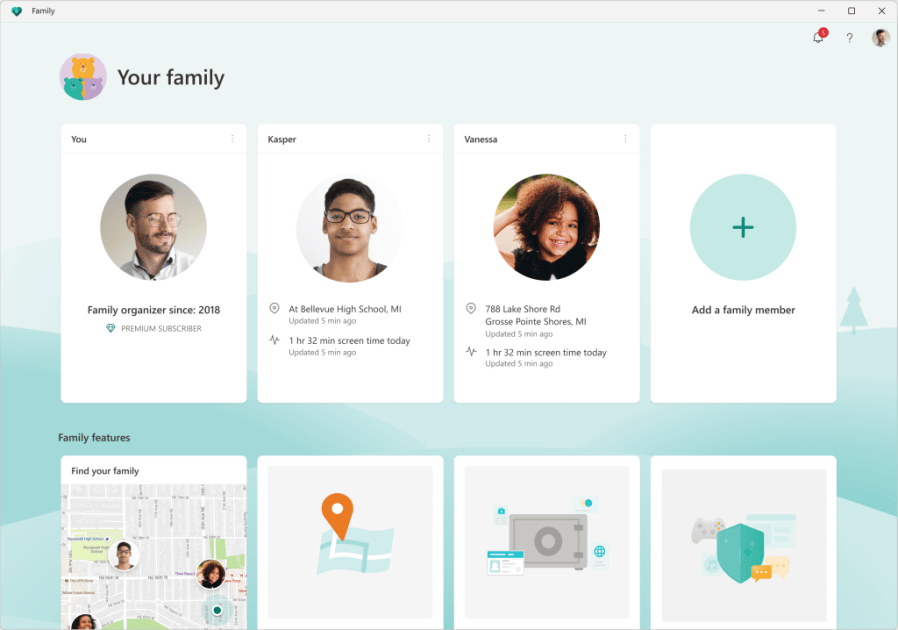

Install on devices
The Microsoft Family Safety app is available on Android and iOS. Screen time works across Windows 10/11, Xbox One/Series X|S, and Android, so make sure family members are signed in with their Microsoft accounts.
Digital content filtering
Web and search filters
- Microsoft Edge requirement: Web and search filtering works only in Microsoft Edge, and the family member must be signed in with their Microsoft account.
- Set up filters in the app: Open Microsoft Family Safety, select a family member, then choose Content filters > Only use allowed websites.
- Manage filters on the web: Sign in, choose Family Safety, select the family member, choose Go to overview, then select Edge > Filter inappropriate websites and searches. Add sites under Blocked sites or Allowed sites, and use Always allow educational websites if you want that exception.
App and game filters
- Set filter restrictions: Open the Microsoft Family Safety app, find your family member, and tap their name. Navigate to the respective platform (Windows/Xbox/Mobile) and tap Set time limits > Apps and games.
- Limit specific apps and games: Turn on ‘App and game limits’ and set the amount of time your family member can spend on each app or game.
Screen time limits
Set up limits
- Access screen time settings: Open the Microsoft Family Safety app, tap the name of the family member you are setting screen time limits for, and go to the respective platform (Windows/Xbox).
- Customize time ranges: Set screen time for each device as desired. Select a day to set time ranges and total hours permitted for device use.
Managing limits
- Adjust schedules: Once a day has been selected, you can apply the changes to other days or every day. Remind family members to sign out when not actively using their devices.
- Turn off limits: To turn limits off, select the family member and then select Turn limits off.
Location sharing
- Enable location sharing: In the Microsoft Family Safety app, you can view family members’ locations anytime, anywhere. Save places and receive location alerts when a family member leaves or arrives at a saved location.
- Privacy considerations: Discuss with your family why location tracking is being used and how it can help in emergencies.
Managing Microsoft Family Safety settings
Accessing settings
- Family Safety dashboard: Sign in to your Microsoft account and select ‘Family Safety’ from the menu on the left to access the dashboard.
- Adjust settings: From here, you can manage screen time, content filters, and view activity reports. You can also add money to your children’s Microsoft accounts and require them to ask permission before making purchases.
Regular updates
- Review and adjust: Regularly review and adjust the settings as needed to ensure they continue to meet your family’s needs.
- Open communication: Encourage open communication with your family members about online safety and adjust settings as necessary.
Troubleshooting
- Common issues: If you encounter issues with family safety features, consult the Microsoft Community forums or the Microsoft Support website for troubleshooting tips.
- Support and feedback: For additional support, you can contact Microsoft directly through the Family Safety app or visit the Microsoft Support website.
Related reading: You can also learn about setting up Xbox Family Settings, get tips for securing your Microsoft account, or explore setting up separate Windows 11 accounts for each family member.
By following this guide and utilizing the resources provided by Microsoft, you can create a safer and healthier digital environment for your family. Remember to keep the dialogue open with your family members about the importance of online safety and to regularly review and update your settings to adapt to your family’s changing needs.
Download the Microsoft Family Safety app for Android or iOS from the links below.
Download the Microsoft Family Safety app from the Google Play Store Apple App Store. If you have a Windows 10 or Windows 11 PC, you can download the app from the Microsoft Store.
Discover more from Microsoft News Now
Subscribe to get the latest posts sent to your email.