
If you play Game Pass titles or PC games on Windows 11, XBOX Game Bar is one of those features most people accidentally open once and immediately close. With a bit of setup, though, it’s actually a really solid built‑in recorder and performance overlay.

This guide walks through enabling XBOX Game Bar, recording your first clip, and finding where Windows 11 hides the files so you can share them on XBOX, Discord, or socials.
1. Turn on XBOX Game Bar in Settings

- Press Windows key + I to open Settings.
- Click Gaming in the left sidebar.
- Select XBOX Game Bar.
- Make sure Open XBOX Game Bar using this button on a controller (or similar toggle) is turned On.
- Optionally, head to Gaming > Captures and enable Record what happened if you want background recording.

This ensures Game Bar actually responds when you hit the keyboard shortcut or tap the XBOX button on your controller.
2. Open XBOX Game Bar while in a game
- Launch any game on your Windows 11 PC.
- Press Windows key + G to open the XBOX Game Bar overlay.

- You’ll see widgets for Capture, Audio, Performance, and more.


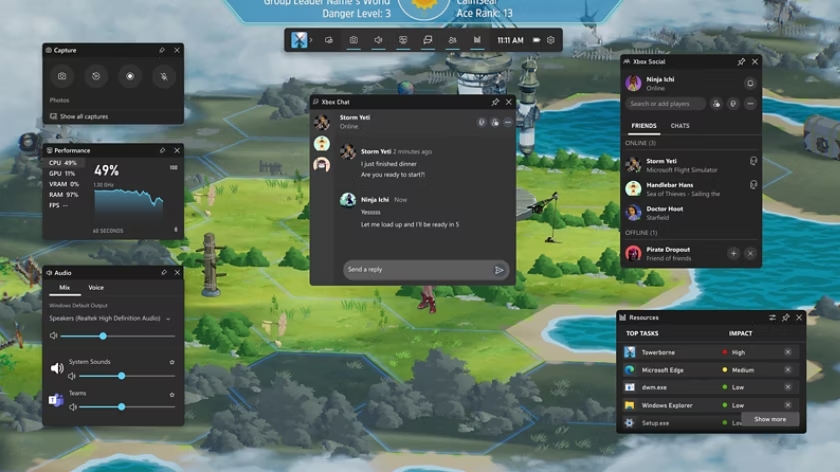
If nothing happens when you press Windows + G, double‑check that Game Bar is enabled in Settings and that your keyboard shortcut hasn’t been remapped.
3. Record your first game clip
- With the overlay open, click the Capture widget.
- Hit the Record button or press Windows key + Alt + R to start recording.
- Play your game as usual.
- Press Windows key + Alt + R again to stop.
For “instant replay” style clips, if you enabled Record what happened, you can use Windows key + Alt + G to grab the last 30 seconds of gameplay.
4. Find your saved clips on disk
By default, Windows saves clips here:
- Open File Explorer.
- Go to This PC > Videos > Captures.
- Your Game Bar recordings and screenshots will be in that Captures folder.


You can change this location in Settings > Gaming > Captures and click Open Folder if you’d rather save to another drive, which is handy if you’re working with a smaller SSD. From there, you can move the folder to any location you want.

5. Bonus: Use Game Bar as a performance overlay
For your more hardcore readers:
- Open Game Bar with Windows key + G.
- Open the Performance widget (shown below).

- Pin it so it stays visible during gameplay to monitor FPS, CPU, and GPU usage.


It’s a nice lightweight way to troubleshoot stutters without installing third‑party overlays.
XBOX Game Bar on Windows 11
Once you’ve got XBOX Game Bar set up, recording clips and keeping an eye on performance becomes something you do without thinking about it. Instead of fumbling with third‑party tools, you can grab highlights, check FPS, and share moments with friends using the tools already built into Windows 11.
Give these steps a try during your next Game Pass session, and keep an eye on msftnewsnow.com for more quick Windows and XBOX tips and guides like this.
Discover more from Microsoft News Now
Subscribe to get the latest posts sent to your email.